- JavaScript DOM Manipulation
- Examining the
documentobject- 1.
documentproperties are NOT read-only. They can be changed. - 2.
documenthas reference toheadandbody: - 3. Just like other elements, it has event listeners:
- 4.
document.allis an HTML collection (array-like structure). It contains a reference to all the elements on the page in the order they are written - 5. Fetching forms, images, scripts, links, etc from
document. Returns an HTML Collection (array-like structure).
- 1.
- JavaScript Selectors and Their Properties & Methods (Fetching DOM Elements)
- 1. Fetch Element by ID (
getElementById(<id>)): - 2. Fetch Elements by Class (
getElementsByClassName(<className>)): - 3. Fetch Elements by Tag Name (
getElementsByTagName(<tagName>)): - 4. Fetch Elements by Using Query Selector (
querySelector(<css-Selector>)): - 5. Fetch All Elements by Using Query Selector All (
querySelectorAll(<css-Selector>)):
- 1. Fetch Element by ID (
- Traversing the DOM
- Creating New Elements and Inserting into DOM
- Adding Event Listeners
DOMContentLoadedvsjQuery.readyvsload
- Examining the
- Javascript.info DOM & BOM (Part 2)
My notes from a 4 part crash course on the DOM and its manipulation using JS (Traversy Media Youtube channel). It also includes additional information based on MDN and StackOverFlow resources.
Link to the Playlist on Youtube
Missing content from the above listed course has been covered by the following ones:
- NetNinja JS DOM Playlist
- The Modern JavaScript Tutorial - Part 2: Browser: Document, DOM, Interfaces
console.dir(document); // View inside the object (its methods & props)
console.log(document); // View the inner HTML
console.log(document.domain);  // Domain name of the site/page
console.log(document.URL); // Entire URL of the page
console.log(document.doctype); // Ex: '<!DOCTYPE html>'

console.log(document.title); // Prints the title of the page (whatever is present inside <title> tags)
// If <title> changes then document.title will reflect the change too.
document.title = 123;
console.log(document.title); // 123 (& text inside <title> also changes)
console.log(document.head);
console.log(document.body);
document.onkeypress = function() {
    console.log(1); // Logs 1 every time a key is pressed
};
4. document.all is an HTML collection (array-like structure). It contains a reference to all the elements on the page in the order they are written
console.log(document.all);
console.log(document.all[10]); // Ex: <h1 class="hdr"><h1>
document.all[10].
    = 'Hello'; // Again, it is NOT read-only
console.log(document.all[10]); // Ex: <h1 class="hdr">Hello<h1>
Any element added to the DOM gets referenced in document.all. It is not a good practice to use document.all to fetch or edit elements since their positions (indices) will change when elements are added or deleted.
5. Fetching forms, images, scripts, links, etc from document. Returns an HTML Collection (array-like structure).
console.log(document.forms); // gets all the forms in the order they appear
console.log(document.scripts); // gets all the scripts in the order they appear
console.log(document.links); // gets all the links in the order they appear
console.log(document.images); // gets all the images in the order they appear
var headerTitle = document.getElementById('header-title');
console.log(headerTitle); // <h1 id="header-title">Item Lister <span>123</span></h1>
console.log(headerTitle.textContent); // "Item Lister 123"
console.log(headerTitle.innerText); // "Item Lister"
headerTitle.innerHTML = '<h3>Hello</h3>';
console.log(headerTitle); // <h1 id="header-title"><h3>Hello</h3></h1>
Difference between textContent and innerText: The former will output the text of all the child elements also (concatenated) but the latter outputs only the text of the outer (selected) element.
Differences between textContent and innerText
innerHTML replaces the HTML inside the selected element with what is supplied. outerHTML replaces the selected element itself (the whole element).
textContent, innerText, innerHTML, and outerHTML act as both setters and getters. If we supply a value, it sets it. If we do not assign but use/return these properties, we will have access to their values.
Note: Changing Styles (CSS). We use the style property on the DOM element(s) (selected). We need to use camel case for the CSS properties (since '-' cannot be used within property names). The styles are added to the style attribute of the element(s).
// syntax: <selectedElement(s)>.style.<cssPropertyInCamelCase> = '<property rule(RHS)>';

var header = document.getElementById('main-header');
header.style.borderBottom = '1px solid #0d426c';
var items = document.getElementsByClassName('list-group-item'); // Fetches all '.list-group-item' elements
console.log(items); // lists all the matched DOM elements (as an HTMLCollection)
console.log(items[1]); // Lists the second DOM element that was matched (0 based index)

items[1].style.backgroundColor = '#FF0'; // Change background color of 2nd matched item to '#FF0'
items[2].textContent = 'I am third on the list'; // Changes text of the 3rd matched element
console.log(items[2].textContent); // 'I am the third on the list'

items.style.backgroundColor = '#C00'; // Error! 'items' is an HTMLCollection of DOM elements (not DOM itself)
Note:
- DOM element properties such as
textContent,innerText,innerHTML,outerHTMLetc can be used upon any selected DOM element, it does not matter if it was selected using id/class/any other method. - Adding/Fetching common properties from all elements of an HTMLCollection: We have to loop through the elements of the collection (collection comes with a
lengthproperty). Every index contains a DOM element upon which we can work (Useful for methods that return a collection of DOM elements, such asgetElementsByClassName).
var items = document.getElementsByClassName('list-group-item');
for(var i = 0; i < items.length; i++) {
	items[i].style.fontStyle = 'italic';
}
It is very similar to getElementsByClassName but it selects all elements of a certain type (i.e by html tags).
var li = document.getElementsByTagName('li'); // Fetches all 'li' tag elements
console.log(li); // lists all the matched DOM list elements (as an HTMLCollection)
console.log(li[1]); // Lists the second DOM list element that was matched (0 based index)

li[1].style.backgroundColor = '#FF0'; // Change background color of 2nd matched list item to '#FF0'
li[2].textContent = 'I am third on the list'; // Changes text of the 3rd matched list element
console.log(li[2].textContent); // 'I am the third on the list'

// li.style.backgroundColor = '#C00'; // Error! 'items' is an HTMLCollection of DOM elements (not DOM itself)

// Applying/fetching common properties/methods on all list items:
var li = document.getElementsByClassName('li');
for(var i = 0; i < li.length; i++) {
	li[i].style.fontStyle = 'italic';
}
querySelector() is very similar to jquery's $() or jquery(). That is, it takes in CSS selectors as input ('#', '.', '[]', etc). The difference between this and $() is that $() selects all the matching elements (like an HTMLCollection) but querySelector() matches only one element (first match). Therefore, querySelector() returns a DOM element(not HTMLCollection), similar to getElementById.
var header = document.querySelector('#main-header');
header.style.color = '#0d426c';

var input = document.querySelector('input'); // Will select only the 1st input (even if there are more)
input.value = 'Hello World'; // We
Note: Accessing Attributes of DOM Elements (set & get):
We can access attributes of a DOM element with the attribute name (using the 'dot' reference). Syntax: <DOMElement>.<Attribute> (get) and <DOMElement>.<Attribute> = <Value>; (set).
var submit = document.querySelector('input[type="submit"]'); // selects only the submit input (if there is only one)
submit.value = 'SEND';
We can use Pseudo Selectors to match the exact element with querySelector() (Not just the first match):
var item = document.querySelector('.list-group-item'); // gets only the first item
item.style.color = 'red'; // changes

// Pseudo selectors last-child, first-child and nth-child(n):
var lastItem = document.querySelector('.list-group-item:last-child');
lastItem.style.color = 'blue';

var secondItem = document.querySelector('.list-group-item:nth-child(2)');
secondItem.style.color = 'green';
This, again, is similar to $() and querySelector(). The difference is that it returns a list of matched elements (Not just the first match like in querySelector()). But, it is not the same as $() since it returns a NodeList. The NodeList is an array (not HTMLCollection) because we can invoke array methods like reverse() on it (not just length property).
$(): ReturnsObjectquerySelector(): Returns a DOM element (first match)getElementById(): Returns a DOM elementgetElementsByClassName()&getElementsByTagName(): ReturnsHTMLCollectionobject(array-like).querySelectorAll(): Returns aNodeList(An Array).
var titles = document.querySelectorAll('.title');
console.log(titles); // logs a NodeList containing all the matched DOM elements
titles[0].textContent = 'Hello';
A more useful example:
var odd = document.querySelectorAll('li:nth-child(odd)');
var even = document.querySelectorAll('li:nth-child(even)');
for(var i = 0; i < odd.length; i++) {
	odd[i].style.backgroundColor = '#dfe1e8';
	even[i].style.backgroundColor = '#ccc';
}
Sample HTML for the examples that follow:
<body>
  <header id="main-header" class="bg-success text-white p-4 mb-3">
    <div class="container">
      <h1 id="header-title">Item Lister <span style="display:none">123</span></h1>
    </div>
  </header>
  <div class="container">
   <div id="main" class="card card-body">
    <h2 class="title">Add Items</h2>
    <form class="form-inline mb-3">
      <input type="text" class="form-control mr-2">
      <input type="submit" class="btn btn-dark" value="Submit">
    </form>
    <h2 class="title">Items</h2>
    <ul id="items" class="list-group">
      <li class="list-group-item">Item 1</li>
      <li class="list-group-item">Item 2</li>
      <li class="list-group-item">Item 3</li>
      <li class="list-group-item">Item 4</li>
    </ul>
    <span></span>
   </div>
  </div>

  <script src="dom.js"></script>
</body>
We can use the parentNode property that comes with every element. Also, this property can be chained in order to fetch the ancestors.
var itemsList = document.querySelector('#items');
console.log(itemsList.parentNode); // parent of '#items' element is '#main' element

itemsList.parentNode.style.backgroundColor = '#f4f4f4'; // parent node is a DOM too!

itemsList.parentNode.parentNode; // returns '.container' DOM element
itemsList.parentNode.parentNode.parentNode; // returns 'body' DOM element
Alternative to parentNode: parentElement
parentElement is new to Firefox 9 and to DOM4, but it has been present in all other major browsers for ages.
In most cases, it is the same as parentNode:
var itemsList = document.querySelector('#items');
console.log(itemsList.parentElement); // parent of '#items' element is '#main' element

itemsList.parentElement.style.backgroundColor = '#f4f4f4'; // parent node is a DOM too!

itemsList.parentElement.parentElement; // returns '.container' DOM element
itemsList.parentElement.parentElement.parentElement; // returns 'body' DOM element
The only difference comes when a node's parentNode is not an element. If so, parentElement is null:
document.body.parentNode; // the <html> element
document.body.parentElement; // the <html> element

document.documentElement.parentNode; // the document node
document.documentElement.parentElement; // null
Since the <html> element (document.documentElement) doesn't have a parent that is an element, parentElement is null. (There are other, more unlikely, cases where parentElement could be null, but you'll probably never come across them.)
Use parentNode for all practical purposes.
childNodes property of an element returns a list of all the child nodes (as a NodeList) in the order they appear.
var itemsList = document.querySelector('#items');
console.log(itemsList.childNodes); // all child nodes including text nodes.
// Ex: (9) [text, li.list-group-item, text, li.list-group-item, text, li.list-group-item, text, li.list-group-item, text]
The problem with childNodes is that it will return even text nodes. For example, if there is space (or newline or tab) between child elements, they are also returned as an element of the list.
Alternative to childNodes: children
children returns only the HTML elements and not text nodes. The difference, however, is that it is an HTMLCollection (and not a NodeList).
var itemsList = document.querySelector('#items');
console.log(itemsList.children); // html collection of all child elements (excluding text nodes)
console.log(itemsList.children[1]); // log the second child
itemsList.children[1].style.backgroundColor = 'yellow'; // every childElement is a DOM element as well.
Use children for all practical purposes.
Fetching specific child nodes:
- Fetching the First Child Node:
- Use
firstChildbut this will again return a text node (say, space/newline) if it is the first child. - Therefore, use
firstElementChildproperty instead (Will always match an element node and not text).
- Use
var itemsList = document.querySelector('#items');
console.log(itemsList.firstChild); // '> #text'
console.log(itemsList.firstElementChild); // logs the first child of '#items'
itemsList.firstElementChild.style.backgroundColor = 'teal'; // first element child is a DOM element too!
- Fetching the Last Child Node:
- Use
lastChildbut this will again return a text node (say, space/newline) if it is the last child. - Therefore, use
lastElementChildproperty instead (Will always match an element node and not text).
- Use
var itemsList = document.querySelector('#items');
console.log(itemsList.lastChild); // '> #text' (the last text before tag close)
console.log(itemsList.lastElementChild); // logs the first child of '#items'
itemsList.lastElementChild.style.backgroundColor = 'red'; // last element child is a DOM element too!
- To fetch the next sibling, use
nextSiblingbut once again, it has a drawback - matches text nodes also. Therefore, usenextElementSiblinginstead! - To fetch the previous sibling, use
previousSiblingbut again, it has a drawback - matches text nodes also. Therefore, usepreviousElementSiblinginstead!
var itemsList = document.querySelector('#items');
console.log(itemsList.nextSibling); // '> #text'
console.log(itemsList.nextElementSibling); // logs '<span></span>' DOM element
console.log(itemsList.previousSibling); // '> #text'
console.log(itemsList.previousElementSibling); // logs '<h2 class="title">Items</h2>' DOM element
itemsList.previousElementSibling.style.backgroundColor = '#f4f4f4'; // nextElementSibling & previousElementSibling are DOM elements too!
- Use
document.createElement()method. It creates the HTML element specified by tagName. - Set
classname andidto created nodes withclassNameandidproperties (get/set).
var newDiv = document.createElement('div');
console.log(newDiv); // <div></div>

newDiv.className = 'header-info';
console.log(newDiv); // <div class="header-info"></div>

newDiv.id = 'subheader';
console.log(newDiv); // <div class"header-info" id="subheader"></div>
We can set and get attributes for any DOM element using setAttribute(<attr-name>, <attr-value>) and getAttribute(<attr-name>).
newDiv.setAttribute('title', 'List of items');
console.log(newDiv); // <div class"header-info" id="subheader" title="List of items"></div>
newDiv.getAttribute('title'); // "List of items"
Two other ways to set and get attributes:
// 1. Dot method: Only if property name does not contain dashes/spaces/etc.
newDiv.customAttr = 'Hi';
console.log(newDiv); // Does not show customAttr in the log (Since customAttr is a "property" (not attr.))
console.log(newDiv.customAttr); // "Hi"

// 2. Square Bracket Notation: Works in any case:
newDiv['newAttr'] = 'bye';
console.log(newDiv); // Does not show newAttr in the log (Since customAttr is a "property" (not attr.))
console.log(newDiv['newAttr']); // "bye"
Note:
- To set the
classof the element, you have to useclassNameas attribute name instead. - Properties vs Attributes: Attributes are defined by HTML. Properties are defined by DOM. Some HTML attributes have 1:1 mapping onto properties.
idis one example of such. But, custom attributes that we add are actually "properties". Hence,customAttrandnewAttrabove were properties.
Use document.createTextNode(<text>).
var text = document.createTextNode('Listing items');
text.textContent; // Listing items
newDiv.appendChild(text);
console.log(newDiv); // <div class"header-info" id="subheader">Listing items</div>
Use <parentElement>.insertBefore(<newelementtoinsert>, <existingnode>). It places the new element before the existing node within that parent.
var container = document.querySelector('header .container');
var h1 = document.querySelector('header h1');
container.insertBefore(newDiv, h1); // inserts newDiv inside 'header .container' and before 'header h1'.
Note:
- There is no
Node.insertAfter()DOM function in Javascript (jQuery has it). ParentNode.prepend(nodesToPrepend);is like an alternative to appendChild(). It is experimental, only available in new DOM versions (do not use it just yet).
We can remove a child node by calling removeChild on its parent node. (appendChild() & removeChild() can be used together)
var mainHeader = document.querySelector('#main-header .container'),
	headerTitle = document.getElementById('header-title');
mainHeader.removeChild(headerTitle);
The child element must be a direct child of the parent node.
Handling click, hover, blur, etc events on DOM elements.
We can have an attribute, say onclick, on the DOM element and pass it either some JS expression to execute or a JS function to handle it.
<button id="button" onclick="hey()">Click me<button> <!-- calls some JS function 'hey' when clicked -->
<button id="new-button" onclick="alert(1)">Annoy yourself<button> <!-- Alerts 1 every time you click -->
We want to keep markup and functionality separate (so method 1 should not be used, ideally). addEventListener is a method on an HTML element which accepts two parameters: (a) Event type (string) and (b) Callback function (reference to it). It can have an optional third parameter.
var button = document.getElementById('button');
button.addEventListener('click', function() { // Setting function expression as callback
    console.log('You clicked me!');
});

// We can also use the function handle/reference:
button.addEventListener('mouseover', hoverHandler);
function hoverHandler() {
    console.log('Try clicking me');
}
Note:
Whenever an event occurs, an event object holds the details to it. This events object is passed to our callback function (listener) as the first parameter. We can name it anything we want but it's usually e or event. We can log it to see all its properties.
One of the most important properties of the event object is target which holds the DOM element that caused the event to get triggered (target of the event).
// <button id="button" class="btn btn--s">Click me</button>
var button = document.getElementById('button');
button.addEventListener('click', function(e) {
	console.log(e); // Ex: '> MouseEvent {isTrusted: true, clientX: 294, clientY: 365, …}
	console.log(e.target); // Ex: Logs the '#button' DOM element
    console.log(e.target.id); // "button" (target is just like any other DOM element!)
    console.log(e.target.className); // 'btn btn--s' (the whole string of class attribute)
});
Note:
- If you want to access the class names "one-by-one" then you should use the
classListproperty of a DOM element. This returns an array where each element is a class name.
console.log(e.target.classList); // Ex: ["btn", "btn-dark", "btn-block", value: "btn btn-dark btn-block"]
List of all the events (reference): MDN Page
Note 1: More event properties:
e.typewill tell us what event occurred (Ex: 'click' for aclickevent).e.clientXwill give the mouse x-axis position for that event from thewindow.e.clientYwill give the mouse y-axis position for that event from thewindow.e.offsetXwill give the mouse x-axis position for that event from the current DOM elemente.target.e.offsetYwill give the mouse y-axis position for that event from the current DOM elemente.target.
var button = document.getElementById('button');
button.addEventListener('click', function(e) {
	console.log(e.clientX, e.clientY); // Ex: 459 339
	console.log(e.offsetX, e.offsetY); // Ex: 352 -1
	console.log(e.type); // click
});
Note 2: Checking if alt, ctrl or shift keys were pressed during the event (Useful if we want to implement a different functionality for a click):
e.altKey:trueif alt key was pressed during event.e.ctrlKey:trueif ctrl key was pressed during event.e.shiftKey:trueif shift key was pressed during event.
var button = document.getElementById('button');
button.addEventListener('click', function(e) {
	console.log(e.altKey);
	console.log(e.ctrlKey);
	console.log(e.shiftKey);
});
Note 3: Mouse events:
click(Single click)dblclick(Double click)mousedown(Similar to click but triggered as soon as the mouse is pressed)mouseup(Similar to click but triggered only when a pressed mouse is released)mouseenter(Triggered when mouse enters target element - not triggered for entering child elements)mouseover(Triggered when mouse enters target element - triggered for entering child elements also)mouseleave(Triggered when mouse leaves target element - not triggered when leaving child elements)mouseout(Triggered when mouse leaves target element - triggered when leaving child elements also)mousemove(Triggered whenever the mouse moves inside the target element. So as long as we are moving the mouse inside the element, it keeps getting triggered. We can usee.clientX,e.offsetY, etc to get mouse position)
Check the differences with these examples:
// <div id="box" style="width: 500px; height: 300px">
//     <h1>Hello</h1>
// </box>
var box = document.getElementById('box');
box.addEventListener('mouseenter', logEvent);
box.addEventListener('mouseover', logEvent);
function logEvent(e) {
	console.log(e.type);
}
// <div id="box" style="width: 500px; height: 300px">
//     <h1>Hello</h1>
// </box>
var box = document.getElementById('box');
box.addEventListener('mouseleave', logEvent);
box.addEventListener('mouseout', logEvent);
function logEvent(e) {
	console.log(e.type);
}
mousemove event example:
var box = document.getElementById('box');
box.addEventListener('mousemove', changePageColor);
function changePageColor(e) {
	console.log(e.type);
	console.log(e.offsetX, e.offsetY);
	document.body.style.backgroundColor = 'rgb(' + e.offsetX + ', ' + e.offsetY + ', 40)';
}
Note 3: Input & Keyboard events:
Input & Keyboard events usually go together since we type into the inputs and forms.
The keyboard events are as follows:
keydown(Triggered when key is pressed down)keyup(Triggered when pressed key is released)keypress(Triggered once when key is pressed)
var input = document.querySelector('input[type="text"]');
input.addEventListener('keypress', logEvent);
function logEvent(e) {
	console.log(e.type, e.keyCode, String.fromCharCode(e.keyCode));
    if(String.fromCharCode(e.keyCode) === 'a') {
        console.log('You pressed "a"');
    }
}
e.keyCode will return a numeric value which is a map to a character.
If you want the ASCII character from the code, use String.fromCharCode(e.keyCode) (calling a function directly from the String prototype which converts numeric key to corresponding ASCII character.
The input box events are as follows:
focus(Triggered when you click into the input - brings input into focus (if not already focused))blur(Triggered when you click out of the input and it was in focus prior to it)change(Triggered when value inside input changes(edited). Gets triggered when you change some text and click out of the input (i.e blur))cut(Triggered when you cut some text from input)cut(Triggered when you copy some text from input)paste(Triggered when you paste something into the input)input(Triggered whenever any of the above input events, except focus and blur, are triggered.
var input = document.querySelector('input[type="text"]');
input.addEventListener('focus', logEvent);
input.addEventListener('blur', logEvent);
function logEvent(e) {
	console.log(e.type);
}
var input = document.querySelector('input[type="text"]');
input.addEventListener('change', logEvent);
function logEvent(e) {
	console.log(e.type);
	console.log(e.target.value);
}
var input = document.querySelector('input[type="text"]');
input.addEventListener('cut', logEvent);
input.addEventListener('copy', logEvent);
input.addEventListener('paste', logEvent);
function logEvent(e) {
	console.log(e); // logged as ClipboardEvent
	console.log(e.type); // cut or copy or  paste

	var clipboardData = e.clipboardData || window.clipboardData; // window.clipboardData is like backup(?)
    console.log(clipboardData.getData('Text')); // works only with paste
}
// Another copy example:
document.addEventListener('copy', function(e){
    e.clipboardData.setData('text/plain', 'Hello, world!');
    e.clipboardData.setData('text/html', '<b>Hello, world!</b>');
    e.preventDefault(); // We want our data, not data from any selection, to be written to the clipboard
});
Note 4: Select Input (Dropdown) events:
The usual input events get triggered for a select (dropdown) element too (Whichever is applicable). The most common event that we will be needing is the change event. Whenever a different dropdown <option> is chosen from the <select>, the change event gets triggered. The selected value is accessible with e.target.value.
var select = document.querySelector('select');
select.addEventListener('change', logEvent);
function logEvent(e) {
	console.log(e.type, e.target.value); // logs: change <value-of-selected-input>

}
Note 5: Form Submit event:
Whenever a form submit happens (click on input[type="submit"] button), we can listen to it by attaching a handler to the submit event of that form.
A point to note is that the form's default action is to submit the form to the specified page (if page is the same, it reloads). We do not want this behavior in the submit event listener, especially if we are going to submit the form ourselves (via ajax).
Use e.preventDefault() to stop the default action from occurring (For form it is submit to specified page, for links it is to open the specified page, etc.)
var form = document.querySelector('form');
form.addEventListener('submit', logEvent);
function logEvent(e) {
	e.preventDefault(); // if this was not there, default behavior of form submit takes place
	console.log(e.type);
}
e.preventDefault() vs e.stopPropagation() vs return false;
e.preventDefault()– It stops the browsers default behaviour.event.stopPropagation()– It prevents the event from propagating (or “bubbling up”) the DOM (To either unexecuted event listeners on the same DOM element or to the event listeners of the parent/ancestors (bubbling)).return false;- Does bothe.preventDefault()andevent.stopPropagation(). It also stops current callback execution and returns immediately when called.
The above are different page load triggers (ready is a jquery utility; listed for comparison).
MDN Definition of DOMContentLoaded:
The DOMContentLoaded event is fired when the initial HTML document has been completely loaded and parsed, without waiting for stylesheets, images, and subframes to finish loading. A very different event load should be used only to detect a fully-loaded page. It is an incredibly popular mistake to use load where DOMContentLoaded would be much more appropriate, so be cautious.
Synchronous JavaScript pauses parsing of the DOM. Maybe we can place our script at the end of the body or use async or defer attributes. jQuery(document).ready().
MDN Definition of load:
The load event is fired when a resource and its dependent resources have finished loading.
jQuery.ready / DOMContentLoaded occurs when all of the HTML is ready to interact with, but often before its been rendered to the screen.
The load event occurs when all of the HTML is loaded, and any subresources like images are loaded.
Most Often, to work with HTML elements, we wait for the DOM to be parsed (HTML constructed) and then do all our computation:
window.addEventListener('DOMContentLoaded', function(){
    // Fetch , add, append, remove, add listeners, etc.
});

// jQuery equivalent code:
jQuery.ready(function(){
  document.querySelector('#my-awesome-el').innerHTML = new Date
});
// OR
$(function(){
  document.querySelector('#my-awesome-el').innerHTML = new Date
});
Run When All Images And Other Resources Have Loaded:
window.addEventListener('load', function(){
  // Everything has loaded!
});
Note: load event need not be called only on the window (calling it on window makes sure to execute callback only after all the resources have finished loading). We can call it on a specific element as well (For example, we can call it on an <img> DOM element, waiting for it to load).
document.querySelector('img.my-image').addEventListener('load', function(){
  // The image is ready!
});
Note: Changes you make in your JavaScript code often don't actually render to the page immediately. In the interest of speed, the browser often waits until the next event loop cycle to render changes. Alternatively, it will wait until you request a property which will likely change after any pending renders happen. If you need that rendering to occur, you can either wait for the next event loop tick or request a property which is known to trigger a render of anything pending:
el.offsetHeight // Trigger render

// el will have rendered here
A host environment provides platform-specific objects and functions additionally to the language core.
In the browser, there is a “root” object called window. It has two roles:
- It is a global object for JavaScript code.
- It represents the “browser window” and provides methods to control it.

The document object gives access to the page content. We can change or create anything on the page using it.
The first version was “DOM Level 1”, then it was extended by DOM Level 2, then DOM Level 3, and now it’s DOM Level 4.
Note:
- DOM is not only for browsers. For example, server-side tools that download HTML pages and process them. They may support only a part of the DOM specification though.
- CSSOM for styling. CSSOM is rarely required, because usually CSS rules are static.
Browser Object Model (BOM) are additional objects provided by the browser (host environment) to work with everything except the document.
navigatorobject provides background information about the browser and the operation system.navigator.userAgent– about the current browser, andnavigator.platform– about the platform (can help to differ between Windows/Linux/Mac etc.locationobject allows to read the current URL and redirect the browser to a new one. Ex:location.href = 'https://wikipedia.org'; // redirect the browser to another URL }- Functions
alert/confirm/prompt/setTimeoutare also a part of BOM: not related to the document, but represent pure browser methods of communicating with the user.
MOZILLA RESOURCE FOR JS, DOM, & BOM
- Every HTML-tag is an object. Tags are called element nodes (or just elements)
- Nested tags are called “children” of the enclosing one.
- The text inside a tag it is an object as well. A text node contains only a string. It may not have children and is always a leaf of the tree.
- All these objects are accessible using JavaScript.
The DOM represents HTML as a tree structure of tags.
Text Nodes: (#text)
- Spaces and newlines – are totally valid characters, they form text nodes and become a part of the DOM.
- There are two top-level text node exclusions:
- Spaces and newlines before
<head>are ignored. - If we put something after
</body>, then that is automatically moved inside the body (Applies to non-text nodes also). So there may be no spaces after</body>.
- Spaces and newlines before
Browser Autocorrection: (#comment)
- If the browser encounters malformed HTML, it automatically corrects it when making DOM.
- The top tag is always
<html>. Even if it doesn’t exist in the document – it will be in DOM, the browser will create it. The same about<body>. Example: if the HTML file is a single word "Hello", the browser will wrap it into<html>and<body>, add the required<head>. <table>must have<tbody>according to specs, but HTML text may (officially) omit it. Then the browser creates<tbody>in DOM automatically.- Everything in HTML, even
<!-- -->"comments" (#comment), becomes a part of DOM.
Summary: There are 12 node types. In practice we usually work with 4 of them:
document– the “entry point” into DOM.- element nodes – HTML-tags, the tree building blocks.
- text nodes – contain text.
- comments – sometimes we can put the information there, it won’t be shown, but JS can read it from DOM.
A picture depicting links to traverse DOM:
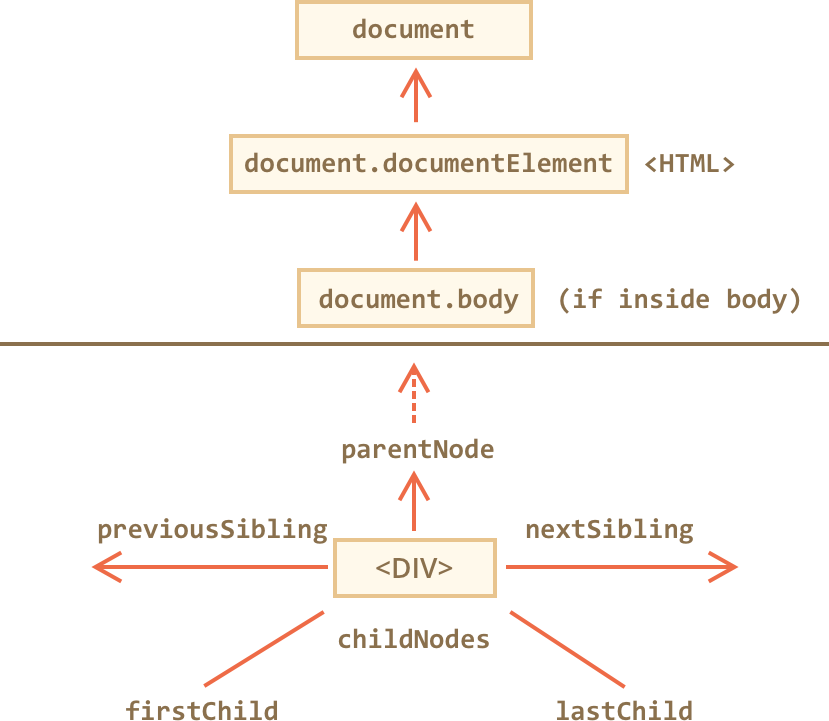
Important Mappings:
<html>=document.documentElement<body>=document.body<head>=document.head(Not shown in diagram)
The body element does not exist until it is parsed by browser:
<html>

<head>
  <script>
    alert( "From HEAD: " + document.body ); // null, there's no <body> yet (Doesn't exist)
  </script>
</head>

<body>

  <script>
    alert( "From BODY: " + document.body ); // HTMLBodyElement, now it exists
  </script>

</body>
</html>
- The
childNodescollection (an HTMLCollection) provides access to all child nodes, including text nodes.
<html>
<body>
  <div>Begin</div>

  <ul>
    <li>Information</li>
  </ul>

  <div>End</div>

  <script>
    for (let i = 0; i < document.body.childNodes.length; i++) {
      alert( document.body.childNodes[i] ); // Text, DIV, Text, UL, ..., SCRIPT
    }
  </script>
  ...more stuff...
</body>
</html>
- Properties
firstChildandlastChildgive fast access to the first and last children.
elem.childNodes[0] === elem.firstChild
elem.childNodes[elem.childNodes.length - 1] === elem.lastChild
- Check if a Node has Child Nodes:
elem.hasChildNodes()checks whether there are any child nodes.
A Note On HTMLCollections:
- They are "array-like" but not arrays. It will have a
lengthproperty though. - Other array methods won’t work (Ex:
filter), because it’s not an array. - DOM collections are read-only.
childNodes[i] = ....will not replace it (error!). - Important DOM collections are "live" - reflect the current state of DOM. For example, If we keep a reference to
elem.childNodes, and add/remove nodes into DOM, then they appear in the collection automatically. - Don’t use
for..into loop over collections. Thefor..inloop iterates over all enumerable properties. And collections have some “extra” rarely used properties that we usually do not want to get. - We can use
for..ofto iterate over it:
for (let node of document.body.childNodes) {
  alert(node); // shows all nodes from the collection
}
That’s because it’s iterable (provides the Symbol.iterator property, as required).
Converting HTMLCollections to Actual Array:
We can use Array.from to create a “real” array from the collection, if we want array methods:
document.body.childNodes.filter; // undefined (there's no filter method!)
Array.from(document.body.childNodes).filter; // now it's there
Siblings are nodes that are children of the same parent. For instance, <head> and <body> are siblings:
The next node in the same parent (next sibling) is nextSibling, and the previous one is previousSibling.
The parent is available as parentNode.
For instance:
 <html><head></head><body><script>
  // HTML is "dense" to evade extra "blank" text nodes.

  // parent of <body> is <html>
  alert( document.body.parentNode === document.documentElement ); // true

  // after <head> goes <body>
  alert( document.head.nextSibling ); // HTMLBodyElement

  // before <body> goes <head>
  alert( document.body.previousSibling ); // HTMLHeadElement
</script></body></html>
Element-only Navigation:
For many tasks we don’t want text or comment nodes. We want to manipulate element nodes that represent tags and form the structure of the page.

| Node Navigation | Element Navigation |
|---|---|
parentNode |
parentElement |
childNodes |
children |
firstChild |
firstElementChild |
lastChild |
lastElementChild |
previousSibling |
previousElementSibling |
nextSibling |
nextElementSibling |
parentNode vs parentElement (An Exception):
// <html> element parent node (document) is not an element.
alert( document.documentElement.parentNode ); // document
alert( document.documentElement.parentElement ); // null
Apart from the links to parent, child, siblings, etc. some elements have additional links.
<table>has the following:table.rows– the collection of<tr>elements of the table.table.caption/tHead/tFoot– references to elements<caption>,<thead>,<tfoot>.table.tBodies– the collection of<tbody>elements (can be many according to the standard).
<thead>,<tfoot>,<tbody>elements provide the rows property:tbody.rows– the collection of<tr>inside.
<tr>has the following:tr.cells– the collection of<td>and<th>cells inside the given<tr>.tr.sectionRowIndex– the number of the given<tr>inside the enclosing<thead>/<tbody>tr.rowIndex– the number of the<tr>in the table.
<td>and<th>have:td.cellIndex– the number of the cell inside the enclosing<tr>.
document.getElementById(id): The id must be unique. There can be only one element in the document with the given id. (Note: Onlydocument.getElementById, notanyNode.getElementByIdbecause the methodgetElementByIdcan be called only on document object. It looks for the given id in the whole document.)elem.getElementsByTagName(tag)looks for elements with the given tag and returns the collection of them. The tag parameter can also be a star "*" for “any tags”. This method is callable in the context of any DOM element.elem.getElementsByClassName(className)returns elements that have the given CSS class. Elements may have other classes too.document.getElementsByName(name)returns elements with the given name attribute, document-wide (Rarely used). Again,getElementsByNamecan be called only on document object.
getElementsByTagName(tag), getElementsByClassName(className), and getElementsByName(name) return a collection (HTMLCollection), not an element!
elem.querySelectorAll(css)returns all elements inside elem matching the given CSS selector (most often used and powerful method).elem.querySelector(css)returns the first element for the given CSS selector. In other words,elem.querySelectorAll(css)[0] === querySelector(css)
querySelectorAll(css) returns a NodeList object - It is again an "array-like" structure but is not the same as an HTMLCollection.
Checking if an element matches a CSS selector:
elem.matches(css) to check if elem matches the given CSS selector. It returns true or false.
if (elem.matches('a[href$="zip"]')) {
  alert("The archive reference: " + elem.href );
}
Getting the closest ancestor matching a CSS selector:
The method elem.closest(css) looks the nearest ancestor that matches the CSS-selector. The elem itself is also included in the search.
<h1>Contents</h1>

<div class="contents">
  <ul class="book">
    <li class="chapter">Chapter 1</li>
    <li class="chapter">Chapter 1</li>
  </ul>
</div>

<script>
  let chapter = document.querySelector('.chapter'); // LI

  alert(chapter.closest('.book')); // UL
  alert(chapter.closest('.contents')); // DIV

  alert(chapter.closest('h1')); // null (because h1 is not an ancestor)
</script>
Checking if an element contains another element:
elemA.contains(elemB) returns true if elemB is inside elemA (a descendant of elemA) or when elemA == elemB. elemB need not be an immediate child of elemA but can be a descendant of it for the method to return true.
Important:
- All methods "getElementsBy*" (
getElementsByClassName,getElementsByTagName,getElementsByName) return a live collection. Such collections always reflect the current state of the document and “auto-update” when it changes
<div>First div</div>

<script>
  let divs = document.getElementsByTagName('div');
  alert(divs.length); // 1
</script>

<div>Second div</div>

<script>
  alert(divs.length); // 2
</script>
querySelectorAllreturns a static collection. It’s like a fixed array of elements.
<div>First div</div>

<script>
  let divs = document.querySelectorAll('div');
  alert(divs.length); // 1
</script>

<div>Second div</div>

<script>
  alert(divs.length); // 1
</script>
Summary
| Method | Searches by... | Can call on an element? | Live? |
|---|---|---|---|
| getElementById | id | - | - |
| getElementsByName | name | - | ✔ |
| getElementsByTagName | tag or * | ✔ | ✔ |
| getElementsByClassName | class | ✔ | ✔ |
| querySelector | CSS-selector | ✔ | - |
| querySelectorAll | CSS-selector | ✔ | - |

DOM nodes have different properties depending on their class. Ex: <a> and <input> have different properties (href vs name/type).
EventTarget– is the root “abstract” class. Objects of that class are never created. It serves as a base. But, it has an important functionality, that is, it gives support for events.Node– is also an “abstract” class, serving as a base for DOM nodes. It provides the core tree functionality:parentNode,nextSibling,childNodesand so on (they are getters). Objects of this class are also never created.Text,ElementandCommentClasses inherit from it.Element– is a base class for DOM elements. It provides element-level navigation likenextElementSibling,childrenand searching methods likegetElementsByTagName,querySelector. It's a base class for different kind of elements (SVGElement,XMLElementandHTMLElement).HTMLElement– is finally the basic class for all HTML elements. It is inherited by various HTML elements(HTML*Element):HTMLInputElement– the class for<input>elements,HTMLBodyElement– the class for<body>elements,HTMLAnchorElement– the class for<a>elements- ... and so on.
Example of inheritance:
<input> element inherits from HTMLInputElement, HTMLElement, Element, Node, EventTarget, and finally Object which is a pure JS Object class (gives methods like hasOwnProperty, etc).
An object usually has the constructor property. It references to the class constructor, and constructor.name is its name:
document.body.constructor.name; // f HTMLBodyElement() [The function]
document.body.__proto__; // > HTMLBodyElement [The function's prototype object]
alert( document.body instanceof HTMLBodyElement ); // true
alert( document.body instanceof HTMLElement ); // true
alert( document.body instanceof Element ); // true
alert( document.body instanceof Node ); // true
alert( document.body instanceof EventTarget ); // true
DOM nodes are regular JavaScript objects. They use prototype-based classes for inheritance.
Note:
documentis an instance ofHTMLDocumentclass.HTMLDocumentinherits fromDocumentclass which inherits fromNodeclass.
alert(HTMLDocument.prototype.constructor.name); // HTMLDocument
alert(HTMLDocument.prototype.__proto__.constructor.name); // Document
alert(HTMLDocument.prototype.__proto__.__proto__.constructor.name); // Node
Note: console.dir(elem) versus console.log(elem)
console.log(elem)shows the element DOM tree.console.dir(elem)shows the element as a DOM object, good to explore its properties.
nodeTypeproperty provides an old-fashioned way to get the “type” of a DOM node. It has a numeric value.
elem.nodeType === 1; // element nodes,
elem.nodeType === 3; // text nodes, ... so on.
tagNameproperty exists only for Element nodes.nodeNameis defined for any Node: for elements it means the same astagName. For other node types (text, comment etc) it has a string with the node type.
<body><!-- comment -->

  <script>
    // for comment
    alert( document.body.firstChild.tagName ); // undefined (not element)
    alert( document.body.firstChild.nodeName ); // #comment

    // for document
    alert( document.tagName ); // undefined (not element)
    alert( document.nodeName ); // #document

    alert( document.body.nodeName ); // BODY`
    alert( document.body.tagName ); // BODY`
  </script>
</body>
innerHTML(getter & setter) allows to get/set the HTML inside the element as a string.- If innerHTML inserts a
<script>tag into the document – it doesn’t execute. - Browser fixes broken HTML in string before insertion.
- If innerHTML inserts a
alert( document.body.innerHTML ); // read the current contents
document.body.innerHTML = 'The new BODY!'; // replace it
Caution: Appending using innerHTML+=:
- The old content is removed.
- The new innerHTML is written instead (a concatenation of the old and the new one).
- All images and other resources will be reloaded (hopefully they are cached).
- Other side-effects: mouse selected text is gone, input fields cleared.
chatDiv.innerHTML += "<div>Hello<img src='smile.gif'/> !</div>";
chatDiv.innerHTML += "How goes?";

elem.innerHTML += "...";
// is a shorter way to write:
elem.innerHTML = elem.innerHTML + "..."
outerHTML(getter & setter) does not change the element. Instead, it replaces it as a whole in the outer context.outerHTMLassignment does not modify the DOM element, but extracts it from the outer context and inserts a new piece of HTML instead of it.- We can get a reference to new elements by querying DOM again.
<div>Hello, world!</div>

<script>
  let div = document.querySelector('div');

  // replace div.outerHTML with <p>...</p>
  div.outerHTML = '<p>A new element!</p>'; // (*)

  // Wow! The div is still the same!
  alert(div.outerHTML); // <div>Hello, world!</div>
</script>
- Text & Comment Node Values:
nodeValueanddata(almost identical). Usedata.
<body>
  Hello
  <!-- Comment -->
  <script>
    let text = document.body.firstChild;
    alert(text.data); // Hello

    let comment = text.nextSibling;
    alert(comment.data); // Comment
  </script>
</body>
textContent: (Getter & Setter) Gets only the text inside an element (minus the<tags>).- If text to be set contains html tags, it is put in as text only (innerHTML would have parsed it).
textContentis much more useful, because it allows to write text the “safe way”.
<div id="news">
  <h1>Headline!</h1>
  <p>Martians attack people!</p>
</div>

<script>
  // Headline! Martians attack people!
  alert(news.textContent);
</script>
<!-- Run it and see! -->
<div id="elem1"></div>
<div id="elem2"></div>

<script>
  let name = prompt("What's your name?", "<b>Winnie-the-pooh!</b>");

  elem1.innerHTML = name;
  elem2.textContent = name;
</script>
value– the value for<input>,<select>and<textarea>(HTMLInputElement,HTMLSelectElement, ...)href– the “href” for<a href="...">(HTMLAnchorElement).id– the value of “id” attribute, for all elements (HTMLElement).- ETC..
<input type="text" id="elem" value="value">

<script>
  alert(elem.type); // "text"
  alert(elem.id); // "elem"
  alert(elem.value); // value
</script>
Most common attributes of an element becomes its property. Ex: If the tag is <body id="page">, then the DOM object has body.id="page". But, the mapping is not 1:1 between attrs. & props.
DOM properties and methods behave just like those of regular JavaScript objects. We can add properties and methods to DOM objects and invoke them.
document.body.myData = {
  name: 'Caesar',
  title: 'Imperator'
};

alert(document.body.myData.title); // Imperator

// ------

document.body.sayHi = function() {
  alert(this.tagName);
};

document.body.sayHi(); // BODY (the value of "this" in the method is document.body)

// ------

Element.prototype.sayHi = function() {
  alert(`Hello, I'm ${this.tagName}`);
};

document.documentElement.sayHi(); // Hello, I'm HTML
document.body.sayHi(); // Hello, I'm BODY
When browser reads/parses the HTML, it identifies attributes of elements.
There can be two types of attributes:
- "Standard Attributes" -
typefor<input>,hreffor<a>, etc. - Non-standard Attributes - Custom attributes, mismatched attributes & types (
typefor<a>), etc.
When an element has a standard attribute, the corresponding property gets created. But that doesn’t happen if the attribute is non-standard.
<body id="test" something="non-standard">
  <script>
    alert(document.body.id); // test
    // non-standard attribute does not yield a property
    alert(document.body.something); // undefined
  </script>
</body>
All attributes (std and non-std) are accessible using following methods:
elem.hasAttribute(name)– checks for existence.elem.getAttribute(name)– gets the value.elem.setAttribute(name, value)– sets the value.elem.removeAttribute(name)– removes the attribute.elem.attributes- a collection of objects (attributes) with each object havingnameandvalueproperties (attribute names and values)
<body something="non-standard">
  <script>
    alert(document.body.getAttribute('something')); // non-standard
  </script>
</body>
HTML attributes have following features:
- Their name is case-insensitive (that’s HTML:
idis same asID). - They are always strings.
Property-attribute synchronization:
- In most cases, when a standard attribute changes, the corresponding property is auto-updated (& vice-versa).
- There are exceptions, like
input.valuesynchronizes only from attribute → to property, but not back (attribute not updated if property is changed). - Attribute names are case-insensitive while property names are case-sensitive.
- Important HTML Attributes are always strings but DOM properties need not be only strings:
- For instance, input.checked property (for checkboxes) is boolean
- The style attribute is a string, but style property is an object
- Even if a DOM property type is a string, it may differ from the corresponding attribute!
<input id="input" type="checkbox" checked> checkbox

<script>
  alert(input.getAttribute('checked')); // the attribute value is: empty string
  alert(input.checked); // the property value is: true
</script>
<div id="div" style="color:red;font-size:120%">Hello</div>

<script>
  // string
  alert(div.getAttribute('style')); // color:red;font-size:120%

  // object
  alert(div.style); // [object CSSStyleDeclaration]
  alert(div.style.color); // red
</script>
<!-- href DOM property is always a full URL, even if the attribute contains a relative URL or just a #hash. -->
<a id="a" href="#hello">link</a>
<script>
  // attribute
  alert(a.getAttribute('href')); // #hello

  // property
  alert(a.href ); // full URL in the form http://site.com/page#hello
</script>
Using non-standard attributes may pollute the global space and in case some attribute name gets standardized later in the DOM, there will be conflicts between attributes.
Therefore, DOM provides us with data-* prefixed attributes. All attributes starting with “data-” are reserved for programmers’ use. They are available in dataset property.
Example:
- If an elem has an attribute named "data-about", it’s available as
elem.dataset.about. - Multiword attributes like
data-order-statebecome camel-cased:dataset.orderState. - Using
data-*attributes is a valid, safe way to pass custom data.
<body data-about="Elephants">
<div data-order-state="new"></div>
<script>
  alert(document.body.dataset.about); // Elephants
alert(order.dataset.orderState); // new
</script>
1. Creating An Element:
- Creating a tag element:
document.createElement(tag) - Creating a text node:
document.createTextNode(text)
Properties can be added to the created element (Note that class property is added via className).
let div = document.createElement('div');
div.className = "alert alert-success";
div.innerHTML = "<strong>Hi there!</strong> You've read an important message.";
2. Inserting A (Newly Created) Element (Using Parent Element):
parentElem.appendChild(node): Appends node as the last child of parentElem.parentElem.insertBefore(node, nextSibling): Inserts node before nextSibling into parentElem.parentElem.replaceChild(node, oldChild): Replaces oldChild with node among children of parentElem.
All these methods return the inserted node.
Examples:
list.appendChild(newLi);
list.insertBefore(newLi, list.firstChild);
3. New methods to insert element as Node/String (Old browsers don't support them):
node.append(...nodes or strings)– append nodes or strings at the end of node,node.prepend(...nodes or strings)– insert nodes or strings into the beginning of node,node.before(...nodes or strings)- insert nodes or strings before the node,node.after(...nodes or strings)- insert nodes or strings after the node,node.replaceWith(...nodes or strings)- replaces node with the given nodes or strings.
These methods give us flexibility (appending string or a node).
<ol id="ol">
  <li>0</li>
  <li>1</li>
  <li>2</li>
</ol>

<script>
  ol.before('before');
  ol.after('after');

  let prepend = document.createElement('li');
  prepend.innerHTML = 'prepend';
  ol.prepend(prepend);

  let append = document.createElement('li');
  append.innerHTML = 'append';
  ol.append(append);
</script>

Note:
- These methods can insert multiple list of nodes and text pieces in a single call. (2nd arg, 3rd arg, ...)
- All text is inserted as text. (Safe way - like in
textContent).
<div id="div"></div>
<script>
div.before('<p>Hello</p>', document.createElement('hr'));
</script>
<!-- Final HTML: -->
<p>Hello</p>
<hr>
<div id="div"></div>
4. Inserting string as HTML (and not text):
elem.insertAdjacentHTML(where, html)whereis a string that can be one of the following:"beforebegin"– insert html before elem,"afterbegin"– insert html into elem, at the beginning,"beforeend"– insert html into elem, at the end,"afterend"– insert html after elem.
- The second parameter is an HTML string, inserted “as is”.
Example:
<div id="div"></div>
<script>
  div.insertAdjacentHTML('beforebegin', '<p>Hello</p>');
  div.insertAdjacentHTML('afterend', '<p>Bye</p>');
</script>

<!-- Final HTML: -->
<p>Hello</p>
<div id="div"></div>
<p>Bye</p>

Alternatives for text & nodes:
elem.insertAdjacentText(where, text)– the same syntax, but a string of text in inserted “as text” instead of HTML.elem.insertAdjacentElement(where, elem)– the same syntax, but inserts an element.
5. Cloning Nodes (cloneNode):
- The call
elem.cloneNode(true)creates a “deep” clone of the element – with all attributes and subelements. - If we call
elem.cloneNode(false), then the clone is made without child elements.
<div class="alert" id="div">
  <strong>Hi there!</strong> You've read an important message.
</div>

<script>
  let div2 = div.cloneNode(true); // clone the message
  div2.querySelector('strong').innerHTML = 'Bye there!'; // change the clone

  div.after(div2); // show the clone after the existing div
</script>
6. Removing Nodes:
parentElem.removeChild(node): RemoveselemfromparentElem(assuming it’s a child).node.remove(): Removes thenodefrom its place.
Note: All insertion methods automatically remove the node from the old place.
<div id="first">First</div>
<div id="second">Second</div>
<script>
  // no need to call remove
  second.after(first); // take #second and after it - insert #first
</script>
7. Ancient Methods of Inserting to DOM:
document.write.
<p>Somewhere in the page...</p>
<script>
  document.write('<b>Hello from JS</b>');
</script>
<p>The end</p>
The call to document.write(html) writes the html into page “right here and now”. The html string can be dynamically generated, so it’s kind of flexible. We can use JavaScript to create a full-fledged webpage and write it.
The call to document.write only works while the page is loading. If we call it afterwards, the existing document content is erased. So it’s kind of unusable at “after loaded” stage, unlike other DOM methods we covered above.
<p>After one second the contents of this page will be replaced...</p>
<script>
  // document.write after 1 second
  // that's after the page loaded, so it erases the existing content
  setTimeout(() => document.write('<b>...By this.</b>'), 1000);
</script>
Advantage of document.write:
- Technically, when
document.writeis called while the browser is still reading HTML, it appends something to it, and the browser consumes it just as it were initially there. - That gives us the upside – it works blazingly fast, because there’s no DOM modification. It writes directly into the page text, while the DOM is not yet built, and the browser puts it into DOM at generation-time.
document.write is rarely used now. Only seen in older scripts.
There are generally two ways to style an element:
- Create a class in CSS and add it:
<div class="..."> - Write properties directly into style:
<div style="...">.
CSS is always the preferred way – not only for HTML, but in JavaScript as well. We should only manipulate the style property if classes “can’t handle it”.
For instance, style is acceptable if we calculate coordinates of an element dynamically and want to set them from JavaScript, like this:
let top = /* complex calculations */;
let left = /* complex calculations */;
elem.style.left = left; // e.g '123px'
elem.style.top = top; // e.g '456px'
In the ancient time, there was a limitation in JavaScript: a reserved word like "class" could not be an object property. That limitation does not exist now, but at that time it was impossible to have a "class" property, like elem.class.
So for classes the similar-looking property "className" was introduced: the elem.className corresponds to the "class" attribute.
<body class="main page">
  <script>
    alert(document.body.className); // main page
  </script>
</body>
- If we assign something to
elem.className, it replaces the whole strings of classes. elem.classListis a special object with methods toadd/remove/toggleclasses.classListis iterable.
elem.classList.add/remove("class")– adds/removes the class.elem.classList.toggle("class")– if the class exists, then removes it, otherwise adds it.elem.classList.contains("class")– returnstrue/false, checks for the given class.
<body class="main page">
  <script>
    // add a class
    document.body.classList.add('article');
    alert(document.body.className); // main page article
  </script>
</body>
elem.style is an object that corresponds to what’s written in the "style" attribute.
background-color  => elem.style.backgroundColor
z-index           => elem.style.zIndex
border-left-width => elem.style.borderLeftWidth
For browser-prefixed properties like -moz-border-radius, -webkit-border-radius:
button.style.MozBorderRadius = '5px';
button.style.WebkitBorderRadius = '5px';
Resetting Style Back to CSS Declarations: elem.style.display = "".
If we set display to an empty string, then the browser applies CSS classes and its built-in styles normally, as if there were no such style property at all.
Full Rewrite of Styles: style.cssText (We rarely use it)
// we can set special style flags like "important" here
  div.style.cssText=`color: red !important;
    background-color: yellow;
    width: 100px;
    text-align: center;
  `;
Reading Computed Styles:
- The
styleproperty operates only on the value of the "style" attribute, without any CSS cascade. - So we can’t read anything that comes from CSS classes using
elem.style.
<head>
  <style> body { color: red; margin: 5px } </style>
</head>
<body>

  The red text
  <script>
    alert(document.body.style.color); // empty
    alert(document.body.style.marginTop); // empty
  </script>
</body>
Reading Browser Computed Styles: getComputedStyle(element[, pseudo]) (The result is an object with style properties, like elem.style, but now with respect to all CSS classes.)
<head>
  <style> body { color: red; margin: 5px } </style>
</head>
<body>

  <script>
    let computedStyle = getComputedStyle(document.body);
    // now we can read the margin and the color from it
    alert( computedStyle.marginTop ); // 5px
    alert( computedStyle.color ); // rgb(255, 0, 0)
  </script>
</body>
Note: getComputedStyle requires the full property name. Ex. paddingLeft works but not padding (shorthand).