NLog is a simple, but effective, logger for .NET and .NET Framework. It is simple to configure and use. Nlog is open source and free to use in your commercial applications. It is a very popular Nuget package with more than 5m downloads.
Using NLog, you can easily write entries into a log file. These log files are plain text files. While the entry can be configured in many ways, a simple example of a log entry is:
2026-02-05 12:32:26.1472 | INFO | Index | I am out of coffee!
Where:
- The first section is the date and time.
INFOis the log level.Indexis the class instance (from your AVR app) from which the log entry was written.- The last section of the message is the message text.
This example shows a very minimal way to use NLog with Visual RPG. Check the NLog docs for more detail. There are many interesting ways to configure Nlog.
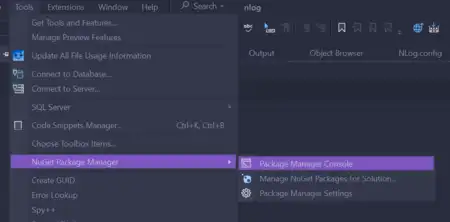
Open Visual Studio's Package Manager Console
Type Install-Package Nlog.Config to install the Nlog Nuget package.
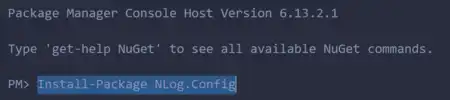
I got several scary-looking errors during the install (when installing from the Package Manager Console) but the installed finished and did work.

Installing NLog puts an NLog.config file in the root of your project. Remove its contents and replace with:
<?xml version="1.0" encoding="utf-8" ?>
<nlog xmlns="http://www.nlog-project.org/schemas/NLog.xsd"
      xmlns:xsi="http://www.w3.org/2001/XMLSchema-instance">
    <targets>
        <!-- Writes logs to a file in the App_Data/Logs folder -->
        <target xsi:type="File"
                name="fileTarget"
                fileName="${basedir}/App_Data/Logs/${shortdate}.log"
                layout="${longdate} | ${level:uppercase=true} | ${logger} | ${message} ${exception:format=tostring}" />
    </targets>

    <rules>
        <!-- Log everything from Info level and higher -->
        <logger name="*" minlevel="Info" writeTo="fileTarget" />
    </rules>
</nlog>
The fileName value provides the filename for the log. The first time your app writes a log entry, the {basedir} in the configuration above, causes the logs to be written to a file named yyyy-mm-dd.log in the /App_Code (from the root of your application.) With this configuration, a unique log is created for each day.
The layout value provides the template for the text written to the log. The rules section is discussed further below in this article.
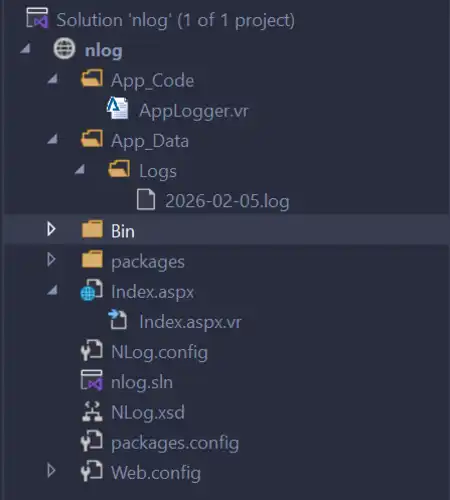
The figure above shows the Solution Explorer view after a log entry has been written. You may need to reload your project the first time a log is created to see the App_Data folder in the Solution Explorer.
Add this using statement:
Using NLog
And add this line to the mainline area of any codebehind aspx.vr file:
DclFld Log Type(NLog.Logger) Access(*Private)
Then, in Page_Load, assign the NLog static instance to Log:
BegSr Page_Load Access(*Private) Event(*This.Load)
	DclSrParm sender Type(*Object)
	DclSrParm e Type(System.EventArgs)

	If (Log = *Nothing)
		Log = NLog.LogManager.GetCurrentClassLogger()
	EndIf
	...
EndSr
This makes a Log instance available to the page with which you can write messages to the log file.
There are probably better ways to make NLog available in your app. You may want to create a helper class for NLog that provides static methods which could easily be used anywhere in your application.
Log.Info("I am out of coffee.")
The line above produces this entry in the log file:
2026-02-05 12:32:26.1472 | INFO | Index | I am out of coffee!
Index shows what class instance active when the log entry was written.
There are six methods for writing to the log; each conveys the level of the log entry.
- Trace: Very detailed logs (typically disabled in production).
- Debug: Debugging information.
- Info: Normal app behavior (Start/Stop/Page Load).
- Warn: Something unexpected happened, but the app is still running.
- Error: Something failed (Exceptions).
- Fatal: The application crashed.
The configuration above sets the minimal log level. In this example it is sent to Info:
<rules>
    <!-- Log everything from Info level and higher -->
	<logger name="*" minlevel="Info" writeTo="fileTarget" />
</rules>
Setting minLevel to Info means that any log entries written to the Info or higher are written to the log. If the minLevel is changed to warn then info level entries are not written to the file.
When you are debugging the app you'll probably want to change the minimum logging to either Debug or Trace.