GUI
Main Menu
Character Selection Menu
Play Screen
Wiki Contents
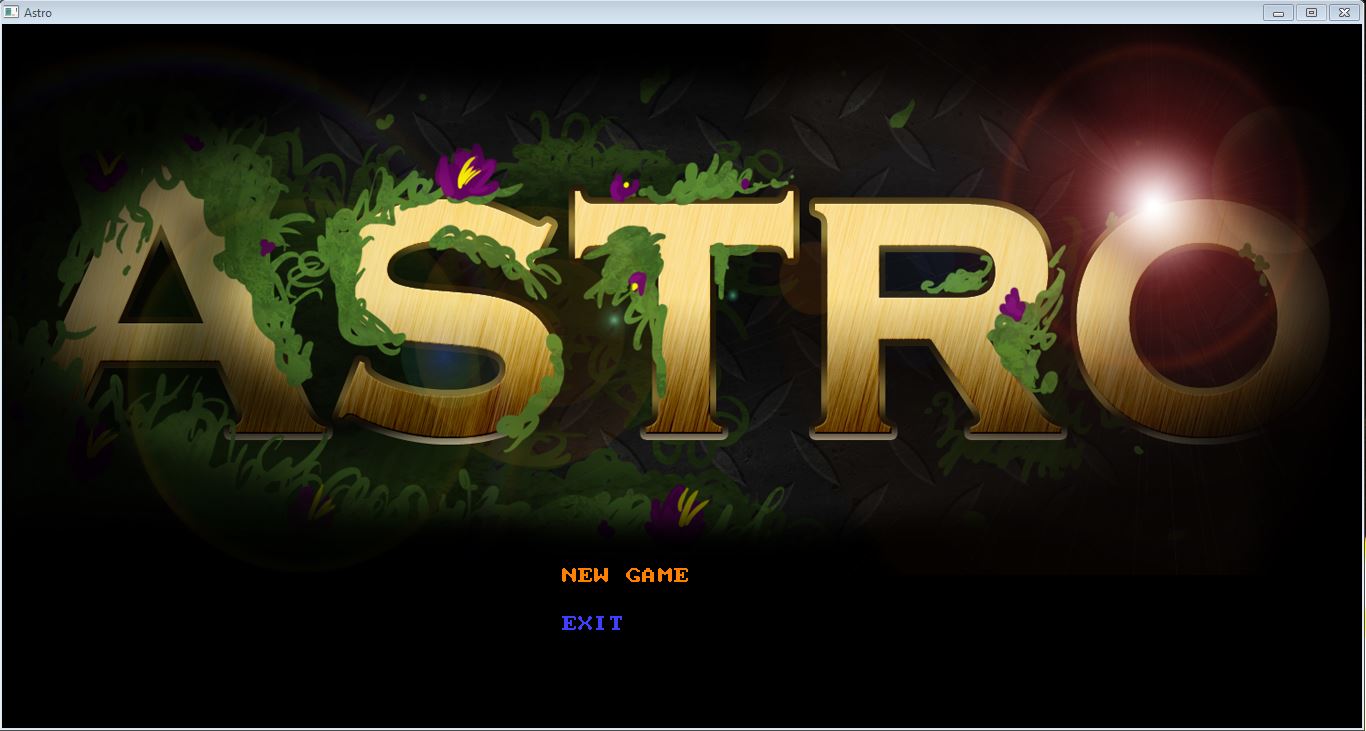
This is the main menu page for Astro. It will allow you to select between different options, depending on what is available. When first running the program, the options are
- New Game which allows you to start exploring the Astroverious
- Exit which will close the program entirely
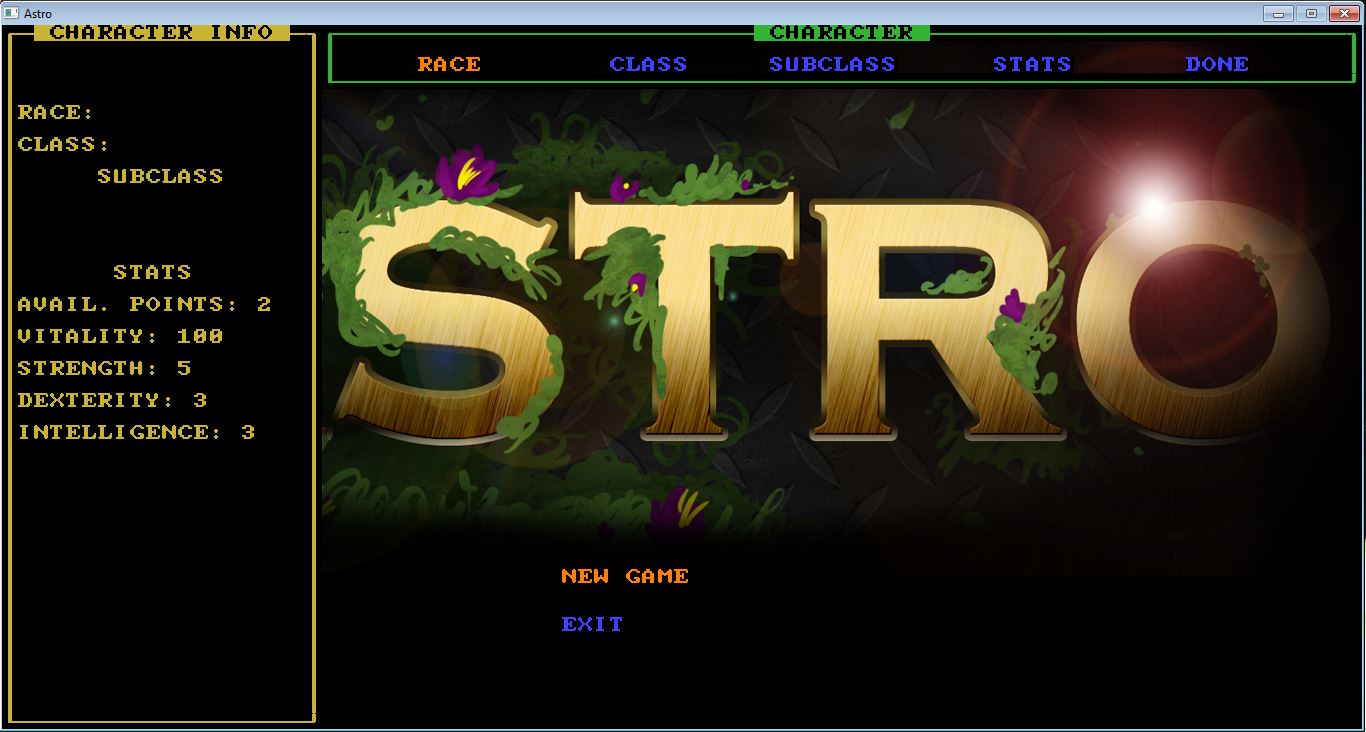
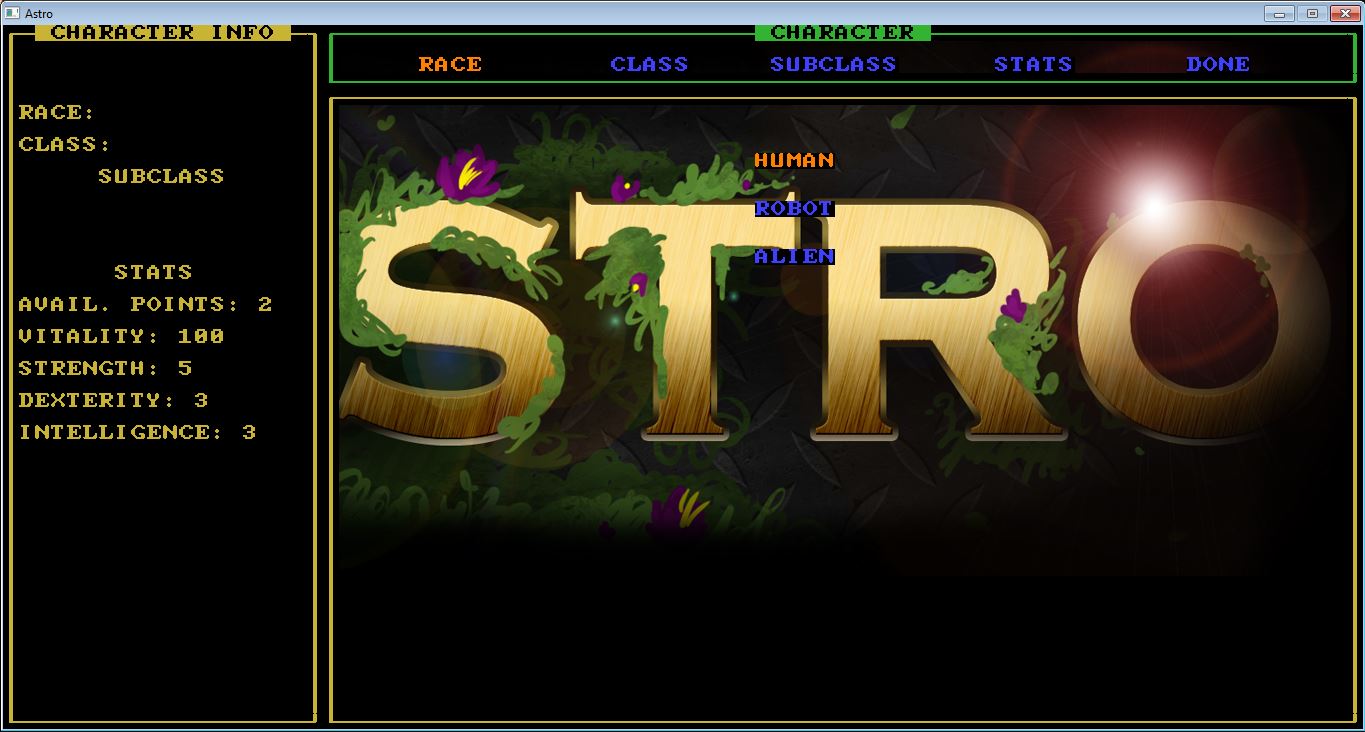
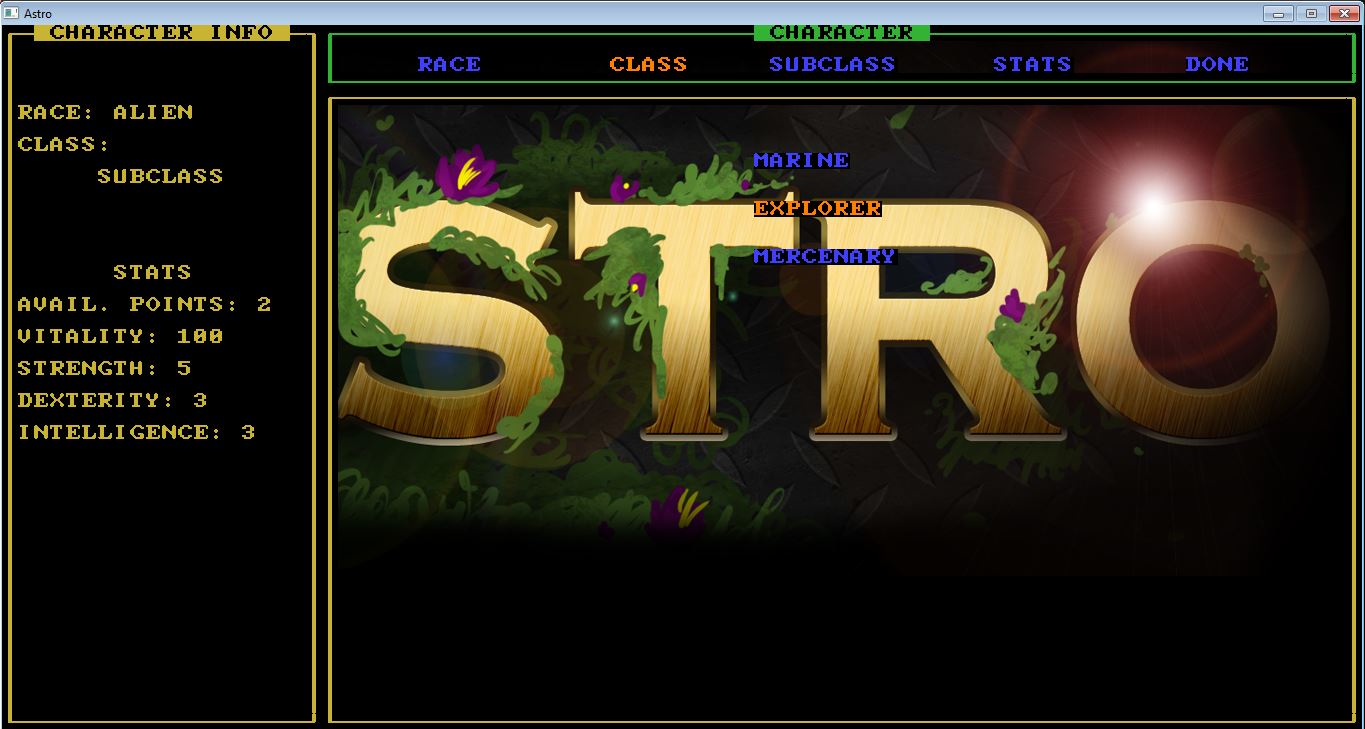
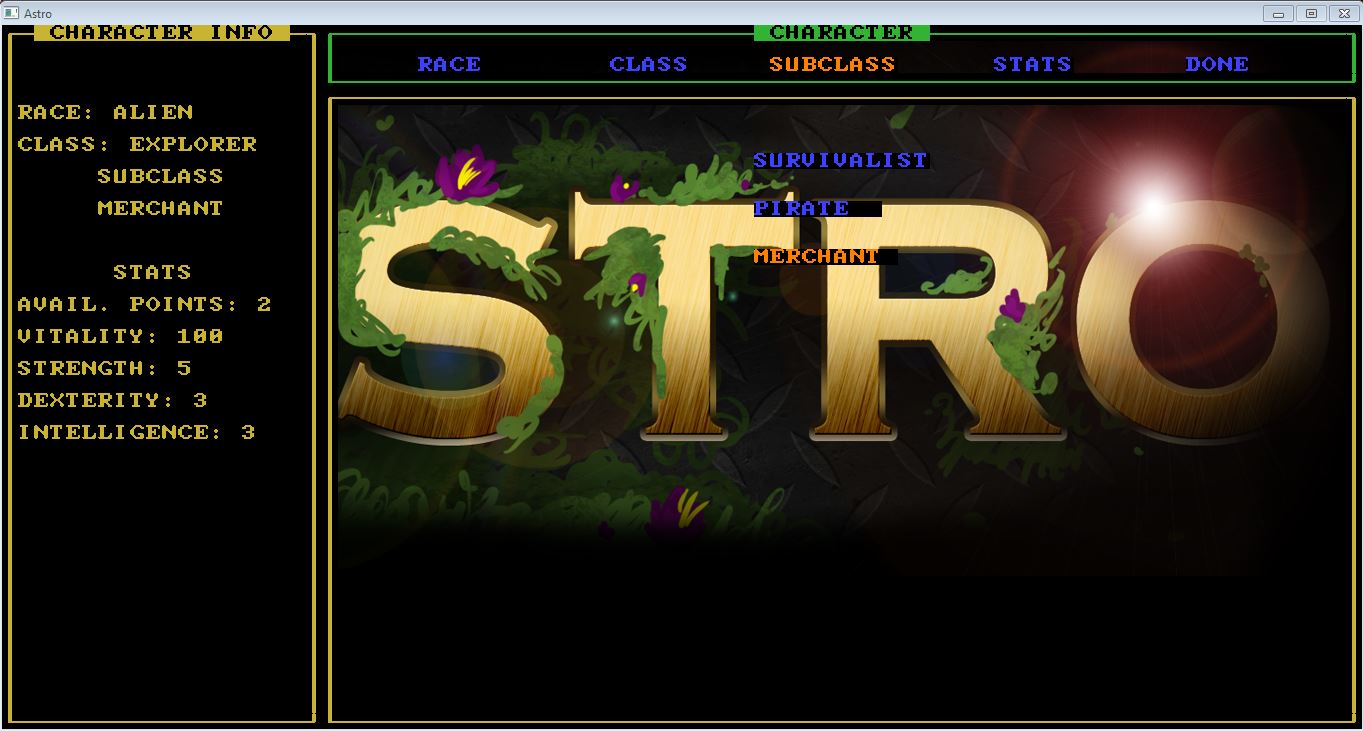
When creating a new game, the first thing the player must do is select a race, class, and subclass of their character. The nuances between these is described more in Main Character. If the player would not like to pick their class, feel free to choose 'Done' which will select the default character.
This is the main screen that the player will interact with during the game.
This is a visual representation of your character's current state. The screen consists of you character's health shown on a health bar, the enemy you are in combat's health, the armor worn by the player, and ...
This screen can be found in the left side of the Game Screen.
This is the dungeon itself. The current deck that the player is on will be displayed on this screen. The deck is filled to the brim with things the player can interact with, including items, enemies, allies, and neutral characters, and furniture and special room types as well. Feel free to click any of the links to learn more about each!
The map can be found in the right side of the Game Screen.
The Console Screen is the message log for the player. This gives you informative text describing the mind of the player and how you are interacting with the world around you.
These messages can include combat messages, information about dropped items, warning about hunger or low health, and dialog from NPC.
This screen can be found in the bottom, left corner of the Game Screen.
This screens holds all of the info about a square unit on the map, called a tile, that is visible to the character. This information includes the floor type, any items or furniture, and sometimes information about the infection.
The default tile's information that is displayed is the one the character is currently standing. The player may also choose to use the tile info look function by pressing the 'l' button and moving around the map with the arrow keys.
The Tile Info Screen can be found in the bottom, right corner of the Game Screen.
Back to Top
Astro Home
Roguelike Features
Main Character
NPC
Items
Rooms
Controls
Meet the Developers!