A Model Context Protocol (MCP) server that provides comprehensive V programming language support for Cursor IDE and other MCP-compatible editors.
This MCP server enhances V development by providing:
- Instant access to V documentation without leaving your editor
- 300+ V language code examples for common patterns and use cases
- 80+ V UI examples for building cross-platform applications
- Smart search through documentation and examples
- Fast responses through intelligent caching
- Clear error messages and troubleshooting guidance
The server is designed to improve the V development workflow:
- Quick syntax lookups while coding
- Example code for common patterns
- Standard library exploration without context switching
- Syntax explanations with practical examples
- Performance optimizations through smart caching
- Python 3.10+ (for Python MCP server)
- V programming language installed (for V MCP server)
- V repository (you're already here!)
- V UI submodule (automatically included)
If you just cloned this repository, initialize the submodules:
git submodule update --init --recursiveThis will initialize:
v-ui- V UI framework submodulev-vlang-mcp- V-based MCP server submodulepython-vlang-mcp- Python-based MCP server submodule
cd python-vlang-mcp
pip install -r requirements.txtpython main.pycd v-vlang-mcp
./build.sh # Linux/macOS
# or
build.bat # WindowsThis creates the v-mcp-server (or v-mcp-server.exe on Windows) executable.
./v-mcp-server    # Linux/macOS
# or
v-mcp-server.exe  # Windows
The server is now running and ready to use.
get_v_documentation()- Browse V language documentationexplain_v_syntax(feature)- Learn specific V language featuresget_v_quick_reference()- Quick V syntax reference
list_v_examples()- Browse available code examplesget_v_example(name)- Get complete example source codesearch_v_examples(query)- Find examples by pattern
list_v_stdlib_modules()- Explore V's standard libraryget_v_module_info(module)- Detailed module information
search_v_docs(query)- Search documentationget_v_config()- View server configurationclear_v_cache()- Refresh cached content
list_v_ui_examples()- Browse V UI code examplesget_v_ui_example(name)- Get complete V UI example source codesearch_v_ui_examples(query)- Find V UI examples by pattern
Customize the server with environment variables:
export V_CACHE_TTL_SECONDS=300      # Cache lifetime (default: 300s)
export V_MAX_SEARCH_RESULTS=50      # Max search results (default: 50)
export V_LOG_LEVEL=INFO             # Logging level (default: INFO)
export V_REPO_PATH=/path/to/v-mcp  # V repository path (default: parent directory)
export V_UI_PATH=/path/to/v-ui # V UI repository path (default: v-ui submodule)To use the V MCP server with Cursor IDE, add the following configuration to your Cursor MCP settings:
You can use either the Python or V-based server. Add one of the following configurations to your .cursor/mcp.json file:
{
  "mcpServers": {
    "v-language-assistant": {
      "command": "python",
      "args": [
        "/path/to/v-mcp/python-vlang-mcp/main.py"
      ],
      "env": {
        "V_REPO_PATH": "/path/to/v-mcp"
      }
    }
  }
}{
"mcpServers": {
"v-language-assistant": {
"command": "/path/to/v-mcp/v-vlang-mcp/v-mcp-server",
"env": {
"V_REPO_PATH": "/path/to/v-mcp"
}
}
}
}On Windows, use v-mcp-server.exe instead of v-mcp-server.
Replace /path/to/v-mcp with the actual path to your V MCP directory.
Both servers provide the same functionality:
- Python Server (
python-vlang-mcp/): Written in Python, easier to modify and extend (submodule) - V Server (
v-vlang-mcp/): Written in V, native performance, single executable (submodule)
Choose based on your preference or requirements.
Once configured, you can ask questions like:
- "How do I work with arrays in V?"
- "Show me V struct examples"
- "What modules are in V's standard library?"
- "Explain V error handling"
- Smart caching for frequently accessed content
- Relevance scoring for better search results
- Graceful degradation when parts of V repository are missing
- Configurable performance limits
# Check Python version
python --version  # Should be 3.10+

# Verify dependencies
cd python-vlang-mcp
python -m pip install -r requirements.txt

# Test server
python main.py- Ensure you're in the V repository root
- Check that
doc/,examples/, andvlib/directories exist - Set
V_REPO_PATHif running from different location - Initialize submodules:
git submodule update --init --recursive
- Ensure the V UI submodule is initialized:
git submodule update --init --recursive - Check that
v-ui/examples/directory exists - Set
V_UI_PATHenvironment variable if V UI is in a different location
- Increase cache TTL:
export V_CACHE_TTL_SECONDS=600 - Clear cache: Use
clear_v_cache()tool - Restart server to refresh all content
Once configured, you can start using the V MCP server immediately. Try asking questions like:
- "What are the basic data types in V?"
- "Show me how to create a struct"
- "How do I handle errors in V?"
- "What functions are available in the os module?"
For detailed documentation and advanced configuration options:
- Python server: python-vlang-mcp/README.md
- V server: v-vlang-mcp/README.md
For instructions on updating the V language and V UI repositories, see UPDATE_REPOS.md.
v-mcp/
├── python-vlang-mcp/     # Python-based MCP server (submodule)
│   ├── main.py           # Python server entry point
│   └── README.md         # Python server documentation
├── v-vlang-mcp/          # V-based MCP server (submodule)
│   ├── src/              # V source code
│   ├── build.sh          # Build script (Linux/macOS)
│   ├── build.bat          # Build script (Windows)
│   └── README.md         # V server documentation
├── v-ui/                 # V UI framework (submodule)
└── README.md             # This file
git clone --depth=1 https://github.com/vlang/v
cd v
docker build -t vlang .
docker run --rm -it vlang:latestgit clone --depth=1 https://github.com/vlang/v
cd v
docker build -t vlang_alpine - < Dockerfile.alpine
alias with_alpine='docker run -u 1000:1000 --rm -it -v .:/src -w /src vlang_alpine:latest'Compiling static executables, ready to be copied to a server, that is running another linux distro, without dependencies:
with_alpine v -skip-unused -prod -cc gcc -cflags -static -compress examples/http_server.v
with_alpine v -skip-unused -prod -cc gcc -cflags -static -compress -gc none examples/hello_world.v
ls -la examples/http_server examples/hello_world
file   examples/http_server examples/hello_world
examples/http_server: ELF 64-bit LSB executable, x86-64, version 1 (SYSV), statically linked, no section header
examples/hello_world: ELF 64-bit LSB executable, x86-64, version 1 (SYSV), statically linked, no section header
You should see something like this:
-rwxr-xr-x 1 root root  16612 May 27 17:07 examples/hello_world
-rwxr-xr-x 1 root root 335308 May 27 17:07 examples/http_server
On FreeBSD, V needs boehm-gc-threaded package preinstalled. After installing it, you can use the
same script, like on Linux/macos:
pkg install boehm-gc-threaded
git clone --depth=1 https://github.com/vlang/v
cd v
makeOn OpenBSD (release 7.8), V needs boehm-gc and openssl-3.5 packages preinstalled. After
installing them, use GNU make (installed with gmake package), to build V.
pkg_add boehm-gc openssl%3.5 gmake
git clone --depth=1 https://github.com/vlang/v
cd v
gmakeOn Termux, V needs some packages preinstalled - a working C compiler, also libexecinfo,
libgc and libgc-static. After installing them, you can use the same script, like on
Linux/macos:
pkg install clang libexecinfo libgc libgc-static make git
pkg update
git clone --depth=1 https://github.com/vlang/v
cd v
make
./v symlink
Note: there is no need for sudo ./v symlink on Termux (and sudo is not installed by default).
The Tiny C Compiler (tcc) is downloaded for you by make if
there is a compatible version for your system, and installed under the V thirdparty directory.
This compiler is very fast, but does almost no optimizations. It is best for development builds.
For production builds (using the -prod option to V), it's recommended to use clang, gcc, or
Microsoft Visual C++. If you are doing development, you most likely already have one of those
installed.
Otherwise, follow these instructions:
Note
It is highly recommended, that you put V on your PATH. That saves
you the effort to type in the full path to your v executable every time.
V provides a convenience v symlink command to do that more easily.
On Unix systems, it creates a /usr/local/bin/v symlink to your
executable. To do that, run:
sudo ./v symlinkOn Windows, start a new shell with administrative privileges, for example by pressing the
Windows Key, then type cmd.exe, right-click on its menu entry, and choose Run as administrator. In the new administrative shell, cd to the path where you have compiled V, then
type:
v symlink(or .\v symlink in PowerShell)
That will make V available everywhere, by adding it to your PATH. Please restart your shell/editor after that, so that it can pick up the new PATH variable.
Note
There is no need to run v symlink more than once - v will still be available, even after
v up, restarts, and so on. You only need to run it again if you decide to move the V repo
folder somewhere else.
To bring IDE functions for the V programming languages to your editor, check out v-analyzer. It provides language server capabilities.
Make sure V can compile itself:
$ v self
$ v
V 0.3.x
Use Ctrl-C or `exit` to exit

>>> println('hello world')
hello world
>>>
cd examples
v hello_world.v && ./hello_world # or simply
v run hello_world.v # this builds the program and runs it right away
v run word_counter/word_counter.v word_counter/cinderella.txt
v run news_fetcher.v
v run tetris/tetris.v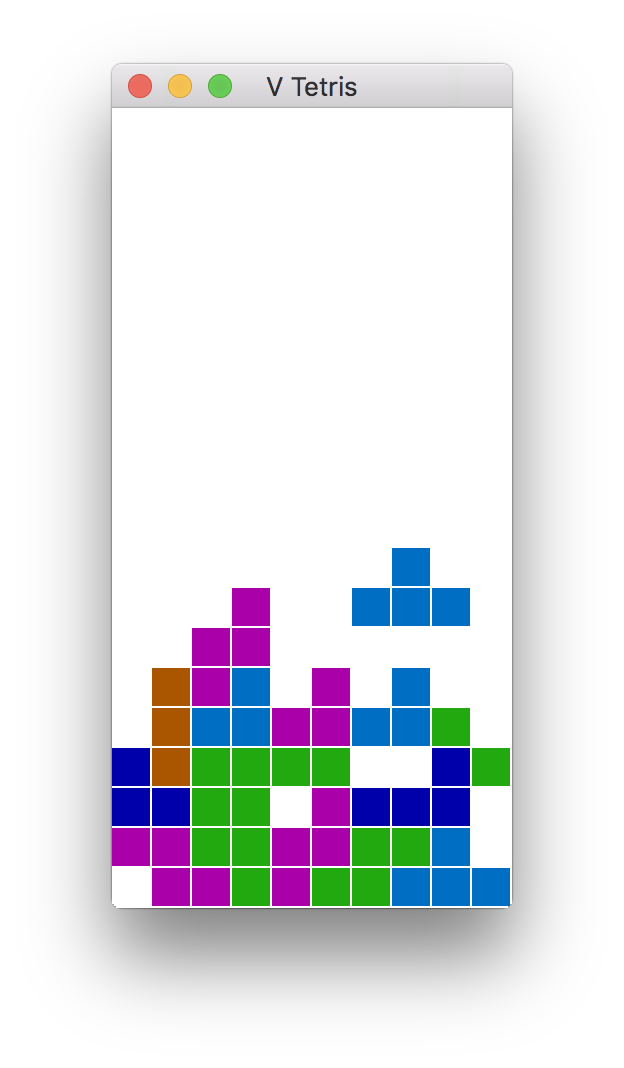
In order to build Tetris or 2048 (or anything else using the sokol or gg graphics modules),
you will need to install additional development libraries for your system.
| System | Installation method |
|---|---|
| Debian/Ubuntu based | Run sudo apt install libxi-dev libxcursor-dev libgl-dev libxrandr-dev libasound2-dev |
| Fedora/RH/CentOS | Run sudo dnf install libXi-devel libXcursor-devel libX11-devel libXrandr-devel libglvnd-devel |
| NixOS | Add xorg.libX11.dev xorg.libXcursor.dev xorg.libXi.dev xorg.libXrandr.dev libGL.dev to |
to environment.systemPackages |
The net.http module, the net.websocket module, and the v install command may all use SSL.
V comes with a version of mbedtls, which should work on all systems. If you find a need to
use OpenSSL instead, you will need to make sure that it is installed on your system, then
use the -d use_openssl switch when you compile.
Note: Mbed-TLS is smaller and easier to install on windows too (V comes with it), but if you
write programs, that do lots of http requests to HTTPS/SSL servers, in most cases, it is best
to compile with -d use_openssl, and do so on a system, where you do have OpenSSL installed
(see below). Mbed-TLS is slower, and can have more issues, especially when you are doing parallel
http requests to multiple hosts (for example in web scrapers, REST API clients, RSS readers, etc).
On windows, it is better to run such programs in WSL2.
To install OpenSSL on non-Windows systems:
| System | Installation command |
|---|---|
| macOS | brew install openssl |
| Debian/Ubuntu based | sudo apt install libssl-dev |
| Arch/Manjaro | openssl is installed by default |
| Fedora/CentOS/RH | sudo dnf install openssl-devel |
On Windows, OpenSSL is simply hard to get working correctly. The instructions here may (or may not) help.
V's sync module and channel implementation uses libatomic.
It is most likely already installed on your system, but if not,
you can install it, by doing the following:
| System | Installation command |
|---|---|
| macOS | already installed |
| Debian/Ubuntu based | sudo apt install libatomic1 |
| Fedora/CentOS/RH | sudo dnf install libatomic-static |