Click to watch
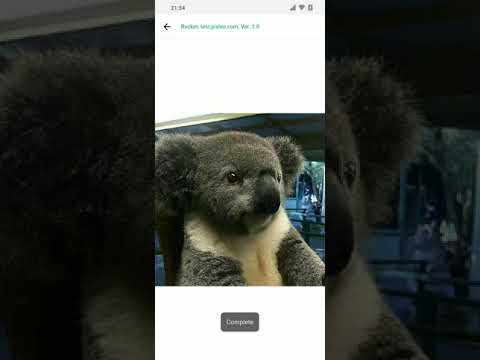
- Import this project into Android Studio, version: 3.5.1
- Generate key.properties in the project folder
- Fill the file with the example below and edit it with your own credentials for Production and Development:
#Pixlee SDK
pixleeAPIKey={API Key for Pixlee SDK}

#PRODUCTION AWS S3
awsAccessKey={Access Key for AWS S3}
awsSecretKey={Secret Key for AWS S3}
awsS3BucketName={S3 bucket name}
awsRegion={region, ex: 'us-east-1' }
s3Domain={domain including bucket name, ex: http://s3.amazonaws.com/sdk-project.pixlee.com/}

#DEVELOPMENT AWS S3
awsAccessKeyForDev={Access Key for AWS S3}
awsSecretKeyForDev={Secret Key for AWS S3}
awsS3BucketNameForDev={S3 bucket name}
awsRegionForDev={region, ex: 'us-east-1' }
s3DomainForDev={domain including bucket name, ex: http://s3.amazonaws.com/sdk-project.pixlee.com/}
- Click this icon below located at the top right in Android Studio.


- Choose one of Build variants. This reads credentials you specified in key.properties.
- Production: prodDebug or prodRelease
- Development: devDebug, devRelease

- Run the project on an Android device
- Click right button of the mouse on the root of the unit test folder.
- Click Run 'Test in app''.
- Check the result if there is any failed test.
