This is the master list of plugins that are installable in VNS3. They include Cohesive Networks created plugins as well as third party maintained plugins.
VNS3 plugins are docker containers running inside a VNS3 controller. All plugins in the catalog should be compatible with the Plugin Manager. You can learn more about building custom plugins here.
- Contact Cohesive Networks for repository write access. Send an email to support@cohesive.net with a Subject "VNS3 Plugin Catalog Access Request"
- After recieving access, clone the repository, create a branch called
add-plugin-[your-plugin-name] - Create new directory under the plugins directory. The name must be unique amongst all plugins and should be lowercase containing letters, numbers or dashes.
- In the directory created in #3, create a new file called plugin.yaml
- Populate your plugin.yaml file with the following:
Name and Description - required - This will be displayed in the plugin catalog (required)
name: Plugin Name
description: Collect, monitor and alert on packetloss statistics.
VNS3 Compatability - Plugin compatability with VNS3 versions
vns3_compatability: 4-5.x.x
Format:
- + indicates greater than
- - indicates less than
- A-B indicates within range (inclusive)
- A-B.x x indicates any version
Examples:
vns3_compatability: 6+ # all versions 6.0.0 and later
vns3_compatability: -4.2.8 # all versions 4.2.8 and prior
vns3_compatability: 5-5.2.x # all versions 5.0.0 to 5.2.[any]
vns3_compatability: 6-6.x.x # all versions 6.0.0 to 6.[any].[any]
Versions (required)
Each plugin should have a version key and an image_url key. This version is the latest version of the plugin. The version can be in whatever format the plugin uses for versioning. The image_url should be a valid URL to an image that can be immediately installed on VNS3. Image files should be importable by docker import.
version: 20220510
image_url: https://vns3-containers-read-all.s3.amazonaws.com/Overlayengine/overlayengine_20220510.tar.gz
Supporting multiple versions
Plugin can also support multiple versions with a versions key. This should be a list of objects that provide version and image_url keys. They can also optionally define version specific tags, support and documentation keys. They can also vns3_compatablity key that indicates for which versions of VNS3 these plugins are compatible. See the section on VNS3 compatability for the format of the comptability string. The keys at the root of the plugin definition are associated with latest version.
versions:
  - version: 2.2.0
    image_url: https://yourdomain.com/download/myplugin_2.2.0.tar.gz
    vns3_compatability: 6+
  - version: 2.1.1
    image_url: https://yourdomain.com/download/myplugin_2.1.1.tar.gz
    vns3_compatability: 4-5.2.x
    documentation: https://yourdomain.com/docs/myplugin
    tags:
      ui: false
Tags - key-value attributes for associating arbitrary data with your plugin
tags:
  baseOS: Ubuntu 20.04
  ui: true
Note: Supported under the versions objects.
Documentation and Support - required - A link to documentation for your plugin should also be provided and will be linked to in the VNS3 catalog
documentation: https://docs.cohesive.net/docs/network-edge-plugins/overlay-engine/
support: https://support.cohesive.net
Note: Supported under the versions objects.
Image url or Setup Url - required - One of image_url or setup_url should be provided. Ideally an image url can be provided such that VNS3 can immediately install your plugin. If instead you require a workflow whereby a client must first sign up with your service before being able to download a VNS3 plugin, the setup_url should be used linking to how to acquire this plugin for download.
image_url: https://vns3-containers-read-all.s3.amazonaws.com/Overlayengine/overlayengine_20200510.tar.gz
setup_url: https://how.to.setup.com
Categories - required - a list of categories in which your plugin falls
categories:
  - performance
The available categories are:
- performance
- monitoring
- logging
- security
- proxy
- networking
- administration
If your plugin does not fall into one of the provided categories and would like to suggest a new category, feel free to put a pull request into this repo editing this README.md. Please create a branch called add-category-[new category] for your pull request. Please link to the new plugin pull request requiring the new category.
Provider code - required - This code will be provided by Cohesive Networks during step 1 of the above process
provider_code: 222222
Keyphrases - a list of keyword phrases (such as synonyms) to be used for search purposes
keyphrases:
  - Web application firewall
  - intrusion detection
Logo - an image to display in VNS3 console. You may commit a small logo to the directory and refer to it directly in your plugin.yaml. For example, you can place an image at [my-plugin-dir]/images/my-plugin-logo.png. It should be optimized and sized as 45px by 45px.
logo: images/my-plugin-logo.png
Please create a branch called update-plugin-[plugin name] and create a Pull request to merge that branch into master.
All plugins in master will be displayed in VNS3 on the plugin catalog page.
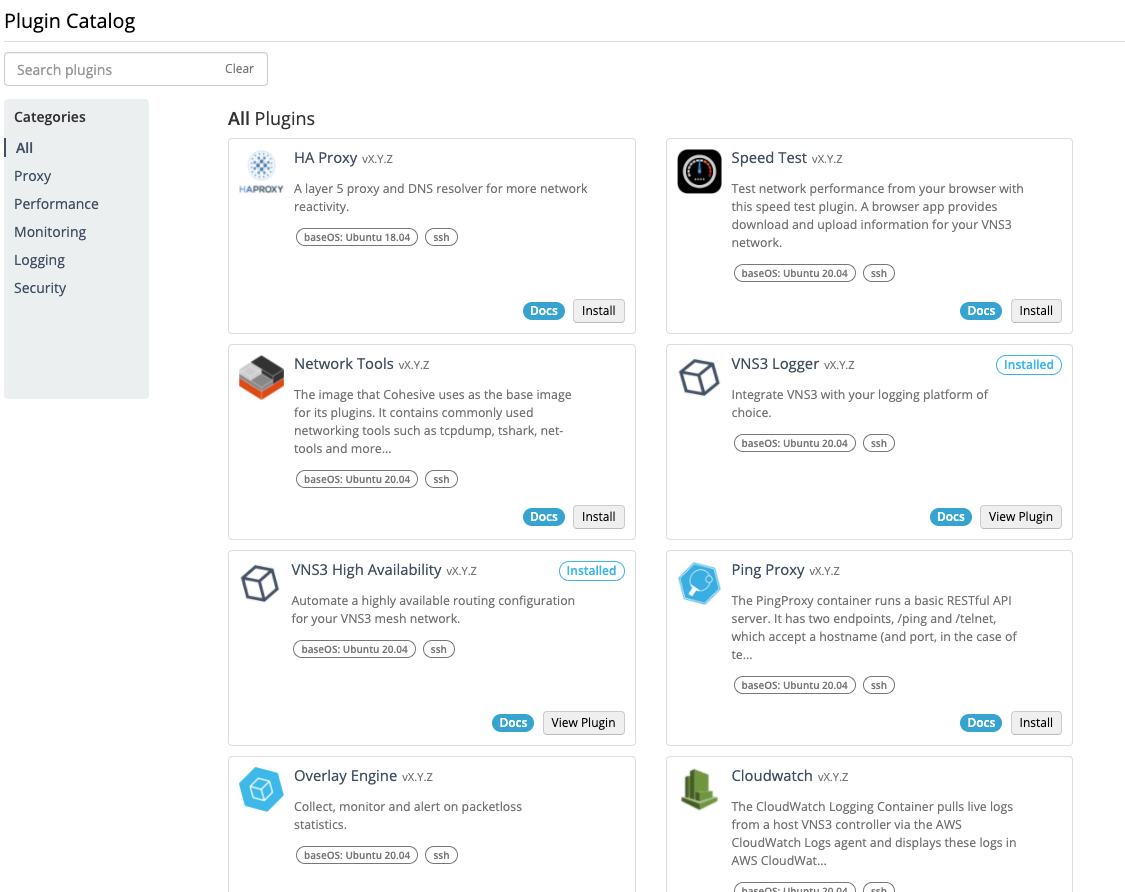
VNS3 controllers display the catalog in one of two ways:
- Public catalog.json file (default) - controllers with public Internet access are able to download the public catalog.json file to use to populate the catalog page.
- Private Accesss - controllers without public Internet access or for environments where admins want to control what plugins are available, VNS3 can be configured to point to a different catalog.json file that has specific plugins and plugin image URLs that are accessible.
In order to update the public catalog.json file, the following actions need to be taken:
- Create/update the Plugin Repo.
- Build and upload a new Plugin image to the staging bucket via the plugin image creation github action (create tag/release).
- Test Plugin Image.
- Contact RCK or PJK to get the image moved to the public plugin bucket and get the download URL.
- Test the plugin image download URL.
- Update the vns3-plugin-catalog plugin directory with the new plugin image information and commit the changes.
- Create a pull request against
masterbranch and request approval and merge. - Merge action creates a catalog.json file in the staging bucket and prints a pre-signed URL for download, review, testing in Slack #product-mgmt-bots.
- Test the catalog.json file in a VNS3 controller by:
- updating line 266 of
/opt/vpncubed/webadmin/app/api/v1_5/plugin.rb - running
/opt/vpncubed/bin/webadmin restart
- updating line 266 of
- Request RCK or PJK tag and release this repo to trigger the github action that updates the public catalog.json file in the public bucket.