Complete Beginners Guide
Never used GitHub or Docker before? This guide is for you.
From "I found this project" to "my audiobooks are organized" - no prior technical knowledge required.
You found this project on GitHub. GitHub is just a website where people share code - like a recipe website, but for software. You don't need to understand the code, just download and run it.
Library Manager is a web app that runs on your computer (or NAS). Once running, you access it through your browser like any website.
| Method | Difficulty | Best For |
|---|---|---|
| Docker (recommended) | Easy | Windows, Mac, Linux, NAS (UnRaid, Synology) - simplest updates |
| Direct Python | Medium | Any OS - if you're comfortable with command line |
If you're not sure, use Docker. It works on Windows, Mac, and Linux, and updates are just one command.
Docker is like a shipping container for software. Everything the app needs is packed inside, so it "just works" without you installing a bunch of stuff.
On Windows:
- Download Docker Desktop
- Run the installer
- Restart your computer when prompted
- Open Docker Desktop and let it start up
On Mac:
- Download Docker Desktop
- Drag to Applications folder
- Open Docker Desktop
On Linux:
curl -fsSL https://get.docker.com | sh
sudo usermod -aG docker $USER
# Log out and back in
On Synology:
- Open Package Center
- Search for "Container Manager" (or "Docker" on older DSM)
- Install it
On UnRaid:
- Docker is built-in, you're good to go!
Create a folder where Library Manager will store its settings:
-
Windows:
C:\docker\library-manager -
Mac/Linux:
~/docker/library-manager -
Synology:
/volume1/docker/library-manager
Example (Windows) - run this in PowerShell or Command Prompt:
docker run -d --name library-manager --restart unless-stopped -p 5757:5757 -v "D:\Audiobooks:/audiobooks" -v "C:\docker\library-manager:/data" ghcr.io/deucebucket/library-manager:latest
Windows tip: Press
Win + Xthen click "Terminal" or "PowerShell". Paste the command (right-click to paste), but changeD:\Audiobooksto your actual audiobook folder.
Example (Linux/Mac):
docker run -d --name library-manager --restart unless-stopped -p 5757:5757 -v "/mnt/media/audiobooks:/audiobooks" -v "$HOME/docker/library-manager:/data" ghcr.io/deucebucket/library-manager:latestReplace:
-
/mnt/media/audiobooksorD:\Audiobookswith where your audiobooks actually are - The config folder with the one you created in Step 2
Open your browser and go to: http://localhost:5757
Windows:
- Go to python.org/downloads
- Download Python 3.10 or newer
- Important: Check "Add Python to PATH" during installation
Mac:
brew install python3Linux (Ubuntu/Debian):
sudo apt update && sudo apt install python3 python3-pip python3-venv gitEasiest way (no git needed):
- Go to the releases page
- Download the "Source code (zip)" file
- Extract it to a folder (e.g.,
C:\library-manageron Windows) - Open a terminal in that folder:
-
Windows: Open the folder in File Explorer, click the address bar, type
cmd, press Enter - Mac/Linux: Right-click in folder → "Open Terminal"
-
Windows: Open the folder in File Explorer, click the address bar, type
Or with git:
git clone https://github.com/deucebucket/library-manager.git
cd library-managerpip install -r requirements.txtOn some systems you may need pip3 instead of pip.
python app.pyThen open http://localhost:5757 in your browser.
When you first open Library Manager, you'll see a setup wizard. Here's what each step does:
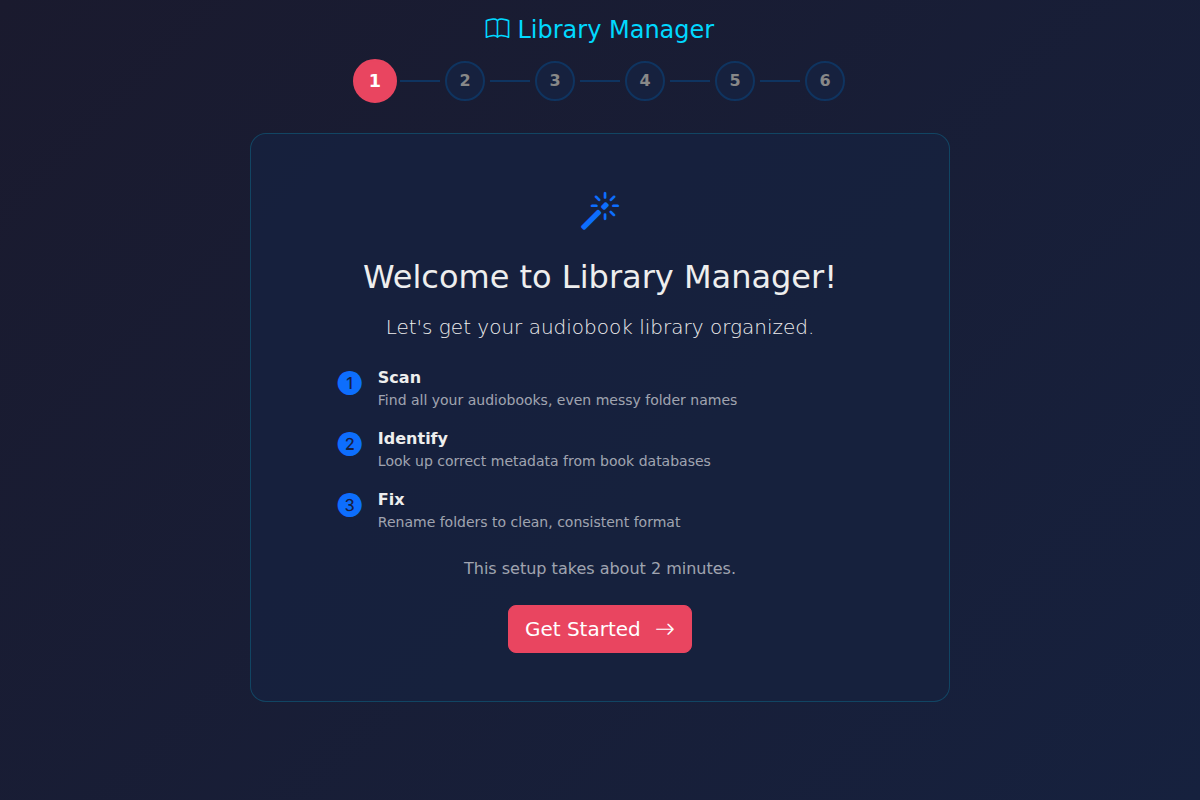
Shows the 3-step process: Scan → Identify → Fix. Click "Get Started".
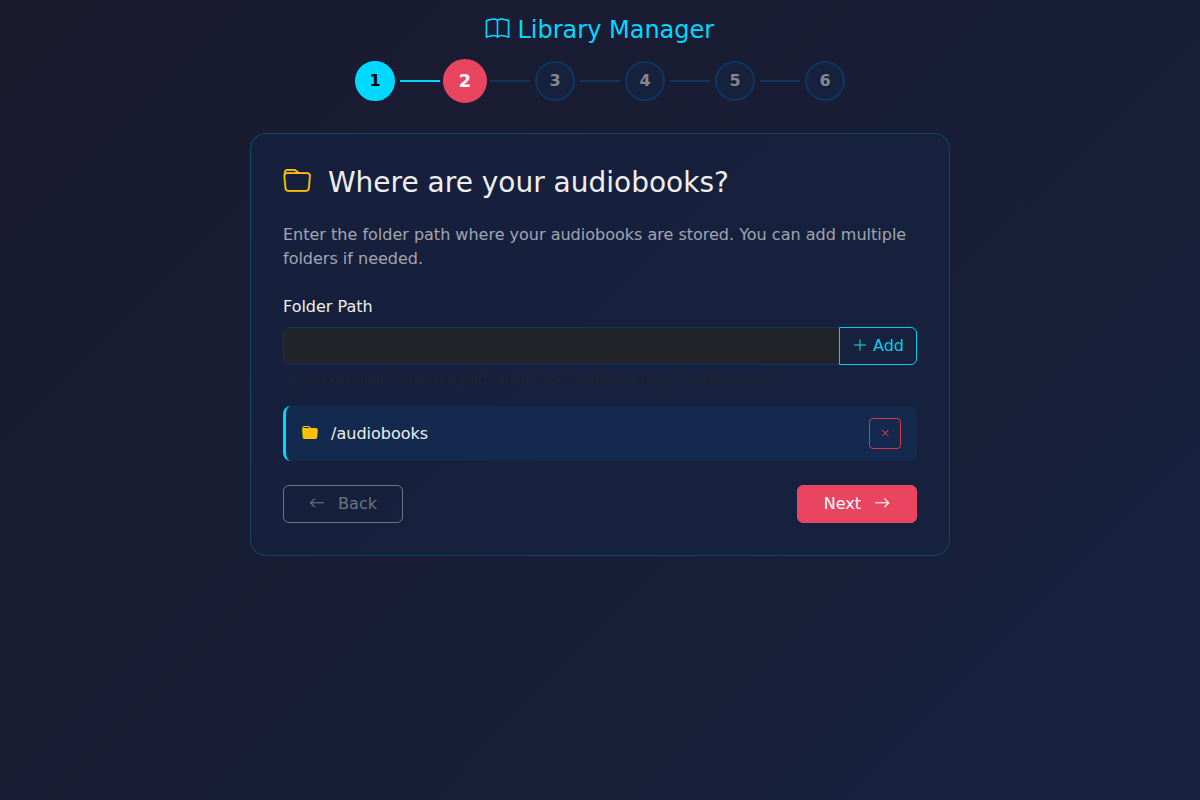
Tell it where your audiobooks are:
-
Docker users: Enter
/audiobooks(this maps to your real folder from the docker command) -
Direct install: Enter the actual path like
/mnt/audiobooksorD:\Audiobooks
You can add multiple paths if your books are in different places.
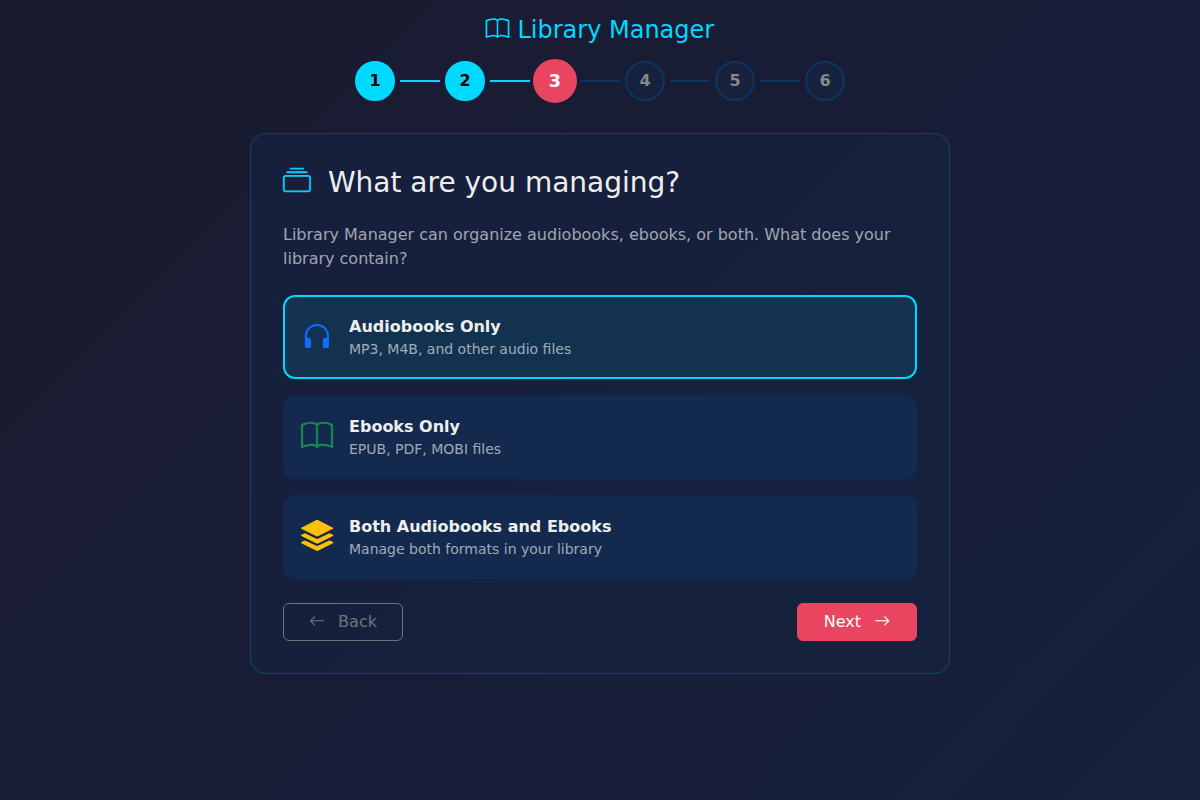
What are you organizing?
- Audiobooks Only - MP3, M4B, audio files (default)
- Ebooks Only - EPUB, PDF, MOBI files
- Both - Manage everything together
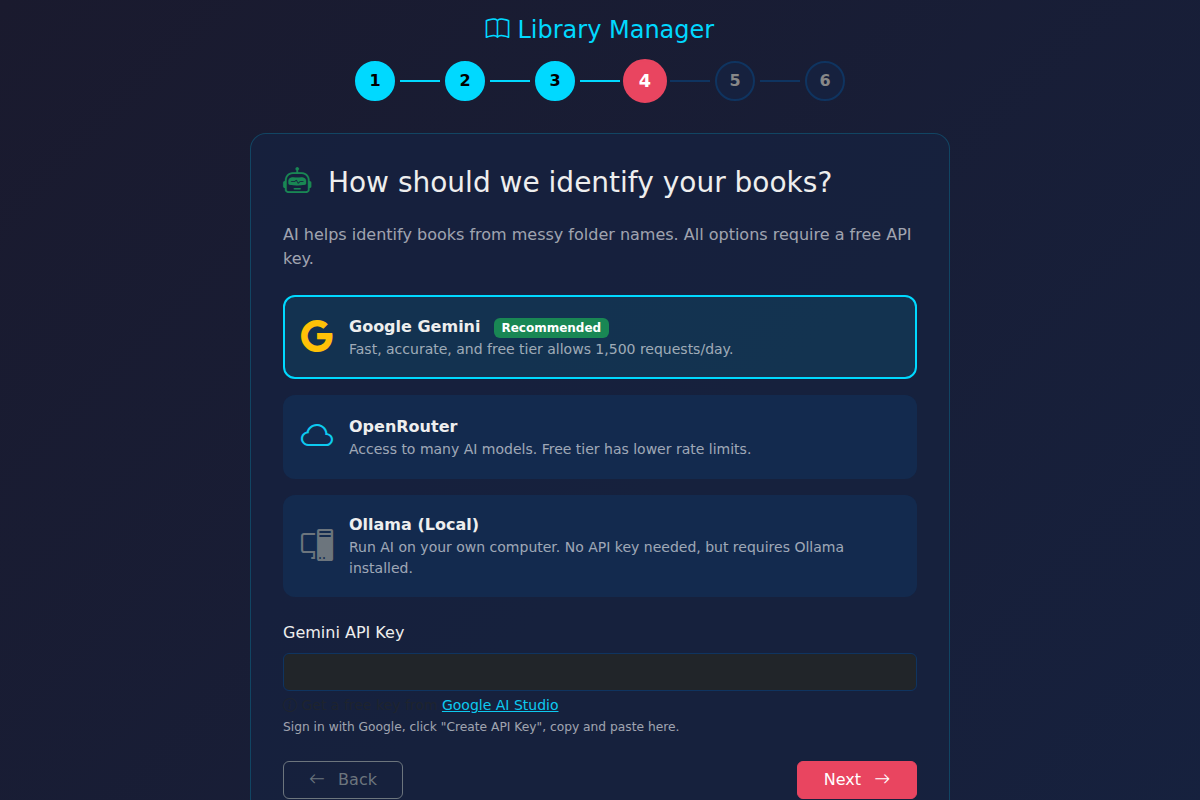
How should it identify your books? All cloud options need a free API key.
- Google Gemini (Recommended) - Fast, accurate, 1,500 free requests/day
- OpenRouter - Access to many AI models, lower rate limits on free tier
- Ollama (Local) - Runs AI on your own computer, no API key needed
Getting API Keys:
- Gemini: Go to Google AI Studio, sign in, click "Create API Key"
- OpenRouter: Go to OpenRouter Keys, create account, click "Create Key"
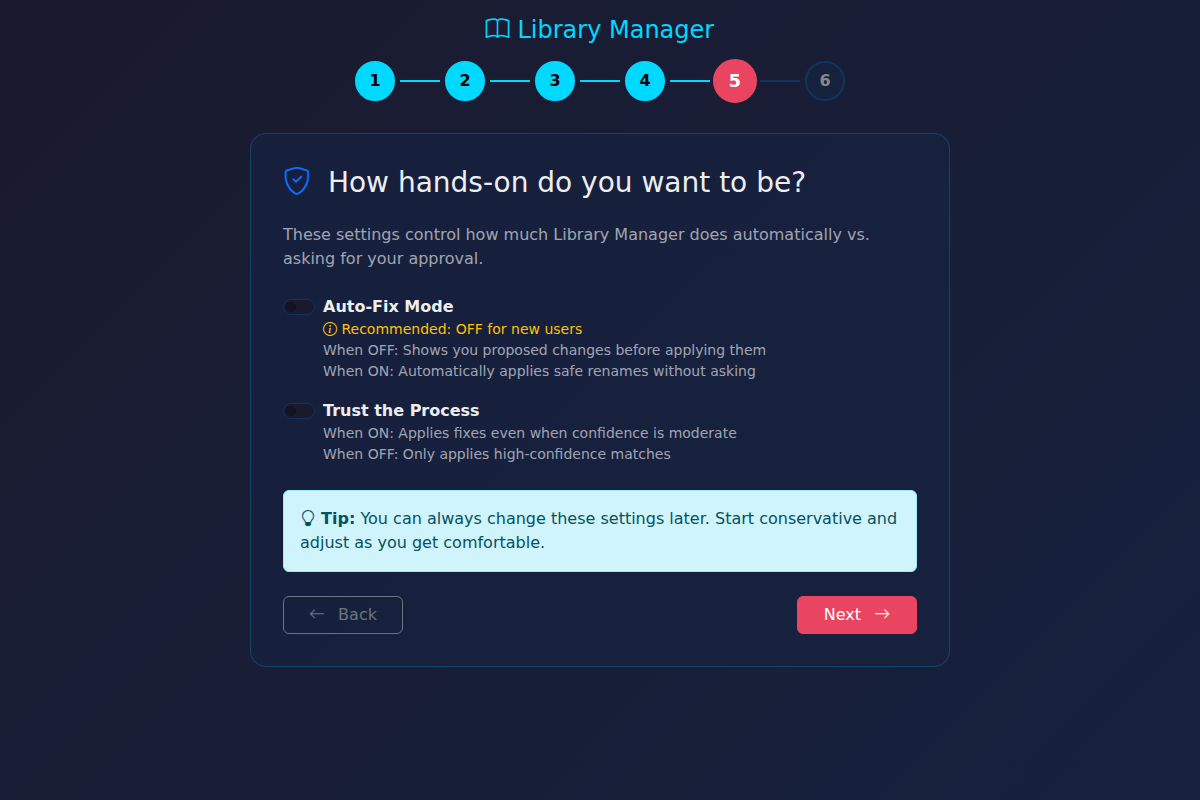
How hands-on do you want to be?
- Auto-Fix Mode - OFF = you approve every change, ON = auto-fix obvious stuff
- Trust the Process - ON = also fix moderate-confidence matches
Tip: Start with both OFF until you trust the results.
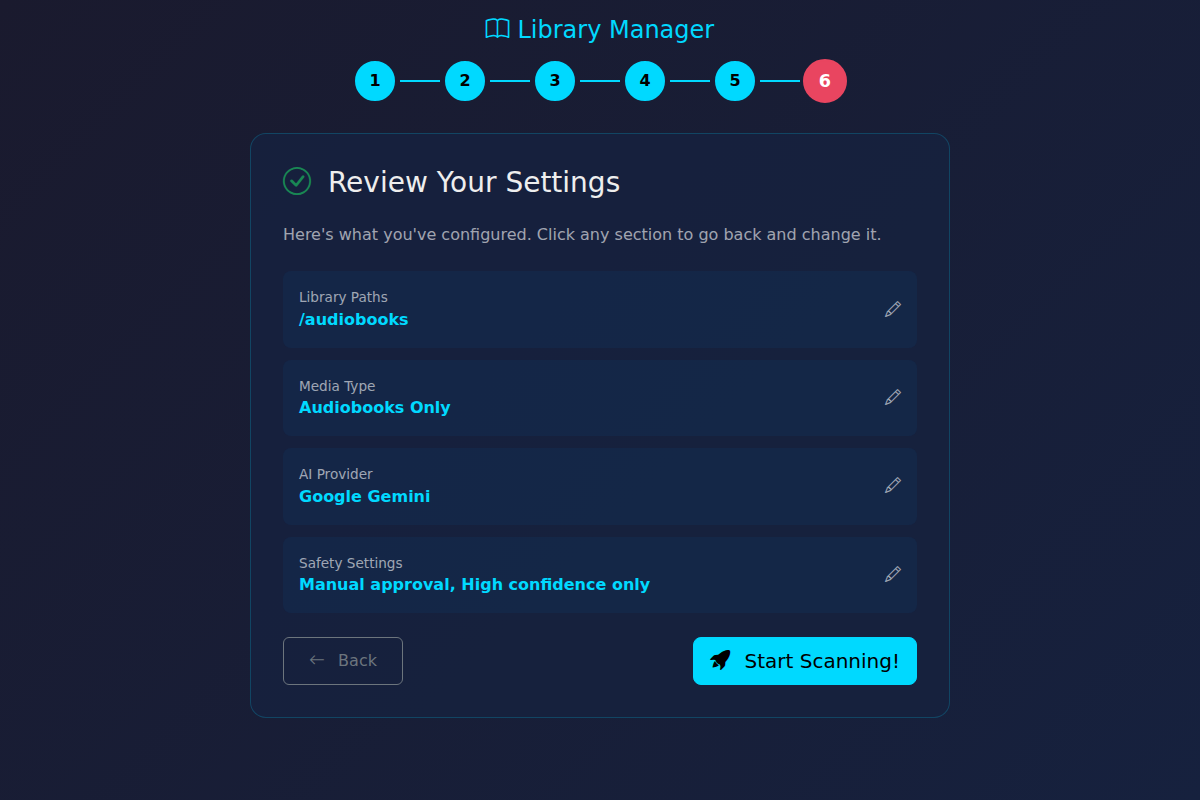
Confirm your choices and click "Start Scanning!"
After the wizard, you'll see the Dashboard. Here's the typical workflow:
- Library page → Your scanned books appear here
- Process Queue → Click this to have AI identify messy folder names
- Pending tab → Review suggested fixes
- Apply → Accept fixes you agree with
That's it! Repeat as you add new books.
You need a free API key to use the AI features. Here's how to get one:
- Go to aistudio.google.com
- Sign in with your Google account
- Click "Get API Key" in the left sidebar
- Click "Create API Key"
- Copy the key and paste it in the setup wizard (or Settings → AI Setup)
- Go to openrouter.ai
- Create an account
- Go to Keys
- Click "Create Key"
- Copy the key and paste it in the setup wizard (or Settings → AI Setup)
Docker:
docker pull ghcr.io/deucebucket/library-manager:latest
docker stop library-manager
docker rm library-manager
# Run the docker run command again from Step 3
Direct Python:
cd library-manager
git pull
pip install -r requirements.txt
# Restart the appWhere are my settings saved?
- Docker: In the
/datafolder you mounted - Direct install: In the same folder as the app
Can I access it from my phone?
Yes! Use your computer's IP instead of localhost: http://192.168.1.xxx:5757
Port 5757 is already in use?
Change the port in the docker command: -p 5758:5757
The wizard didn't appear? It only shows for fresh installs. Go to Settings to change configuration.
- Bug reports: GitHub Issues
- Questions: GitHub Discussions