Home
Our application is available at https://spotifry-app.herokuapp.com/ Currently, accounts need to be whitelisted to be able to use all of our application functionalities. Please contact that team if you would like your account to be whitelisted.
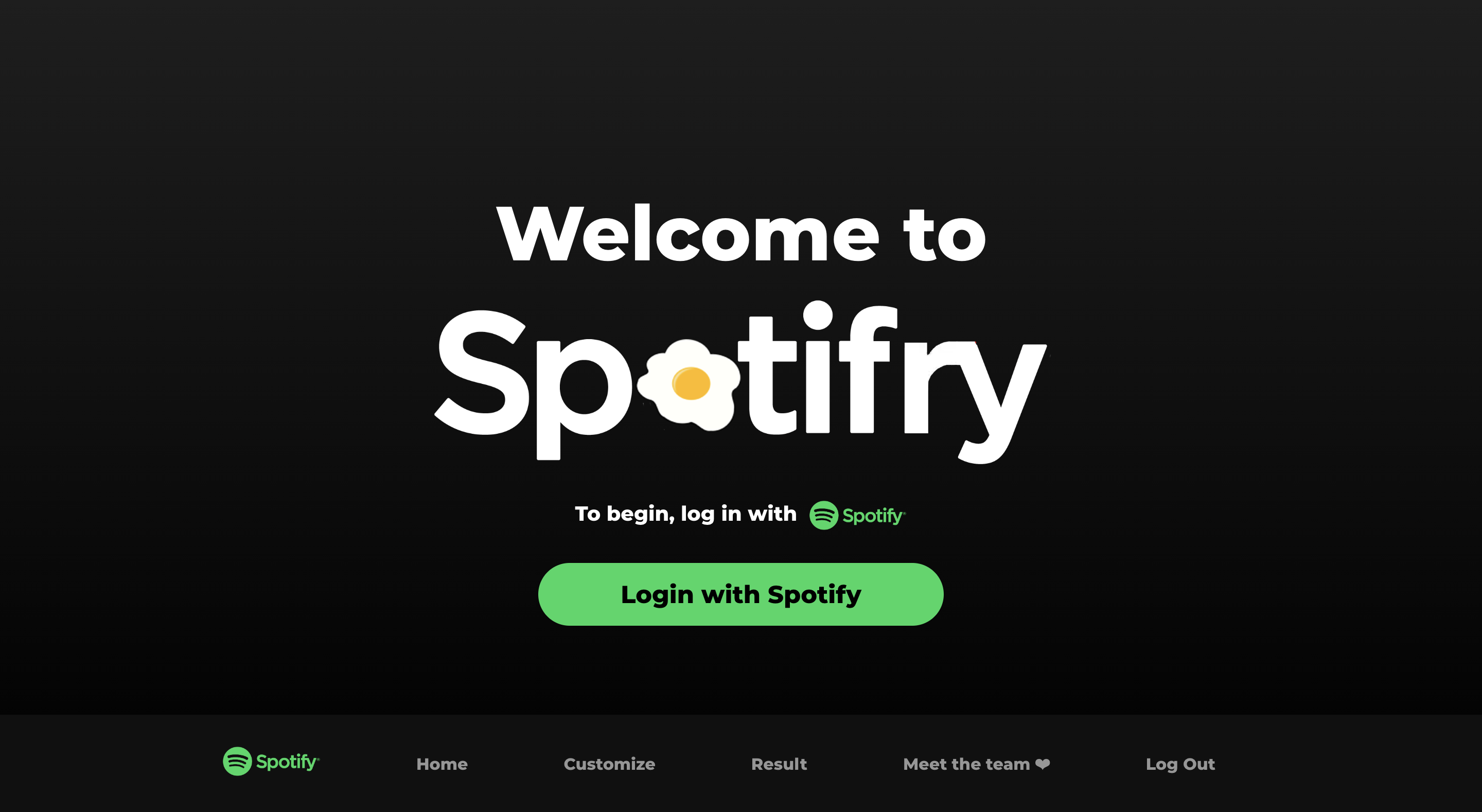
Once you have access the app, click "Login to Spotify". You will then be prompted to connect your Spotify account to SpotiFry. At the bottom, our navigation bar has the following options.
- Home: This is the home page, welcoming the user and prompting you to create a default playlist based on your current listening.
- Customize: This page is where you are able to create customized playlists.
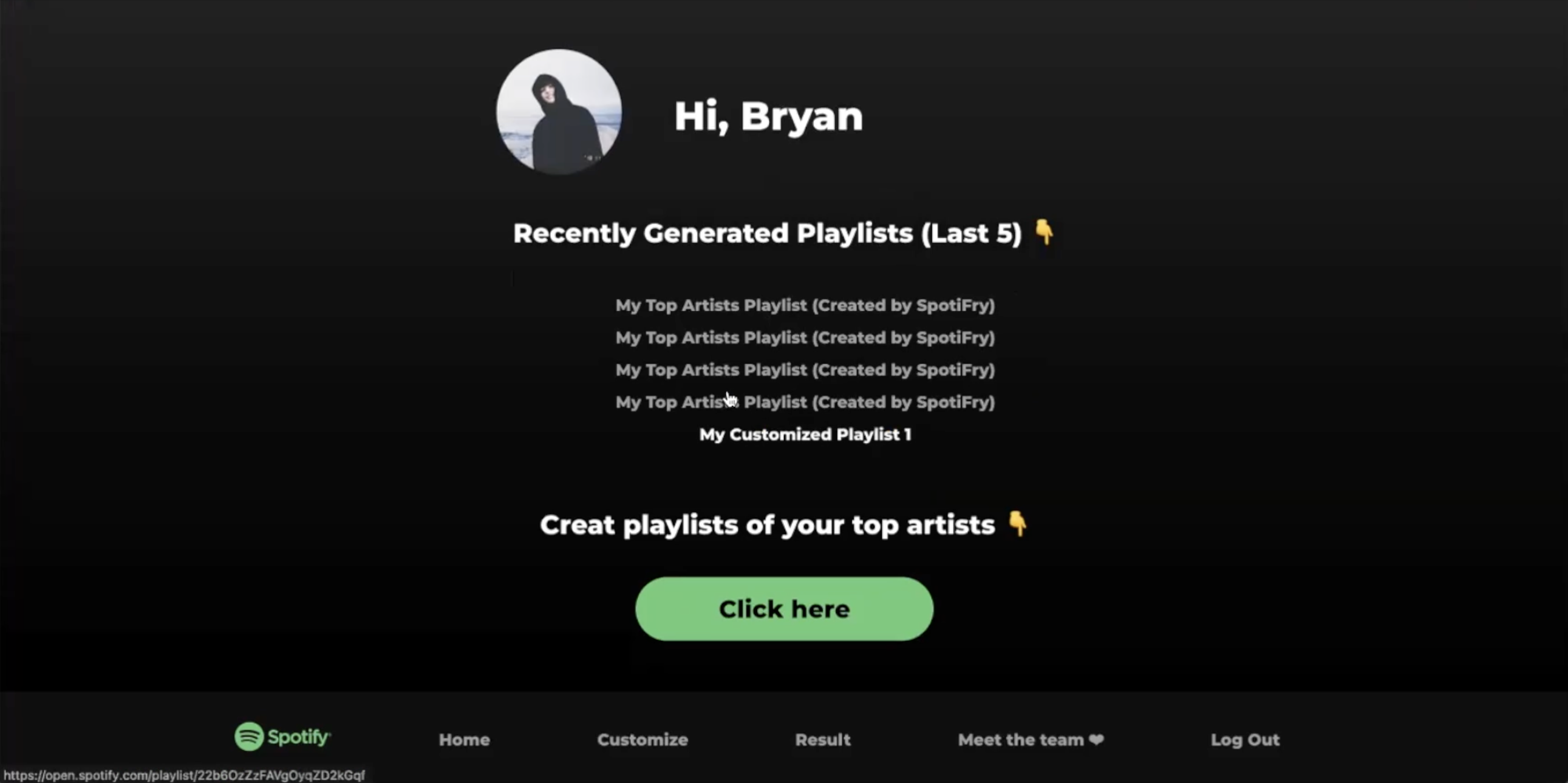
- Result: This is where you are able to view the previous five playlists generated with SpotiFry.
- Meet the Team: This page introduces the team behind the applciation.
- Log Out: This logs you out.
There are two methods for creating playlists: default playlists based on your current listening, or a custom playlists, where you are able to seed it with a genre or artist, and customize other parameters.
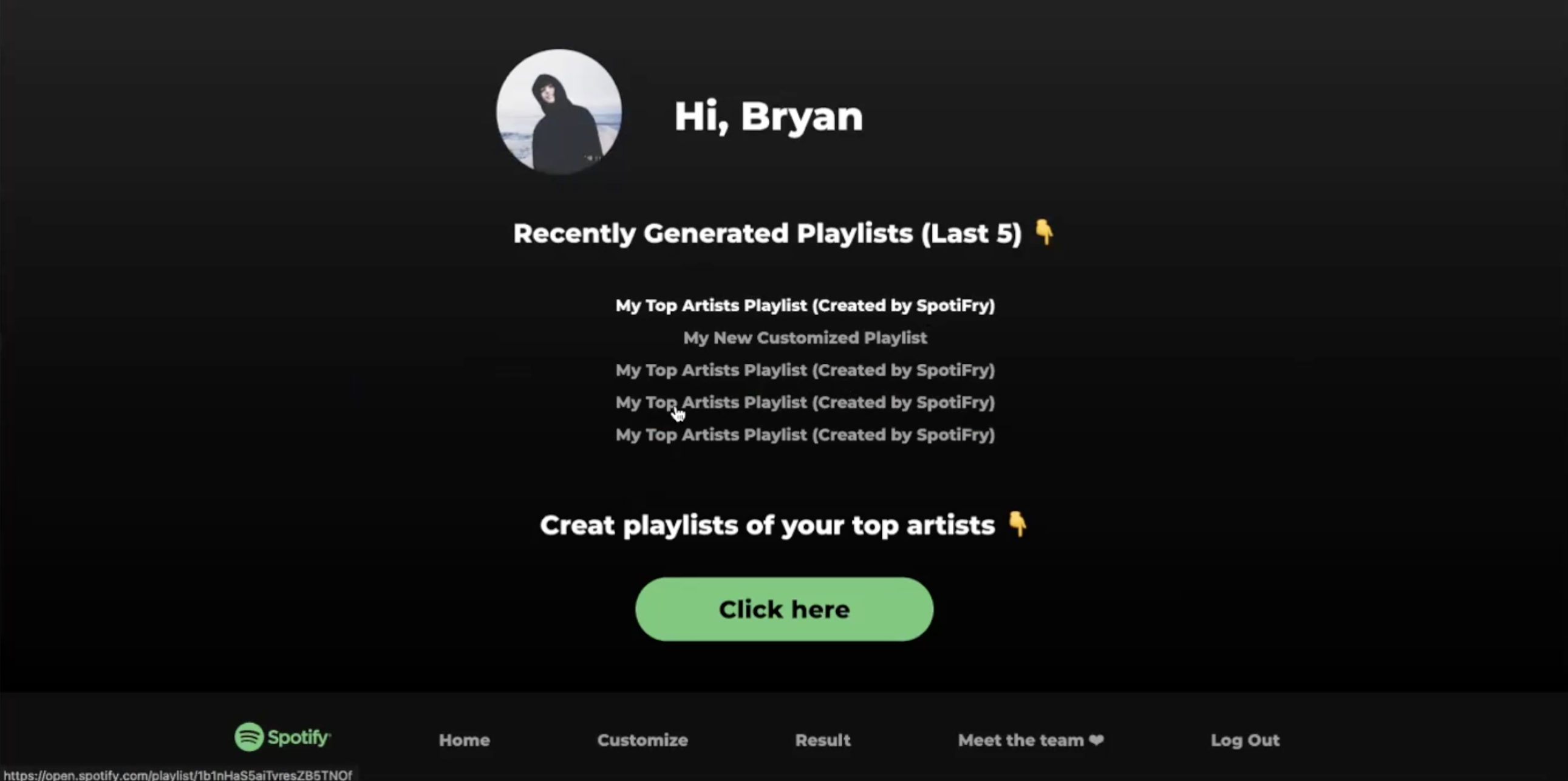 On the home page, the user will see the option to create playlists with their top artists. By clicking the button, our application will fetch their top artists and create a playlist, which will then be displayed to the user.
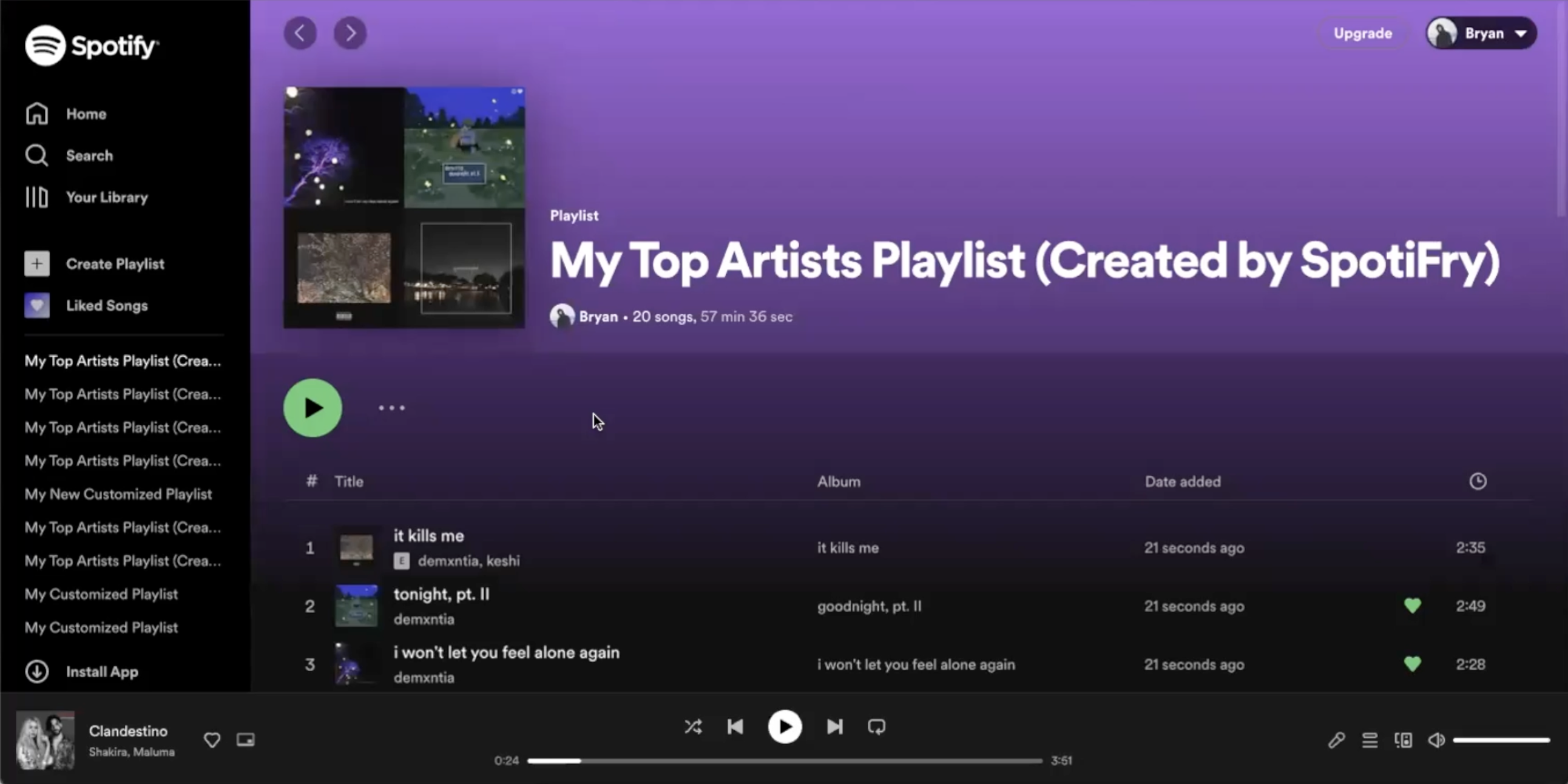
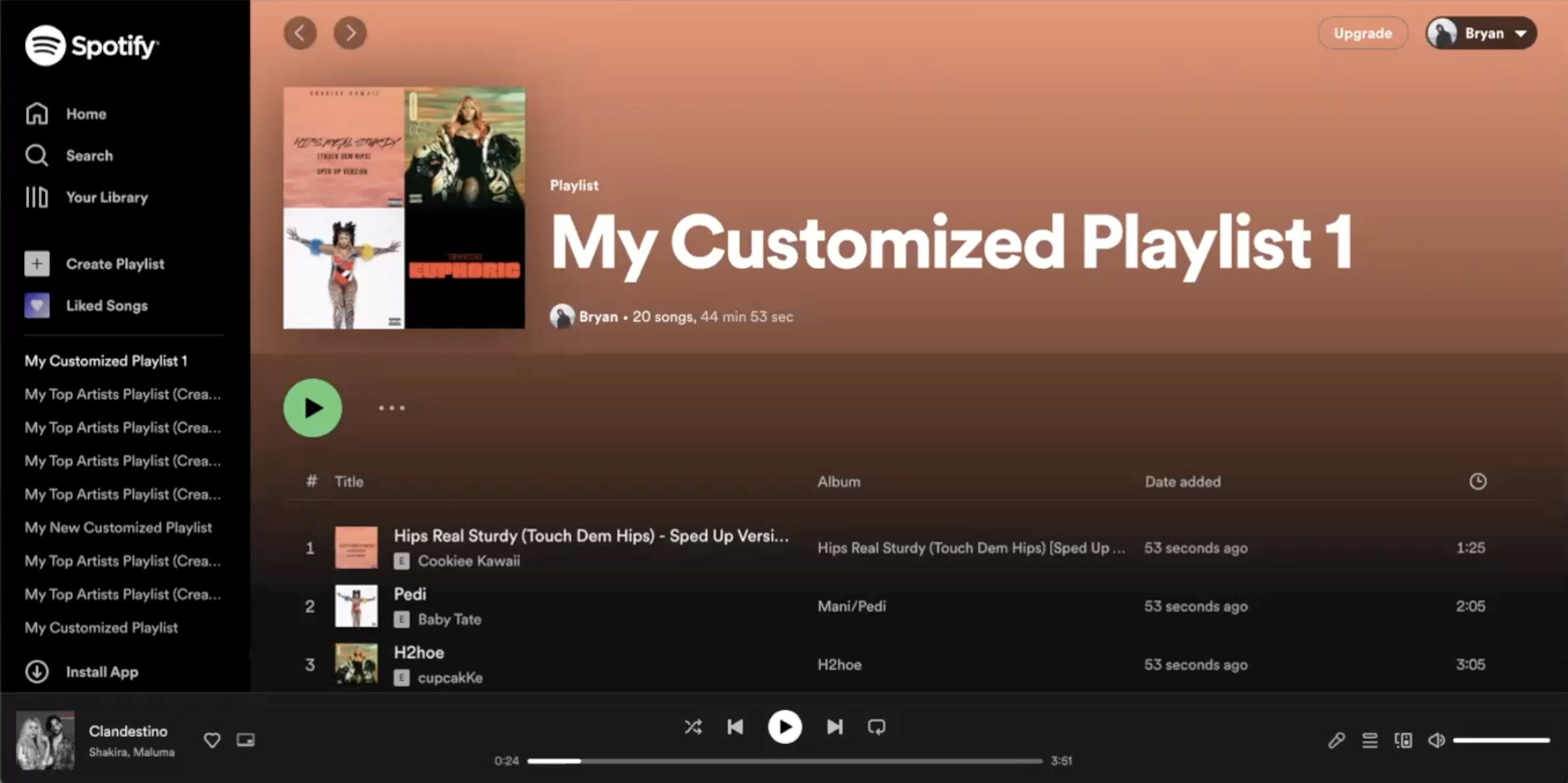
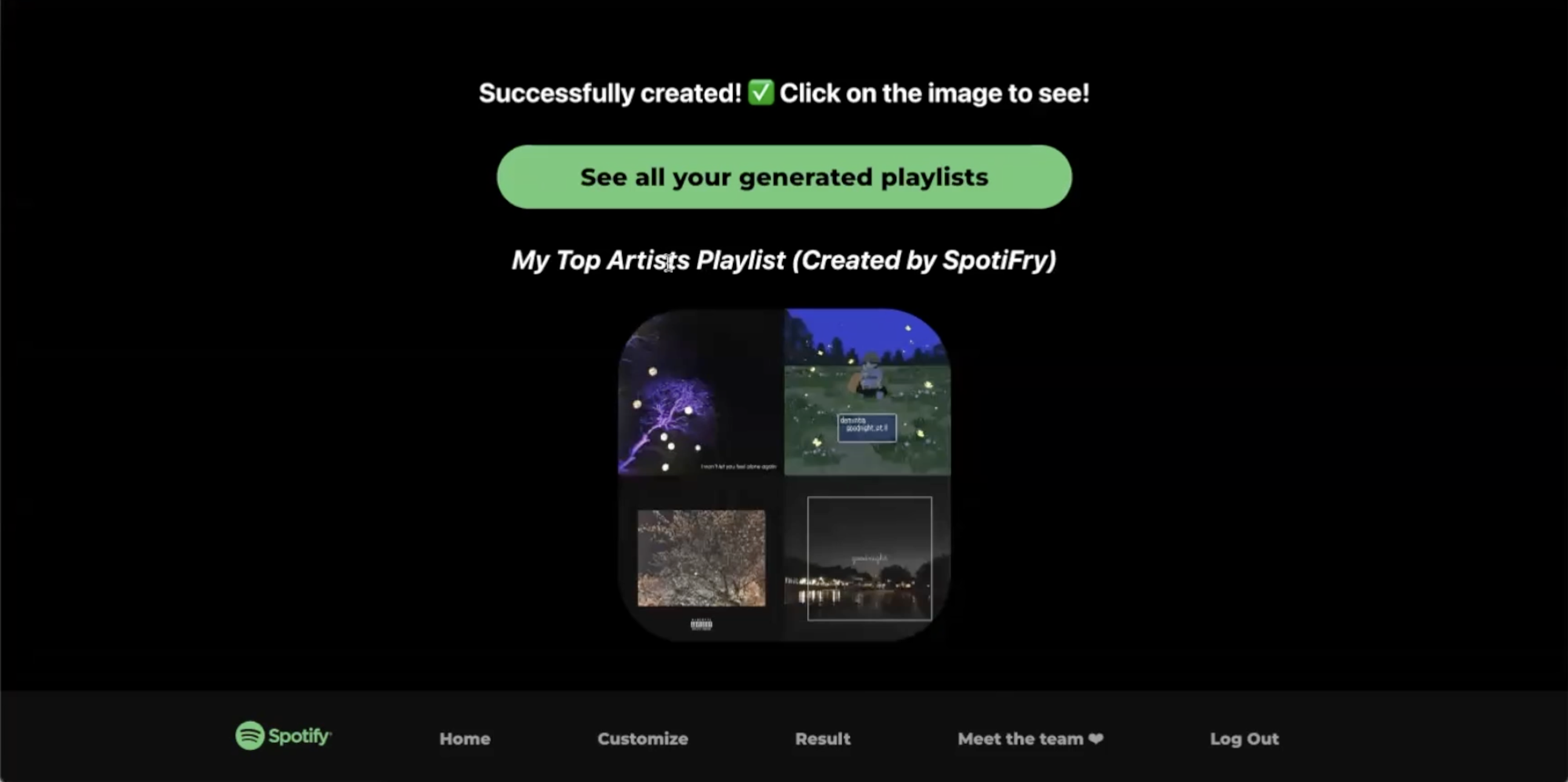 By clicking on the playlist cover, the user will be redirected to Spotify, where they can listen to their new playlist.
For users that want a more personalized listening experience, they can choose to create a custom playlist under the "Customize" option. They will be shown the page below.
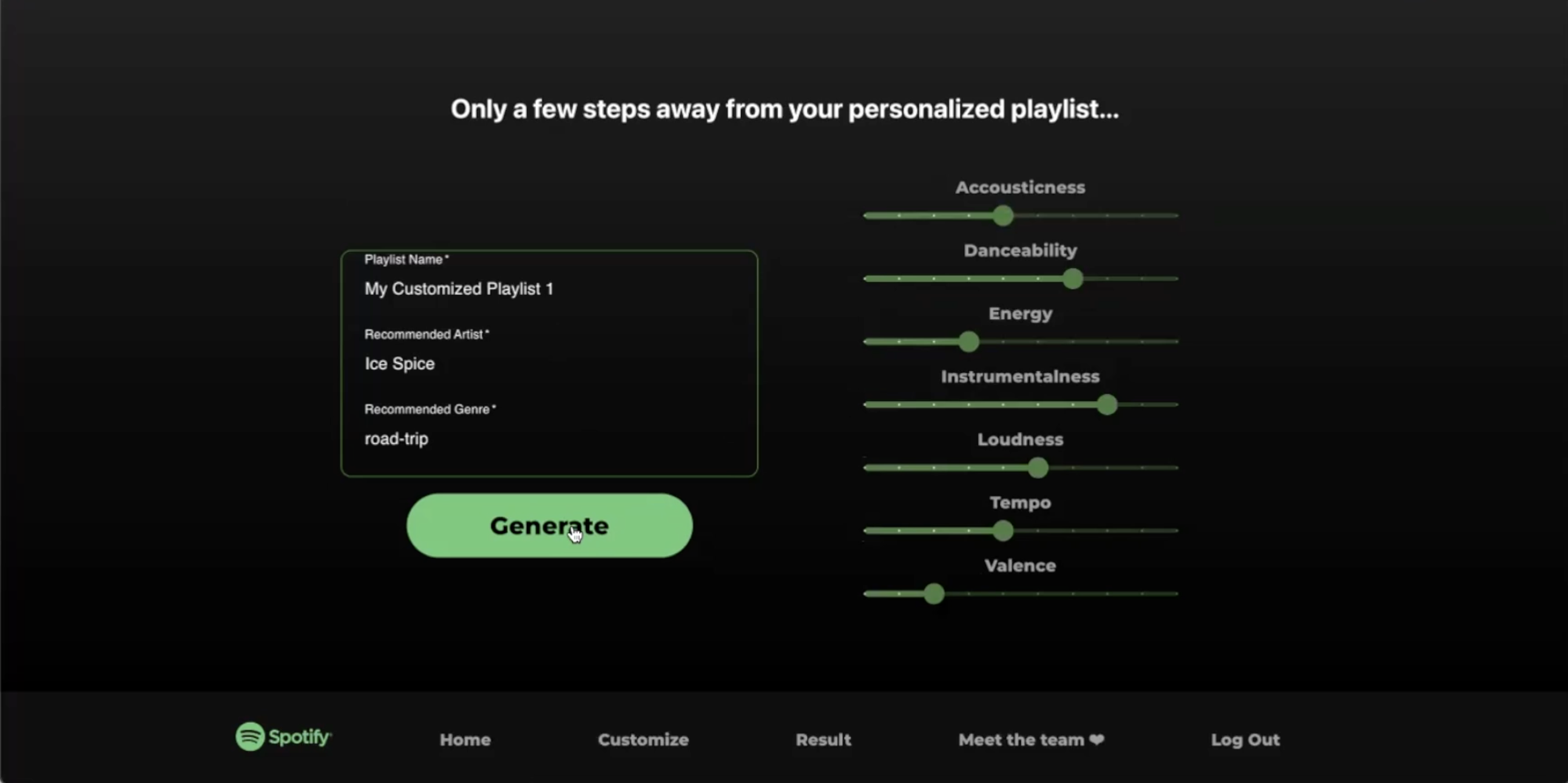 Users can input a playlist title, Recommended Artist, Recommended Genre, as well as other parameters that change the sound of the playlist. Clicking "Generate" will send their choices to our application to create a custom playlist. Similarly, this playlist will be displayed to the user.
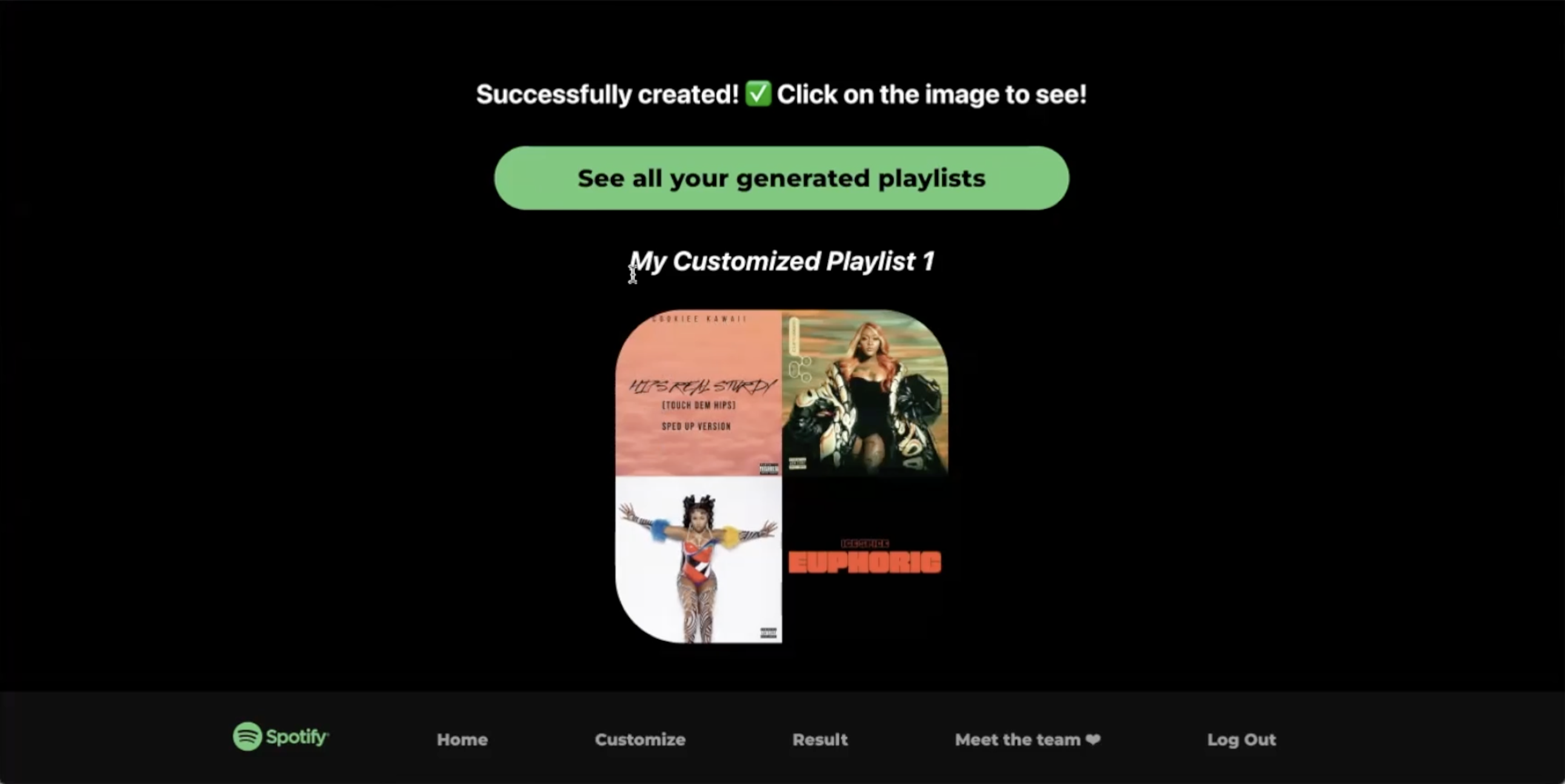 Clicking on the playlist cover will show them the playlist in Spotify.
Finally, the user can navigate to the "Results" page, which shows them five previously generated playlists. They can follow these links to Spotify and listen.
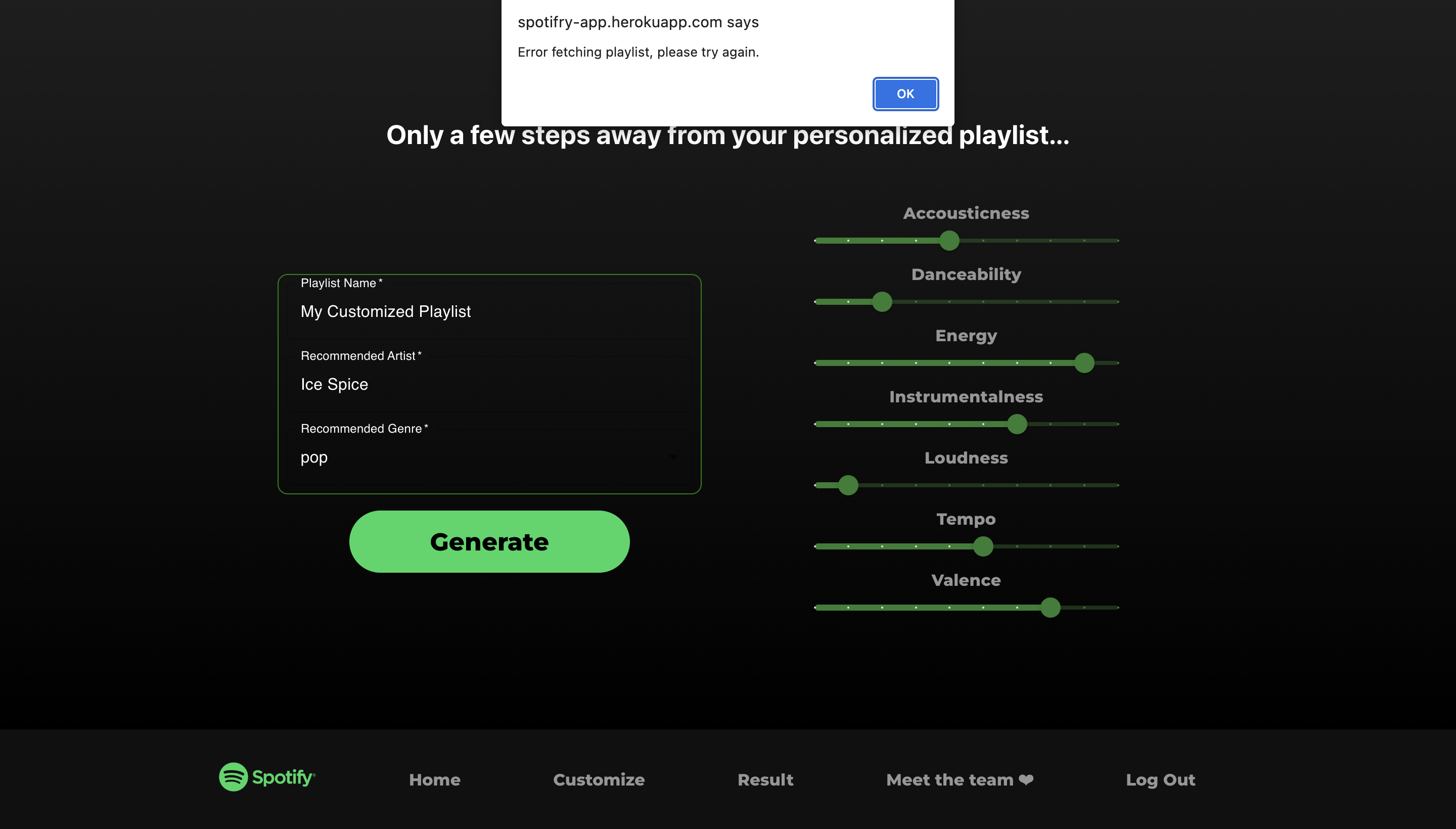 If any errors are encountered, please make sure that we have whitelisted your account and all parameters are valid. If the issue persists, contact our team so we may remedy the errors.
The user can log out by clicking "Log Out" in the bottom right corner. After doing so, they will be redirected to the Login page.