



Quantum Metal is an open-source framework for engineers and scientists to design superconducting quantum devices with ease.
As part of the v0.5 release, we are formally beginning the transition of the project:
- New project name: Quantum Metal
- Current import path:
qiskit_metal(will remain until a follow-up PR) - Repository rename: This repository will soon be renamed to
quantum-metal - GitHub continuity: We will keep the same repo, issues, stars, forks, and history
- PyPI transition:
qiskit-metalwill remain available in a stable, archived state - Future package:
quantum-metal(or similar) will be published after the import change PR
This ensures a smooth, non-breaking transition for all existing users.
Quantum Metal has graduated from being an IBM maintained project and is now one of the core tools in a growing community ecosystem for superconducting quantum device design and education, including:
-
Quantum Device Workspace (QDW) – https://qdw-ucla.squarespace.com/ Hosted annually at UCLA/USC with invited leaders in the field. Recent speakers include: Michel Devoret, Andreas Wallraff, Zlatko Minev, Eli Levenson-Falk. Video recordings
Sign for 2026 to meet the community, learn from experts, and participate directly.*
-
Quantum Device Consortium (QDC) — an upcoming community organization that will maintain and evolve Quantum Metal as part of a shared ecosystem of tools (including SQUADDS, SQDMetal, scqubits, pyEPR, and many others). (Website and governance page) Discord Channel here
Originally developed at IBM, originated by Dr. Zlatko K. Minev, Qiskit Metal has, over the last two years, naturally transitioned into a community-driven project supported by multiple universities, research groups, labs, and individual contributors.
This v0.5 release marks the formal graduation into that next phase of the project’s life.
Development continues through the QDC, the community, and active maintainers, working in close collaboration with Zlatko Minev and contributors across QDW/QDC who are shaping this next chapter.
This release is the result of a substantial collective effort. Our deepest thanks go to:
Sadman Ahmed Shanto, Abhishek Chakraborty, PositroniumJS, SamWolski, Nicolas Dirnegger, Eli Levenson-Falk, and Murat Can Sarıhan
for their extensive testing, debugging, patching, platform validation, and contributions to the massive PySide6 transition in PR #1002.
We are grateful to all users, contributors, and maintainers who continue to move the project forward.
During the transition to Quantum Metal, the package is still published on PyPI under the legacy name qiskit-metal until the import path is updated in a follow-up release. The instructions below ensure users can install the new v0.5 release while keeping compatibility.
If you prefer installing from source or contributing, please follow the developer installation guide in the documentation and/or the developer README.
For now, Quantum Metal v0.5 is not published on PyPI. The only way to install the updated version is directly from source. Clone the repository and install it locally.
Use Python 3.10 or 3.11 — newer versions (≥3.12) may cause NumPy build failures due to missing wheels.
Key notes to keep in mind:
- Python 3.10/3.11 ensure full binary wheel availability for NumPy, SciPy, GDSTK, and GeoPandas.
- macOS ARM users should avoid Python 3.12+ to prevent C/C++ toolchain errors.
uvis the preferred and fastest method and avoids most scientific‑stack headaches.
First install uv, then close the repository, use python 3.11, set up the virtual environment, then install requirements and Quantum Metal.
curl -LsSf https://astral.sh/uv/install.sh | sh

git clone https://github.com/qiskit-community/qiskit-metal.git quantum-metal
cd quantum-metal

uv python pin 3.11
uv venv
source .venv/bin/activate

uv pip install -r requirements.txt
uv pip install -e .conda create -n quantum-metal python=3.11
conda activate quantum-metal
pip install -r requirements.txt
pip install -e .python3.11 -m venv qm_env
source qm_env/bin/activate
pip install --upgrade pip
pip install -r requirements.txt
pip install -e .We recommend using Jupyter Notebook/Lab to access the full GUI and interactive features. If Jupyter is not installed in your environment, install it with:
pip install jupyterlabIf needed, add your environment as a Jupyter kernel:
python -m ipykernel install --user --name quantum-metalNow that Qiskit Metal is installed, it's time to begin working with it. We are ready to try out a quantum chip example, which is simulated locally using the Qiskit MetalGUI element. This is a simple example that makes a qubit.
from qiskit_metal import designs, MetalGUI, open_docs, draw

# Start a planar-chip quantum device design
design = designs.DesignPlanar()
design.chips.main.size.size_x = '11mm'
design.chips.main.size.size_y = '9mm'
print(design.chips.main)

# Launch the Qiskit Metal GUI to interactively view, edit, and simulate the design
gui = MetalGUI(design)

# Create a new qubit form the library, a transmon, by creating an object of this class.
from qiskit_metal.qlibrary.qubits.transmon_pocket import TransmonPocket
# Let's also add a connector pad, called "a" with default options, you can overwrite them as dictionary keys
q1 = TransmonPocket(design, 'Q1', options=dict(connection_pads=dict(a=dict())))

# To see qubit, rebuild the design with this new qubit in place
gui.rebuild()
# Select for editing, highlight, and autoscale gui view
gui.edit_component('Q1')
gui.autoscale()

# Change options.
q1.options.pos_x      = '0.5 mm'
q1.options.pos_y      = '0.25 mm'
q1.options.pad_height = '90um'
q1.options.pad_width  = '455um'
q1.options.pad_gap    = '30 um'

# Update the component geometry after changing the options.
gui.rebuild()
gui.autoscale()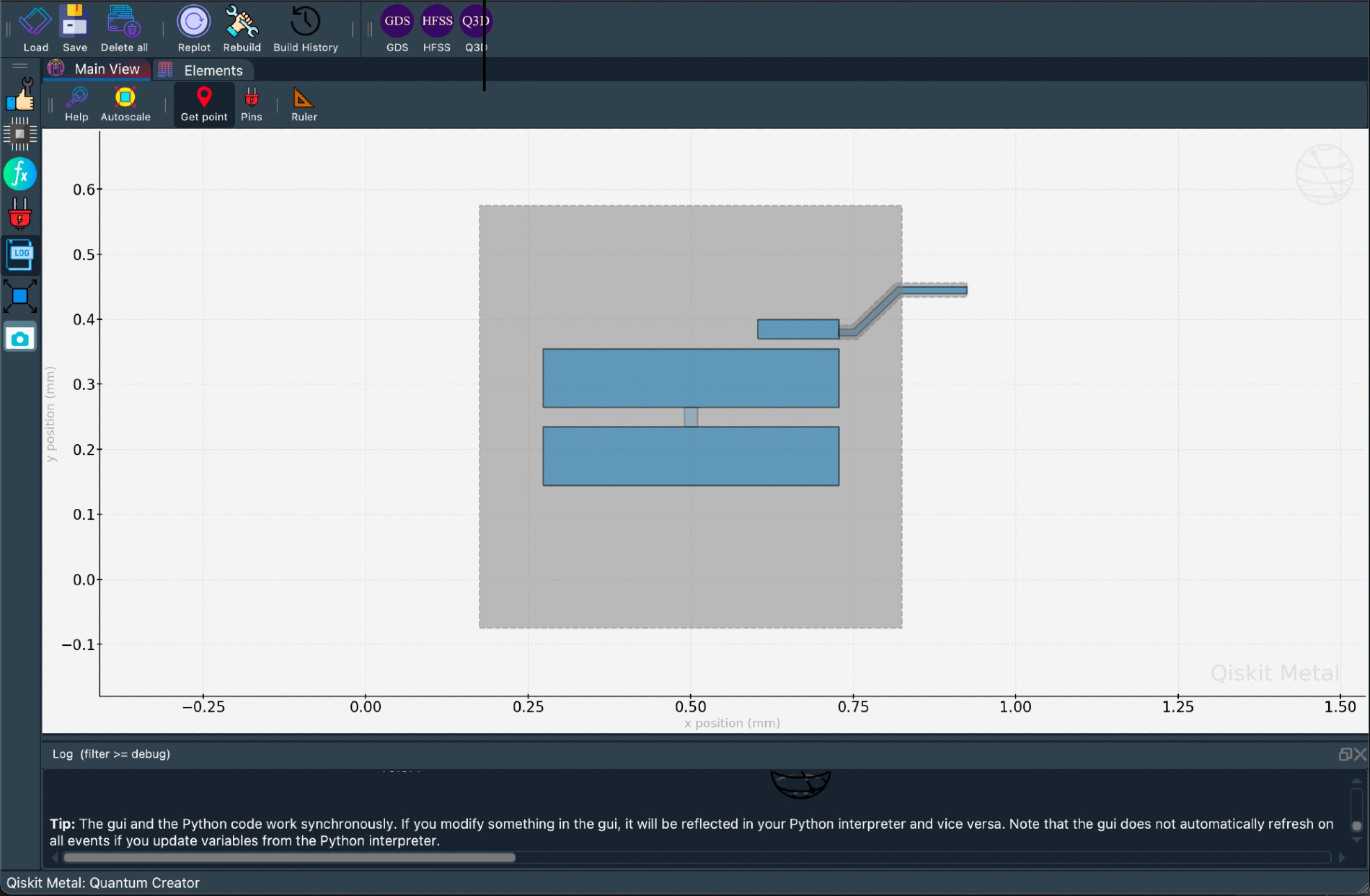
Get a list of all the qcomponents in QDesign and then zoom on them.
all_component_names = design.components.keys()
gui.zoom_on_components(all_component_names)>>> gui.main_window.close()A script is available here, where we also show the overview of Qiskit Metal.

The streaming will also be recorded and made available here for offline review.
Through June 2021 we are offering live tutorials and Q&A. Sign up to receive an invite to the upcoming sessions. The streaming will also be recorded and made available for offline review. Find here more details on schedule and use the Slack channel to give us feedback and to request the most relevant content to you.

Use the slack channel. Join qiskit slack and then join the #metal channel to communicate with the developers and other participants. You may also use this channel to inquire about collaborations.
If you'd like to contribute to Qiskit Metal, please take a look at our contribution guidelines. This project adheres to Qiskit's code of conduct. By participating, you are expected to uphold this code. We use GitHub issues for tracking requests and bugs. Please join the Qiskit Slack community and use our Qiskit Slack channel for discussion and simple questions. For questions that are more suited for a forum we use the Qiskit tag in the Stack Exchange.
Now you're set up and ready to check out some of the other examples from our Qiskit Metal Tutorials repository or Qiskit Metal Documentation.
The Qiskit Metal codebase is organized into several key modules, each with a distinct role in enabling the design, analysis, and visualization of quantum circuits. Below is an overview of the primary components and their interactions, discussed deeper in the Architecture Readme and the docs:
   %%{init: {"flowchart": {"htmlLabels": true}, 'theme':'forest'} }%%
    graph TB
        classDef core fill:#87cefa,stroke:#000000;
        classDef gui fill:#FFDDC1,stroke:#000000;
        classDef renderer fill:#DBB9FF,stroke:#000000;
        classDef utility fill:#FFD700,stroke:#000000;
        classDef design fill:#90EE90,stroke:#000000;
        classDef analysis fill:#FFB6C1,stroke:#000000;

        subgraph Qiskit_Metal
            subgraph Core
                QLibraryComponents["QLibrary Components"]
                QDesign["QDesign"]
                QComponent["QComponent"]
                QRoute["QRoute"]
                BaseQubit["BaseQubit"]
            end

            subgraph GUI
                MetalGUI["MetalGUI"]
            end

            subgraph Renderers
                QRenderer["QRenderer"]
                QRendererGui["QRendererGui"]
                QGDSRenderer["QGDSRenderer"]
                QAnsysRenderer["QAnsysRenderer"]
                QHFSSRenderer["QHFSSRenderer"]
                QQ3DRenderer["QQ3DRenderer"]
                QPyaedt["QPyaedt"]
                QGmshRenderer["QGmshRenderer"]
                QElmerRenderer["QElmerRenderer"]
            end

            subgraph Analyses
                Hamiltonian["Hamiltonian"]
                Sweep_Options["Sweep_Options"]
            end

            subgraph Utilities
                Parsing["Parsing"]
                Exceptions["Exceptions"]
                Logging["Logging"]
                Toolbox["Toolbox"]
            end
        end

        QLibraryComponents --> QDesign
        QRenderer --> QDesign
        QRendererGui --> QRenderer
        MetalGUI --> QRendererGui
        MetalGUI --> QLibraryComponents
        MetalGUI --> QDesign
        QGDSRenderer --> QRenderer
        QAnsysRenderer --> QRenderer
        QHFSSRenderer --> QRenderer
        QQ3DRenderer --> QRenderer
        QPyaedt --> QRenderer
        QGmshRenderer --> QRenderer
        QElmerRenderer --> QRenderer
        Parsing --> QDesign
        Exceptions --> QDesign
        Logging --> QDesign
        Toolbox --> QDesign
        QDesign --> QComponent
        QDesign --> QRoute
        QDesign --> BaseQubit
        Hamiltonian --> QDesign
        Sweep_Options --> QDesign

        class QLibraryComponents,QDesign,QComponent,QRoute,BaseQubit core;
        class MetalGUI gui;
        class QRenderer,QRendererGui,QGDSRenderer,QAnsysRenderer,QHFSSRenderer,QQ3DRenderer,QPyaedt,QGmshRenderer,QElmerRenderer renderer;
        class Parsing,Exceptions,Logging,Toolbox utility;
        class Hamiltonian,Sweep_Options analysis;
The Core module serves as the backbone of Qiskit Metal, housing essential elements for design and component creation:
- QLibrary Components: Predefined library of quantum circuit elements, such as qubits and resonators, that can be used in designs.
- QDesign: The central design framework that integrates all components and handles design rules.
- QComponent: Base class for all components in the design.
- QRoute: Specialized class for managing connections between components.
- BaseQubit: Represents foundational qubit structures used in circuit designs.
The Renderers module facilitates exporting designs to external tools for electromagnetic simulation and layout rendering:
- QRenderer: Base class for all renderers.
- QRendererGui: GUI interface for managing renderers.
- Specialized renderers like:
- QGDSRenderer
- QAnsysRenderer
- QHFSSRenderer
- QQ3DRenderer
- QPyaedt
- QGmshRenderer
- QElmerRenderer
These renderers enable integration with industry-standard tools for detailed simulation and fabrication.
The Analyses module includes tools for performing simulations and extracting insights from designs:
- Hamiltonian: Supports calculations of Hamiltonian parameters.
- Sweep Options: Provides tools for parametric sweeps and optimizations.
The GUI module provides tools for user-friendly interaction with Qiskit Metal. The MetalGUI clas is the primary graphical interface for managing designs and visualizations. It is discussed in more depth in the Architecture Readme.
The Utilities module supports the overall functionality of Qiskit Metal by offering supplementary tools.
- The Core modules form the foundation and integrate tightly with the Renderers, GUI, and Analyses modules.
- The GUI depends on the Core and Renderers to provide visualization and interactivity.
- The Renderers serve as bridges between Qiskit Metal and external tools, interacting with the Core to export designs.
- The Analyses modules leverage the Core to extract meaningful data for optimization and validation.
- The Utilities modules provide essential supporting functionalities across the entire codebase.
This modular structure ensures scalability, flexibility, and ease of use for designing, analyzing, and fabricating quantum circuits.
Qiskit Metal is the work of many people who contribute to the project at different levels. Metal was conceived and developed by Zlatko Minev at IBM; then co-led with Thomas McConkey. If you use Qiskit Metal, please cite as per the included BibTeX file. For icon attributions, see here.
The changelog provides a quick overview of notable changes for a given release.
The changelog for a particular release can be found in the correspondent Github release page. For example, you can find the changelog for the 0.0.4 release here
The changelog for all releases can be found in the release page:
Additionally, as part of each release detailed release notes are written to document in detail what has changed as part of a release. This includes any documentation on potential breaking changes on upgrade and new features.


