





A zero-dependency Python library for ANSI coloring and smart CLI icons that automatically adapt to your environment.
- Preview
- What is RazTint?
- Why RazTint?
- Features
- Requirements
- Installation
- Quick Start
- Configuration
- API Reference
- Icons & Detection
- Performance & Debugging
- Development
- Support
- License
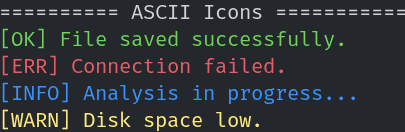
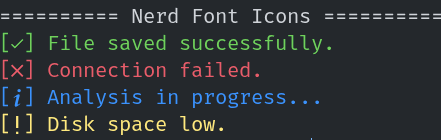
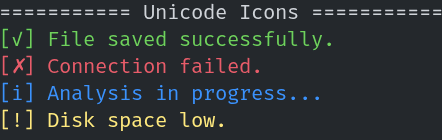
| ASCII Icons | Nerd Font Icons | Unicode Icons |
|---|---|---|
 |
 |
 |
RazTint is a zero-dependency Python library for colored terminal output and smart CLI icons that automatically adapt to your environment.
If you need a lightweight alternative to colorama or rich for simple CLI tools, RazTint focuses on:
- Zero dependencies
- Automatic icon fallback (Nerd → Unicode → ASCII)
- Automatic color detection
- Cross-platform behavior
- Minimal runtime overhead
- Zero dependencies (standard library only)
- Smart icon fallback (Nerd → Unicode → ASCII)
- Automatic color detection
- Windows VT support
- Fully typed API
- Environment-based configuration
- Python 3.9 or newer
pip install raztintpipx install raztintgit clone https://github.com/razbuild/raztint.git
cd raztint
pip install -e . # -e allows you to modify the source code in placeYou can import functions directly for quick usage, or instantiate the class for more control.
The easiest way to use RazTint is importing the pre-instantiated helpers:
from raztint import green, red, ok, err, info, warn

# Coloring text
print(green("Success! The operation completed."))
print(red("Critical Error: Database not found."))

# Using Icons (Auto-adapts to Nerd Font/Unicode/ASCII)
print(f"{ok()} File saved successfully.")
print(f"{err()} Connection failed.")
print(f"{info()} Analysis in progress...")
print(f"{warn()} Disk space low.")from raztint import tint
print(tint.red("text"))
print(tint.ok(), "hello")Useful if you need to toggle color support dynamically within an application instance or want a scoped instance.
from raztint import RazTint

tint = RazTint()

# Toggle features manually if needed
tint.set_color(False)

print(tint.blue("This will be plain text now because color is disabled."))from raztint import ok, err, warn, info
print(ok(), "Operation completed")
print(err(), "An error happened")
print(warn(), "Be careful")
print(info(), "For your information")RazTint attempts to make your CLI look as good as possible by detecting the font capabilities of the terminal.
| Mode | ok | err | warn | info | Condition |
|---|---|---|---|---|---|
| Nerd | [] | [] | [] | [] | Detected Nerd Font via Env/Registry |
| Std | [✓] | [✗] | [!] | [i] | UTF-8 supported, no Nerd Font |
| ASCII | [OK] | [ERR] | [WARN] | [INFO] | Fallback |
Note: Icons may not render correctly in GitHub preview depending on your browser font.
RazTint determines the best available icon and color mode using the following rules:
-
Nerd Font Mode:
- Enabled if:
RAZTINT_USE_NERD_ICONSenvironment variable is set to1,true,yes, oron, ORNERDFONTSorNERD_FONTSenvironment variable is set, ORFONT_NAMEorTERM_FONTenvironment variable contains "nerd" or "nf-", OR- A Nerd Font is detected via system checks:
- Linux: Uses
fc-list(fontconfig) to check installed fonts - macOS: Checks via
system_profilerand font directories (~/Library/Fonts,/Library/Fonts) - Windows: Checks
C:\Windows\Fontsdirectory via PowerShell
- Linux: Uses
- Enabled if:
-
Standard Unicode Mode:
- Enabled when UTF-8 encoding is available AND
RAZTINT_NO_NERD_ICONSis set (explicitly disables Nerd Fonts), OR- Nerd Fonts are not detected and not forced via
RAZTINT_USE_NERD_ICONS
-
ASCII Mode:
- Used when:
- Output encoding is not UTF-8 (cannot encode Nerd Font or Unicode characters), OR
- System encoding test fails for Unicode characters
- Used when:
To install Nerd Fonts, visit the official website.
You can control RazTint behavior using environment variables. This is useful for CI/CD pipelines or user overrides.
| Environment Variable | Value | Description |
|---|---|---|
NO_COLOR |
any | Disables all color output (standard specification). |
RAZTINT_NO_COLOR |
any | Specific override to disable RazTint colors. |
RAZTINT_FORCE_COLOR |
1, true, yes, on |
Forces color output even if not a TTY. |
RAZTINT_USE_NERD_ICONS |
1, true, yes, on |
Forces the use of Nerd Font icons. |
RAZTINT_NO_NERD_ICONS |
1, true, yes, on |
Disables Nerd Font detection (falls back to Standard Unicode mode). |
RAZTINT_SKIP_SYSTEM_FONT_SCAN |
1, true, yes, on |
Skips OS-level font scanning; only environment-based nerd font hints used. |
RAZTINT_DEBUG |
1, true, yes, on |
Enables debug logging about color/icon/font detection decisions to stderr. |
from raztint import tint
tint.set_color(False)NO_COLOR=1
RAZTINT_USE_NERD_ICONS=1
RAZTINT_FORCE_COLOR=1
RAZTINT_NO_NERD_ICONS=1
The following functions return strings wrapped with ANSI styling when supported:
-
black(text) -
red(text) -
green(text) -
yellow(text) -
blue(text) -
magenta(text) -
cyan(text) -
white(text) -
gray(text)
Internally, these use tint.color().
These return appropriate status symbols based on environment detection:
-
ok()- Returns a success icon (green checkmark) -
err()- Returns an error icon (red cross) -
warn()- Returns a warning icon (yellow exclamation) -
info()- Returns an info icon (blue 'i')
RazTint selects the best available style in this order:
- Nerd Font icons (if installed)
- Unicode icons (if UTF-8 is supported)
- ASCII fallback
When using the RazTint class directly, you have access to additional methods:
Low-level method to apply ANSI color codes to text. Returns the text with ANSI escape sequences when color is enabled, otherwise returns plain text.
Parameters:
text: The text to colorizefg_code: ANSI color code (e.g., "31" for red, "32" for green)
Example:
from raztint import RazTint

tint = RazTint()
colored = tint.color("Hello", "31") # Red textEnable or disable color output programmatically.
Parameters:
enabled:Trueto enable colors,Falseto disable
Example:
from raztint import RazTint

tint = RazTint()
tint.set_color(False)  # Disable colors
print(tint.red("This will be plain text"))Boolean indicating whether color output is currently enabled. This is automatically set based on environment detection but can be modified via set_color().
Current icon mode being used. Possible values:
"nerd"- Nerd Font icons"std"- Standard Unicode icons"ascii"- ASCII fallback icons
Color support is determined by checking (in order):
NO_COLORorRAZTINT_NO_COLORenvironment variables (disables colors)RAZTINT_FORCE_COLORenvironment variable (forces colors)- Whether output is connected to a TTY (
sys.stdout.isatty()) - On Windows: Attempts to enable Virtual Terminal processing
TERMenvironment variable (must not be "dumb")
If color is not supported, all color functions return plain text.
In most environments, RazTint's detection overhead is negligible thanks to internal caching. However, in restricted or slow environments you can:
-
Disable OS-level font scanning while still allowing env-based nerd font hints:
RAZTINT_SKIP_SYSTEM_FONT_SCAN=1
-
Inspect why a particular mode was chosen (color on/off, icon mode, font detection) by enabling debug logs:
RAZTINT_DEBUG=1
Debug messages are printed to standard error and are disabled by default.
If you want to work on RazTint locally:
-
Clone the repository and install in editable mode with development tools:
git clone https://github.com/razbuild/raztint.git cd raztint pip install -e .[dev] -
Run the test suite:
python -m pytest
-
Run formatting, linting, and type checking (kept in sync with CI):
black src tests
ruff check src tests
ty check src tests
- 🐛 Found a bug? Open an issue
- 💡 Have a suggestion? Open an issue
- 📧 Questions? Check the Documentation
MIT License