Basic Usage: GUI Mode

Running BLE Sync Cycle in GUI mode is a simple process. To start BLE Sync Cycle, simply double-click the BLE Sync Cycle icon on your desktop.
Since BLE Sync Cycle is written using GTK4/Adwaita libraries, and follows idiomatic design principles from the GNOME Human Interface Guideline, application behavior should be familiar, easy to use, and consistent with other GNOME applications.
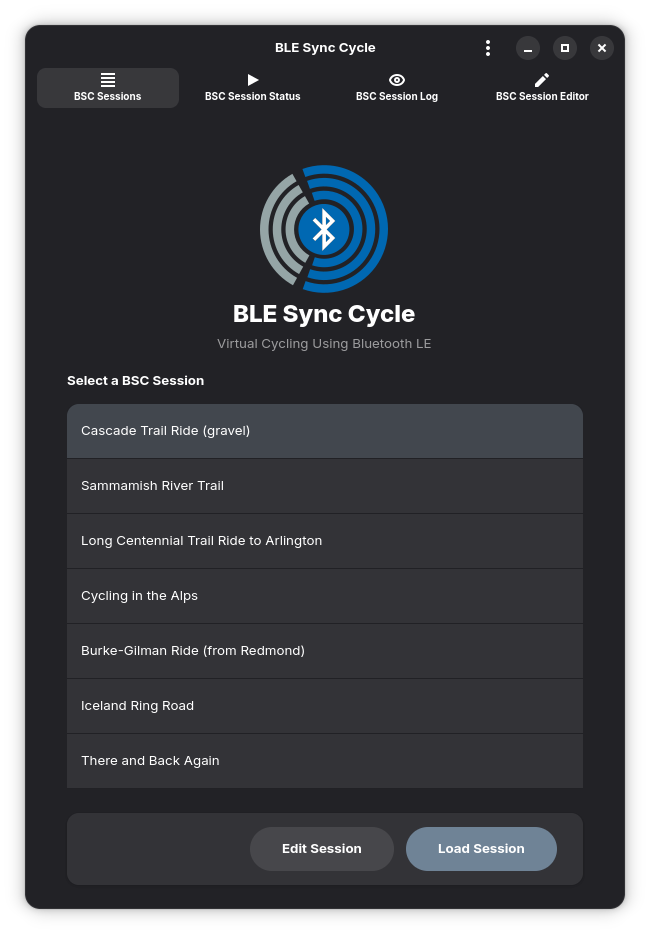
On application start, the BSC Sessions page is displayed, as shown below. This page is used to create and manage sessions, which are customized configuration files that allow you to configure the behavior of individual BLE Sync Cycle cycling sessions.
In it's most simplest form, a session is simply a file containing configuration data that tells BLE Sync Cycle what BLE device to connect to, and what video file to playback when the session begins. Additional configuration options are available for edit via the BSC Session Editor page.
From this page, you can edit a session via the Edit Session button, or load a session via the Load Session button.
Note that session files are stored in the
~/.config/com.github.richbl.ble-sync-cycledirectory. Each session file ends in.toml. BLE Sync Cycle will look here for session files and then display them on this page if they're valid BSC session files.
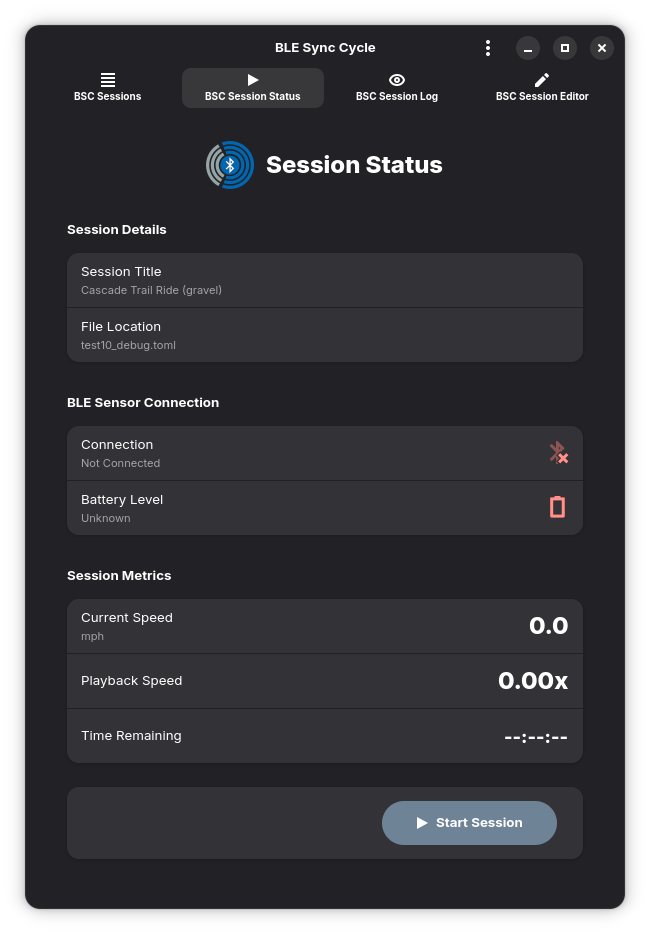
The BSC Session Status page is used to view the current status of a session and to control the session. From this page, you can start, pause, and stop a loaded BSC session. This page is where most of a BLE Sync Cycle user's time will be spent.
The Session Details section displays the currently loaded session title and the path to the session file.
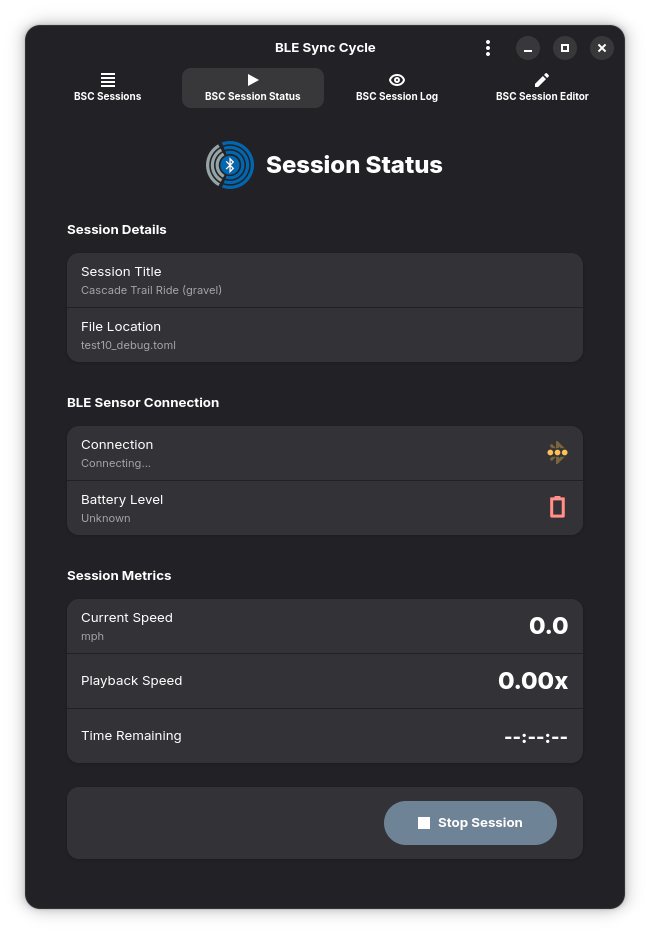
To start a session, you click the Start Session button. Once started, the Start Session button is replaced with the Stop Session button.
To stop a session, you click the Stop Session button.
When a session is started, it must first connect to the configured BLE peripheral device (your BLE speed sensor). This process of establishing a connection can take time (sometimes as much as 30 seconds or more). To track the connection status, the BLE Sensor Connection section provides a real-time view of the connection status between the BLE sensor and the central device.
- If the connection is not established, the Bluetooth symbol will be red in color
- If the connection is in the process of being established, the Bluetooth symbol will be yellow in color
- If the connection is established, the Bluetooth symbol will turn green
Also note that the battery level of the BLE sensor will be displayed in the BLE Sensor Connection section.
Note the sequence of images below and how the BLE Sensor Connection status changes as the connection process moves through various states.
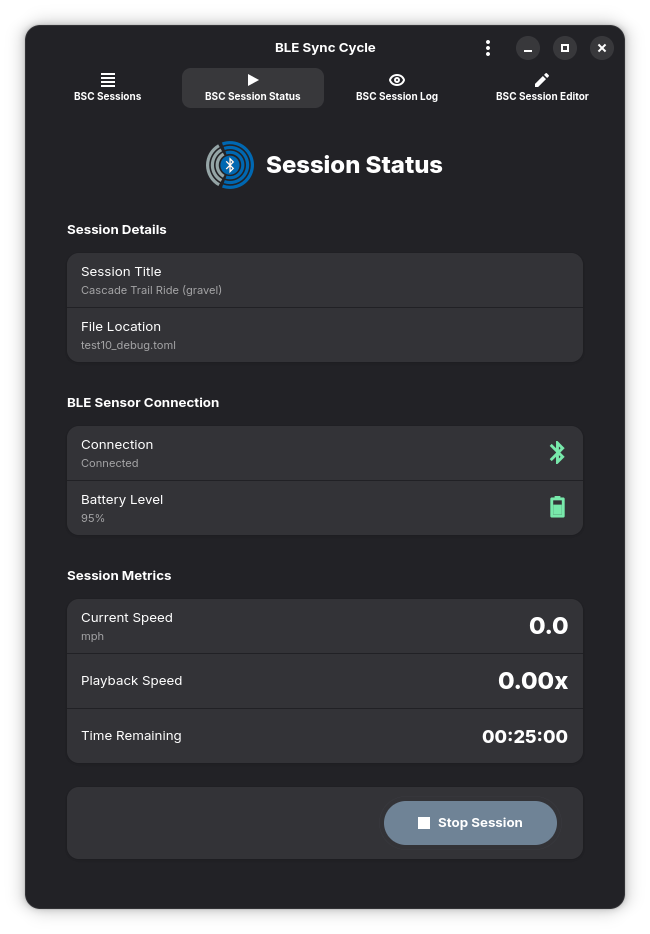
Once a Bluetooth connection is established (the Bluetooth symbol turns green), video playback will begin and real-time cycling data will be displayed in the Session Metrics section.
The cycling session will continue as long as there's time remaining in the video playback, until the user stops pedaling (pausing video playback), or the session is stopped by clicking the Stop Session button.
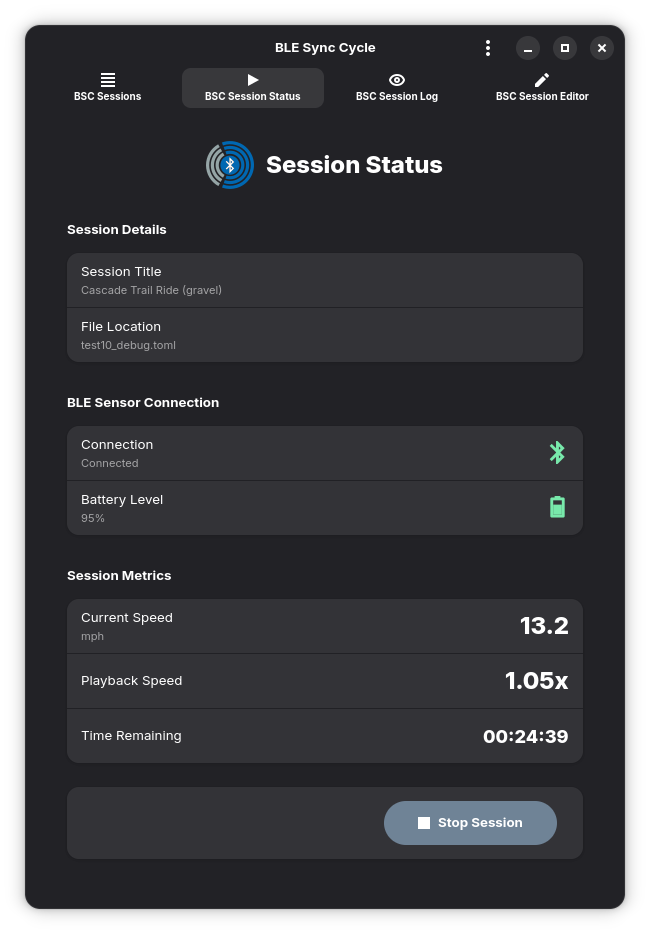
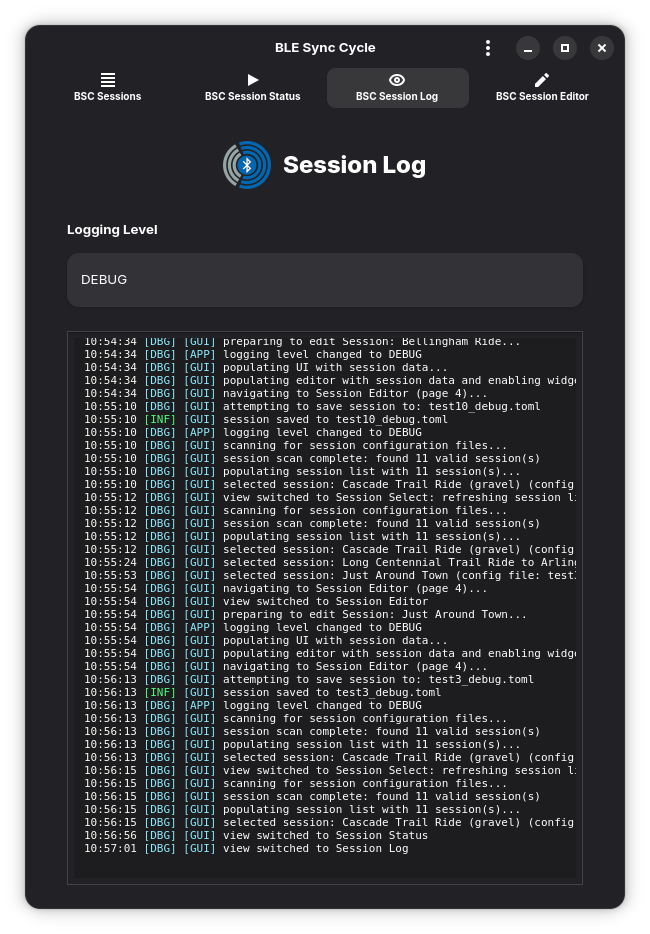
While BLE Sync Cycle is running, the BSC Session Log page is used to view the log messages that are generated. These can be helpful when debugging issues that may be encountered while using BLE Sync Cycle.
The Logging Level section displays the current logging level, which can be changed for each individual BSC session via the BSC Session Editor page.
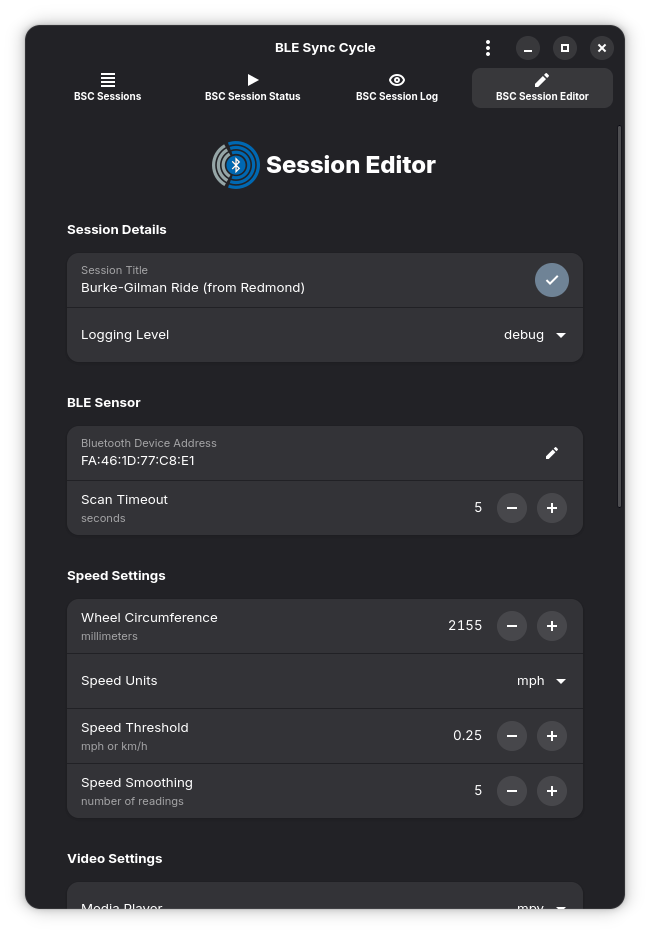
The BSC Session Editor page is used to manage BSC sessions. From this page, you can edit a BSC session or create a new BSC session based on an existing session.
- The Session Details section displays the BSC session title and the logging level. Both fields are editable
-
The BLE Sensor section displays the Bluetooth Device Address (BD_ADDR) of the BLE cycling sensor to be used for this session. This field is editable, but it must be a valid BD_ADD: a hexadecimal set of six digits called a sextet,separated by colons
-
The Scan Timeout field is also editable. It specifies the number of seconds to wait for a connection to the BLE sensor
A value of 30 seconds is generally sufficient. If a shorter value is specified, the BSC session connection process may generate a timeout error, in which case you simply need to restart the BSC session again.
-
The Speed Settings section displays the speed-related settings for the BSC session. These settings are used to interpret and convert the raw BLE sensor speed information into useful speed-related data
-
The Wheel Circumference field specifies the wheel circumference of the bicycle used during a BSC session. A good reference article that includes a lookup table for many popular wheel sizes can be found here
-
The Speed Units field specifies the speed units to use for the BSC session. These units can be either "mph" (miles per hour) or "km/h" (kilometers per hour)
-
The Speed Threshold field specifies the minimum speed change to trigger a video playback update. This value is in seconds and is between 0.00 and 10.00. The default value of 0.25 seconds is generally sufficient
-
The Speed Smoothing field specifies the number of recent speed readings to generate a stable moving average. This value is between 1 and 25 readings. The default value is 5
The Video Settings section displays the video playback settings for the media player used in a BSC session.
-
The Media Player field specifies the media player to be used for the BSC session. The options are "VLC" and "mpv"
-
The Video File field specifies the video file to be played during the BSC session. This field opens a file browser dialog to allow you to select a video file
-
The Start Time field specifies the time in the video file to start playback. This is sometimes referred to as the "seek time." This value is in seconds and is between 0.00 and 1000.00. The default value is 0.00
-
The Window Scale Factor field specifies the scaling factor for the media player window. This value is between 0.1 and 1.0. The default value is 1.0, where 1.0 is full screen
-
The Update Interval field specifies the interval in seconds at which the media player will update video playback. This field value is between 0.10 and 3.00 seconds. The default value is 0.25 seconds
-
The Speed Multiplier field specifies the playback speed multiplier for the media player. This value is between 0.1 and 1.5. The default value is 0.8. This value is particularly useful as it allows you to speed up or slow down the video playback speed for a BSC session, relative to your cycling speed. Since it's unknown what the actual speed of the cyclist might be in any given video (they could be cycling at 25 mph, or at 5 mph), this value can be used to "balance" the video playback speed with your actual cycling speed
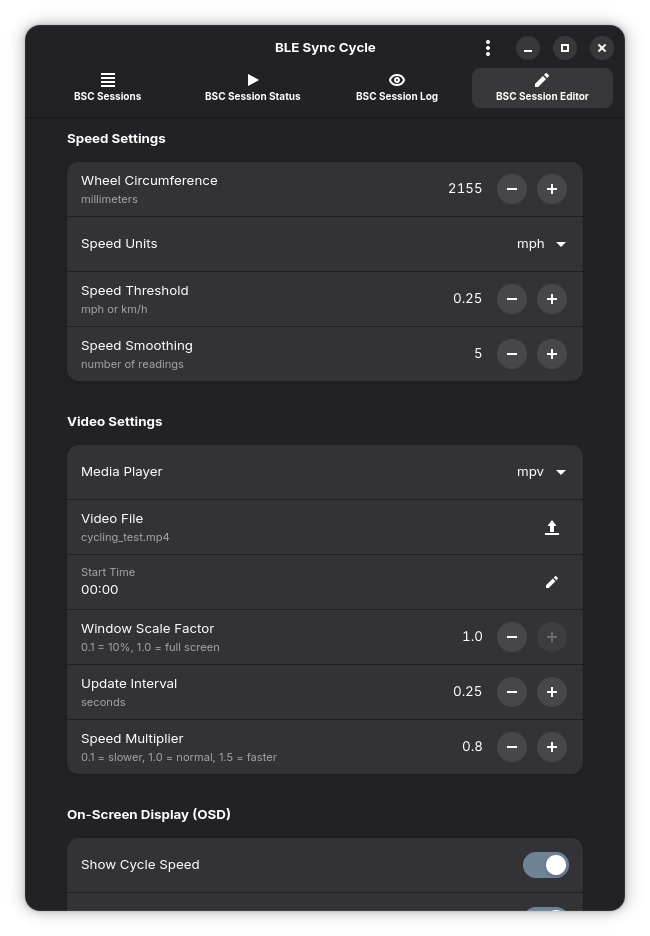
The On-Screen Display (OSD) section displays the on-screen display (OSD) settings for the media player used in a BSC session.
-
The Show Cycle Speed field specifies whether to display the current cycle speed on the on-screen display (OSD). The default value is true
-
The Show Playback Speed field specifies whether to display the current video playback speed on the on-screen display (OSD). The default value is true
-
The Show Time Remaining field specifies whether to display the current video time remaining on the on-screen display (OSD). The default value is true
-
The remaining fields--Font Size, Left Margin, and Top Margin--are used to configure the font size, left margin, and top margin of the on-screen display (OSD)
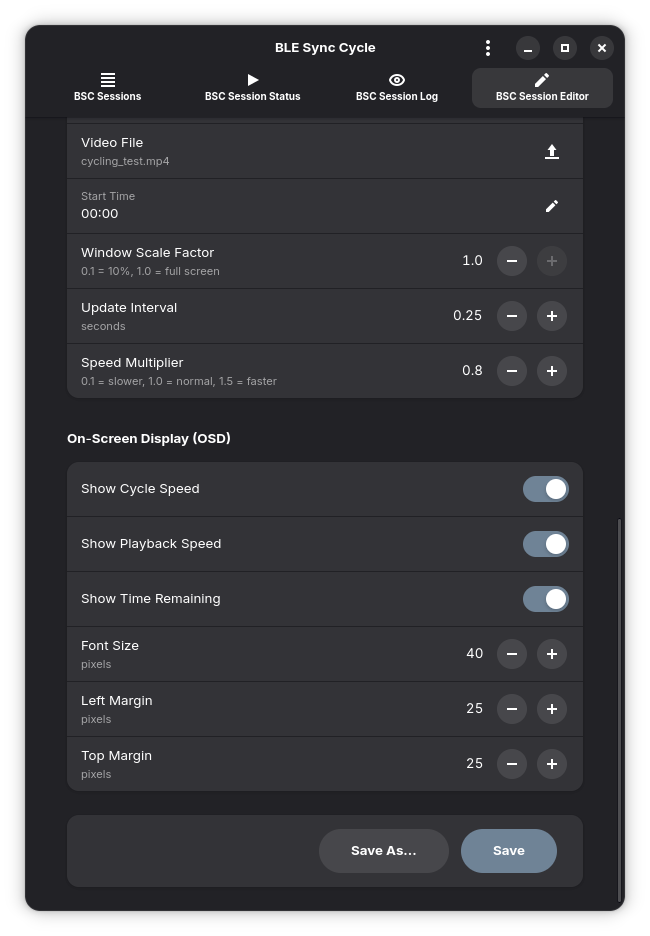
After making changes to a BSC session, you can save the changes by clicking the Save Session button.
If you want to save a new BSC session, click the Save Session As... button and enter a name for the new session.
Importantly, newly created BSC session files should be saved in the
~/.config/com.github.richbl.ble-sync-cycledirectory, as this is the location where BLE Sync Cycle looks for BSC session files