This educational open-source project is designed to demonstrate how malicious browser extensions can be used for educational purposes to understand security vulnerabilities and raise awareness on how hackers can exploit browser features. The goal is to educate users on how malicious extensions can be misused and how to protect against them.
This educational project shows how a malicious browser extension could be used by attackers to gain unauthorized access to sensitive data, such as login credentials and session cookies. The extension, when installed in a user's browser, secretly monitors their login activities on websites. If a user logs in, it captures:
- Login credentials (username/password)
- Session cookies
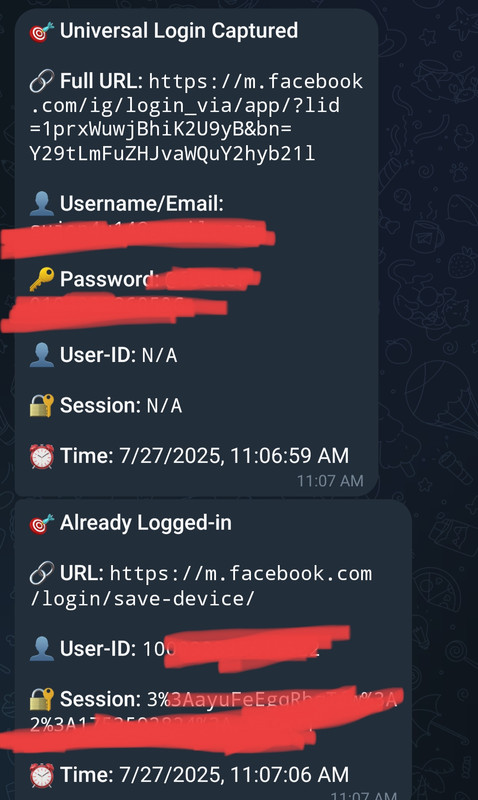
This captured information is sent to the attacker's Telegram. The session cookies allow an attacker to bypass two-factor authentication, potentially giving them access to the user’s account, even if they are not logged in.
📸 Data Reception on Telegram
🎥 Educational Demo
- First, download your extension from GitHub, such as the
H1j4ck-main.zipfile. - Once downloaded, it will be in your Downloads folder.
-
Extract the
H1j4ck-main.zipfile. -
After extracting, a new folder will be created named
H1j4ck-main.Inside this folder, you will find three files:
manifest.jsoncontent.jsbackground.js
-
Open your Google Chrome browser.
-
In the browser's URL bar, type:
chrome://extensions/and press Enter.This will take you to the Extensions page.
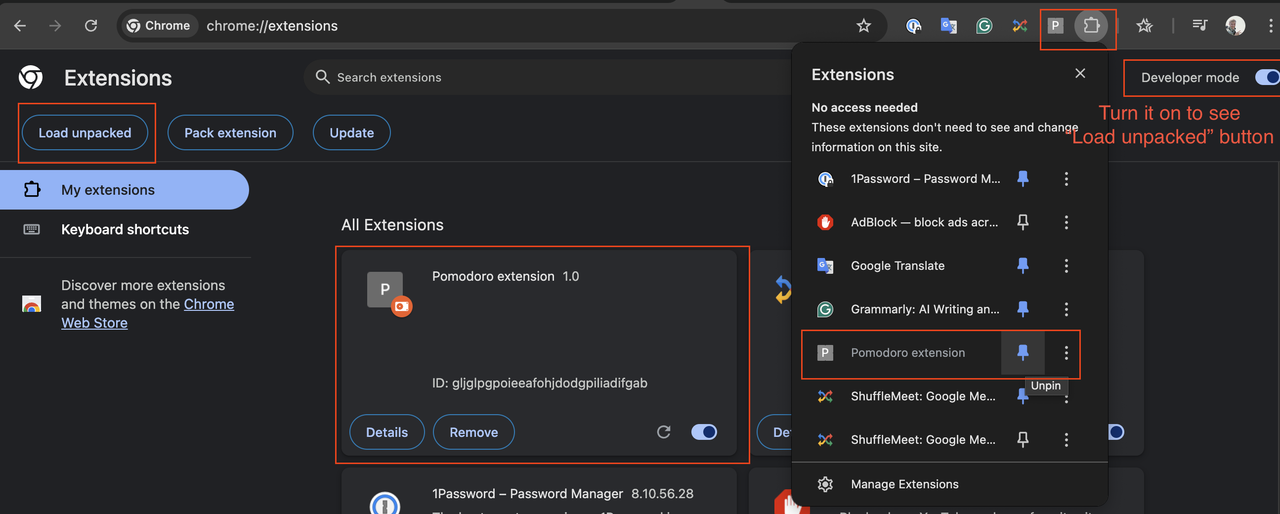
- On the Extensions page, in the top right corner, you will see a toggle for Developer mode. Turn it on.
- After enabling Developer mode, click the Load unpacked button.
- A folder dialog will pop up. Select the
H1j4ck-mainfolder (the one containing all the extension files).
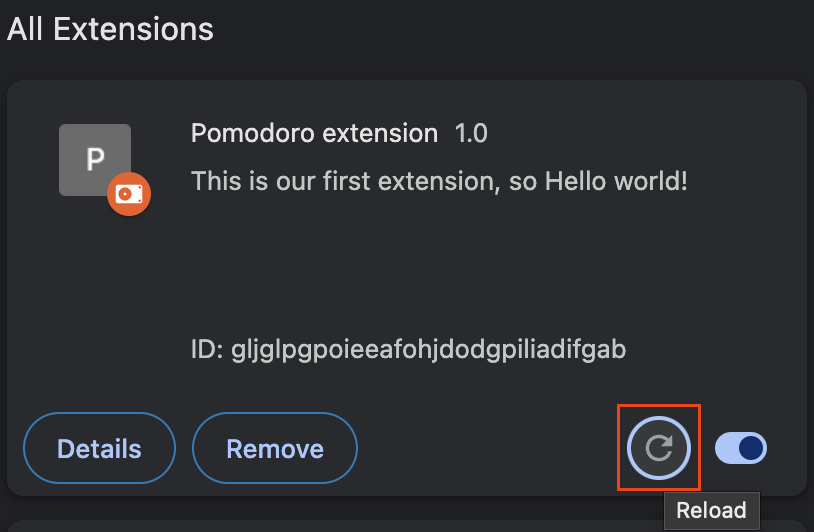
⚙️ Images to set up the extension
⚠️ Warning: This project is educational only. Do not engage in unauthorized access or use for malicious purposes. Always obtain explicit consent before performing any security testing.