
Reimagine Your Search Experience
A macOS app that integrates multiple search engines and AI assistants into a unified workspace for true parallel search and querying.


In the flood of information, we are used to opening one tab after another, repeatedly typing and searching across different websites for the same goal. This process not only fragments our thoughts but also consumes precious time.
Musa was born to end this inefficient cycle.
Inspired by lencx/Noi, Musa applies Noi's multi-AI integration concept to the broader field of search. It is not a browser, but a highly focused parallel information retrieval tool. With just one input, you can cast your query simultaneously across YouTube, Bilibili, Zhihu, Bing, and any custom websites or AI assistants you've added, allowing information to be presented in the most efficient and intuitive way.
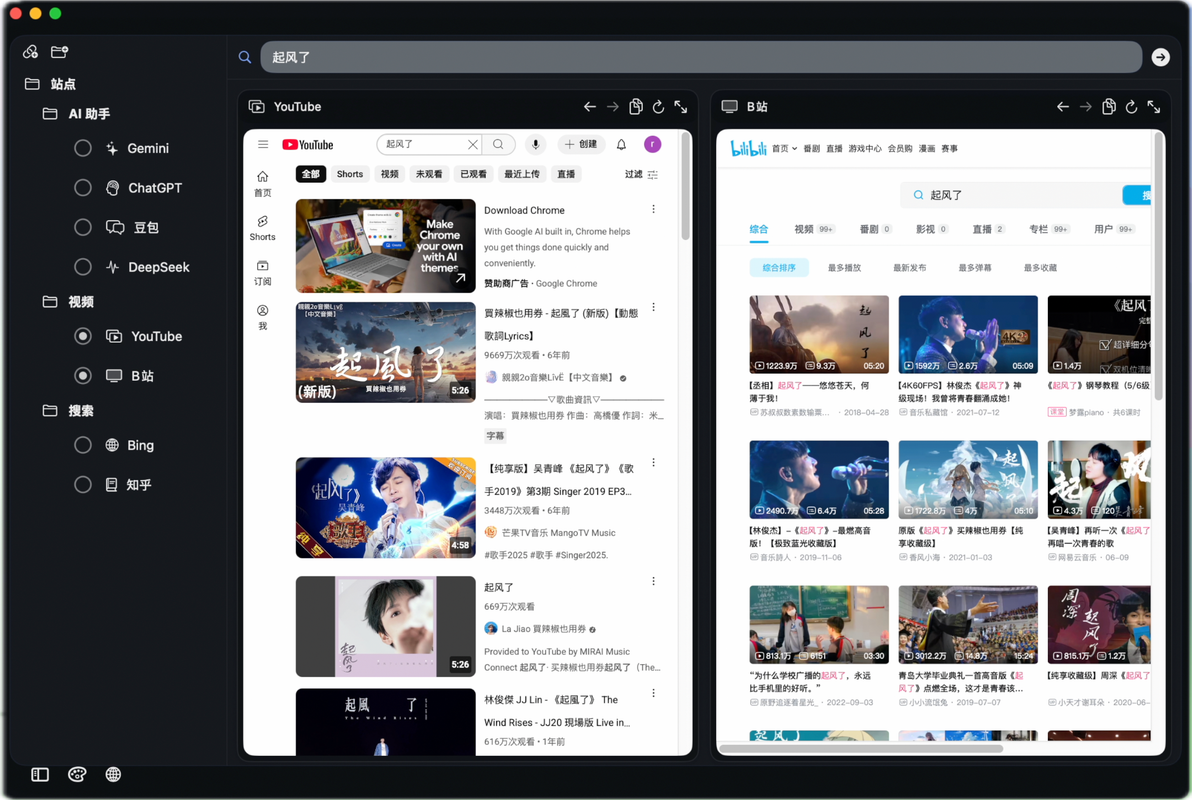
- Parallel Search: One input, simultaneous searches or queries across multiple preset websites and AI assistants.
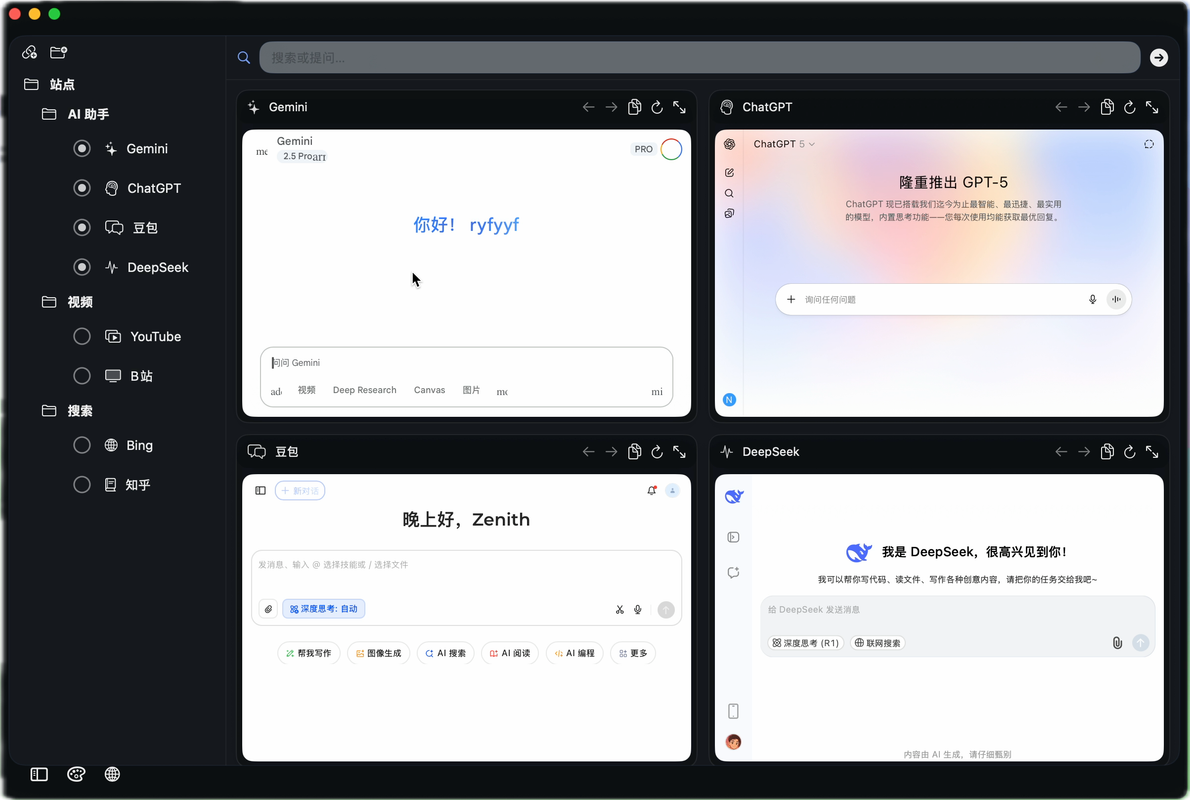
- Dynamic Grid Layout: The workspace automatically adapts to a one, two, three, or four-pane grid based on the number of enabled sites, always providing the optimal view.
- Highly Customizable Sidebar: Freely organize your favorite sites and AI assistants with drag-and-drop, editing, and folder creation.
- AI Assistant Integration: It's more than just search! You can directly ask questions to integrated AI services (like Gemini, ChatGPT), and Musa will automatically fill and submit your queries.
- Smart Template Recording: Want to add a new search engine? Simply perform a search in recording mode, and Musa will automatically learn its URL format for easy expansion.
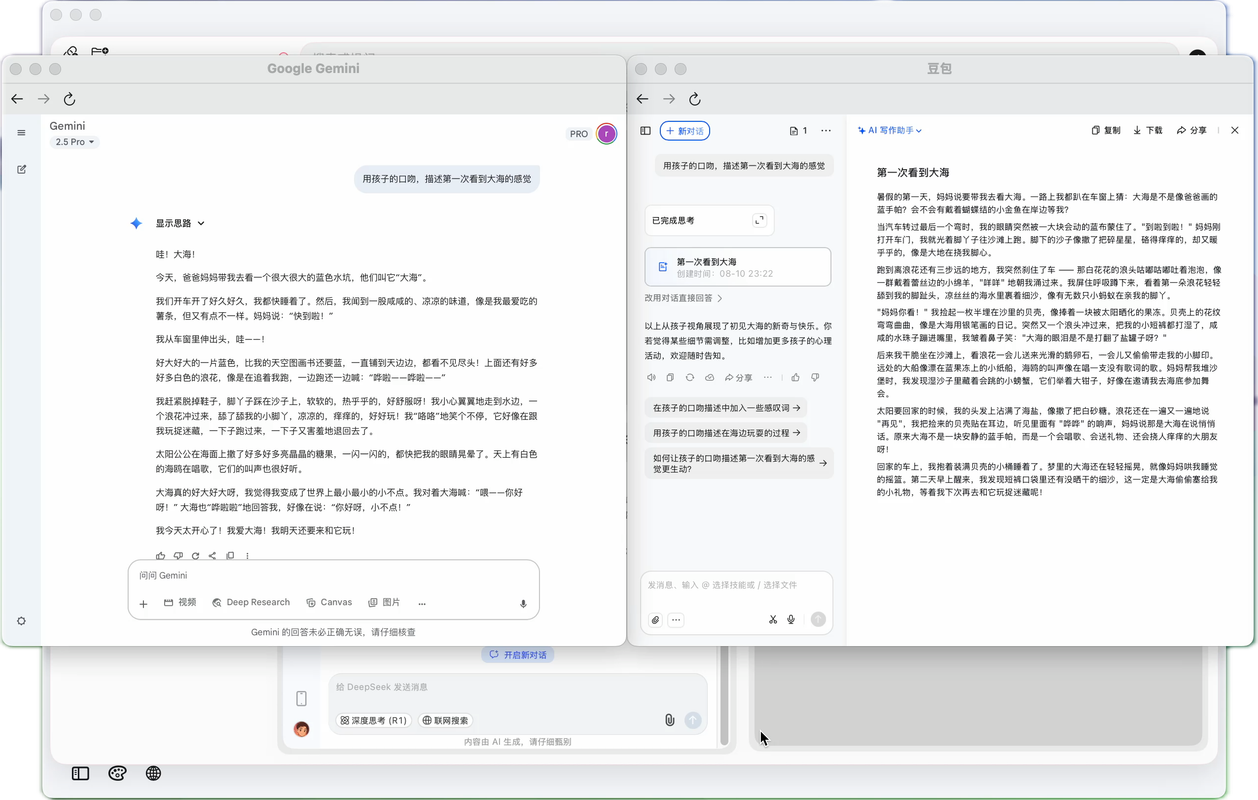
- Detached Window Mode: Need to focus on a specific task? Pop out any panel into a separate macOS window with a single click, and the main grid will automatically reflow.
- Personalized Themes: Comes with multiple built-in themes, from deep dark to creamy light, to match your mood.
- Multi-language Support: Native support for both English and Simplified Chinese interfaces, easily switchable.
Unified Search & Dynamic Layout
AI Assistant Mode
Personalization
- Go to the Releases page to download the latest .dmg file.
- Open the
.dmgfile. - Drag the Musa.app icon to the Applications folder alias.
- Done! You can now launch Musa from your Launchpad or Applications folder.
If Musa has been helpful to you, feel free to share it with others who might need it.