Dialog Edit File Properties
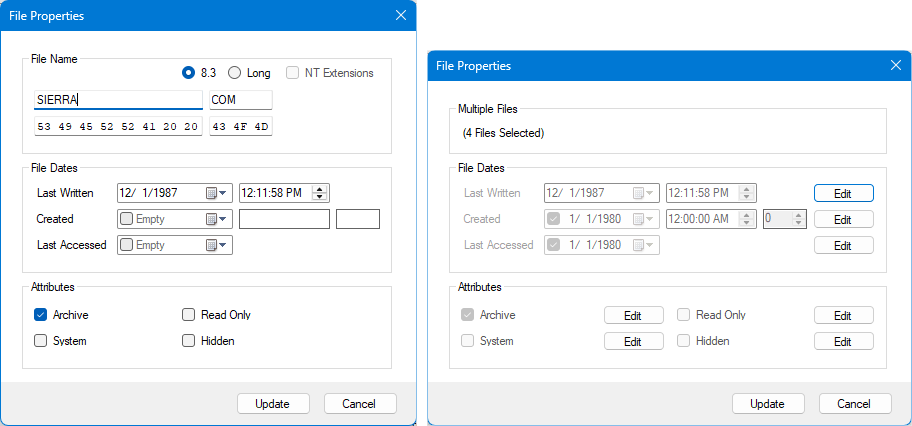
The File Properties dialog allows you to view and modify metadata associated with directory entries stored in a disk image.
Depending on the current selection, the dialog operates in either single-file or multi-file mode. In both cases, changes are staged and are not applied until Update is clicked.
- Menu: Edit → File Properties
- Toolbar: File Properties
- Context Menu: Edit File Properties (File Panel)
The File Properties dialog is used to:
- Edit file dates
- Modify file attributes
- Rename files (single-file mode only)
- Apply changes to multiple files at once
The dialog adapts automatically based on the number of selected files.
Single-file mode is shown when exactly one file is selected.
Allows editing of the file name when supported.
- Supports 8.3 and Long File Name formats
- Allows editing of:
- File name
- File extension
- Displays the underlying byte representation for reference
- NT Extensions are available only when editing a Long File Name
The available options update automatically based on the selected name format.
When editing a volume label, name format options are not available.
- 8.3, Long, and NT Extensions options are hidden
- A single input field is shown instead of separate name and extension fields
- The volume label is edited as a single value
Allows editing of file timestamps:
- Last Written
- Created
- Last Accessed
Each date field may be:
- Edited directly
- Marked as Empty, where supported
Date and time components can be adjusted independently.
Allows modification of standard FAT file attributes:
- Archive
- Read Only
- System
- Hidden
Attributes may be toggled directly.
Multi-file mode is shown when more than one file is selected.
A summary at the top of the dialog indicates how many files are affected.
- Date fields that exist on any selected file are shown
- Individual Edit buttons allow targeted changes
- Changes apply uniformly to all selected files
- Attribute changes apply to all selected files
- Each attribute includes an Edit button to control batch updates
File names are not editable in multi-file mode.
The New Directory dialog uses the same interface as the File Properties dialog.
When creating a new directory:
- The dialog operates in single-file mode
- Changes apply to the newly created directory entry
All behavior, validation, and update handling is identical to editing directory properties through the File Properties dialog.
- Applies all staged changes to the selected file or files
- Marks the image as modified
- Closes the dialog without applying changes
- The dialog operates on the active image
- Changes are fully undoable using the undo stack
- Date and attribute availability depends on filesystem capabilities
- In multi-file mode, only compatible changes are applied