UI Directory and File Panel
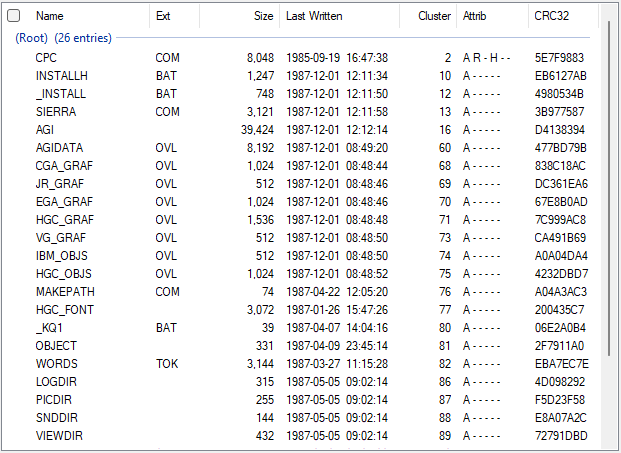
The Directory and File Panel displays the contents of the active image’s filesystem. It presents files and directories in a structured, sortable grid and provides visual indicators for modification state, errors, and special conditions.
The view is read-only by default and updates automatically when the active image changes.
Files are displayed in a tabular grid and are grouped by directory.
- The root directory is always shown and labeled (Root)
- Subdirectories are listed in the order they are enumerated in the image
- Each directory group displays:
- The directory name
- The number of entries it contains
Examples:
- (Root) (112 entries)
- (Root) (112 entries, Additional Data)
- (Root) (112 entries, Boot Sector)
- (Root) (112 entries, Boot Sector, Additional Data)
These labels indicate the presence of non-filesystem data, such as embedded boot sector copies or other additional data stored within the directory area.
All columns in the file view are sortable.
- Appears as the leftmost column
- Does not have a text header; the header contains a checkbox
- The checkbox acts as a check / uncheck all toggle
- File entries display:
- A # if the file has been modified
- Blank if the file is unmodified
This column provides a quick visual indicator of modification state.
- File name
- Displays the short (8.3) filename
- File extension
- File size in bytes
- Last written (modified) date of the file
- Starting cluster number for the file
- Displays cluster chain errors when present
- Only shown if an error exists
Possible values:
- CL — Cross-linked cluster
- CC — Circular cluster chain
- Displays file attributes using single-letter flags:
- A — Archive
- R — Read-only
- S — System
- H — Hidden
- D — Directory
- V — Volume Label
Attributes are displayed as letters when set or “-” when not set.
Example:
A - - - - -
Indicates only the Archive attribute is set.
- CRC32 checksum of the file contents
- File creation date
- Column appears only if at least one file in the image has a creation date
- File last accessed date
- Column appears only if at least one file in the image has a last accessed date
- Displays the long file name associated with the file
- Column appears only if at least one long file name exists in the image
- All columns are sortable
- Sorting applies within the current directory grouping
- Directory order remains fixed based on enumeration order in the image
The Directory and File View provides context-sensitive menus that operate on either a directory header or individual file entries.
These menus can be opened using the standard context menu action (for example, right-click), regardless of input method.
Menu contents and availability adapt based on what is selected.
Invoking the context menu on a directory header displays options that operate on the directory as a whole.
-
View Directory
Opens the directory in the hex editor. -
Import Files
Opens the Import Files dialog and imports files into the selected directory. -
New Directory
Opens the File Properties dialog and creates a new subdirectory under the selected directory.
Invoking the context menu on a directory entry (including files, directories, or volume labels) displays actions that operate on the selected item or items.
Menu options are enabled or disabled based on selection type and context.
-
Edit File Properties
Opens the File Properties dialog, allowing you to view and modify file metadata, timestamps, and attributes for the currently selected file or files.
See File Properties Dialog -
Export File
Exports the selected entry.Disabled for:
- 0-byte files
- Directories
- Volume labels
When multiple entries are selected, this becomes Export Selected Files.
-
Replace File
Opens the Replace File dialog, allowing the contents of an existing file in the image to be replaced with data from an external file.Disabled for:
- 0-byte files
- Directories
- Volume labels
Disabled entirely when multiple entries are selected.
-
View Root Directory / View Parent Directory
Opens the containing directory in the hex editor.- View Root Directory appears when the selected entry resides in the root directory
-
View Parent Directory appears when the selected entry resides in a subdirectory
Enabled only when all selected entries are in the same directory.
-
View Directory
Appears only when the selected entry is a directory.
Opens that directory in the hex editor.
-
View File
Opens the selected entry in the hex editor.
Disabled for:- 0-byte files
- Directories
- Volume labels
- Multi-file selections
-
View File as Text
Opens the selected entry in the text viewer.
Disabled under the same conditions as View File.
The text viewer is read-only.
-
Import Files
Opens the Import Files dialog and imports files into the same directory as the selected entry.
Enabled only when all selected entries are in the same directory. -
Import Files Here
Opens the Import Files dialog and inserts files immediately before the selected entry.
Disabled for multi-file selections. -
New Directory
Opens the File Properties dialog and creates a new subdirectory under the same directory as the selected entry.
Enabled only when all selected entries are in the same directory. -
New Directory Here
Creates a new directory immediately before the selected entry.
Disabled for multi-file selections.
-
Delete File
Marks the file as deleted using DOS-style deletion. The directory entry is retained, but the first character is replaced with0xE5.
When multiple files are selected, this becomes Delete Selected Files. -
Remove File
Completely removes the file from the directory.
If the file has not already been deleted, the Delete File dialog is shown first.
When multiple files are selected, this becomes Remove Selected Files.
When multiple files are selected:
- Edit File Properties opens a multi-file dialog
- Export File becomes Export Selected Files
- Replace File is disabled
- View File and View File as Text are disabled
- View Root Directory / View Parent Directory is enabled only if all files are in the same directory
- Import Files is enabled only if all files are in the same directory
- Import Files Here is disabled
- New Directory is enabled only if all files are in the same directory
- New Directory Here is disabled
- Delete File becomes Delete Selected Files
- Remove File becomes Remove Selected Files
Double-clicking a file entry automatically determines whether the file contains text or binary data:
- Text files are opened in the text viewer
- Binary files are opened in the hex editor
This behavior applies only to single-file selections.
- The file view always reflects the active image
- Modification indicators are informational and do not imply saved changes
- Presence of additional data or boot sector copies does not imply corruption
- Column visibility adapts automatically based on filesystem features
- Context menu behavior is consistent with equivalent Menu Bar and Toolbar actions
- Availability of options reflects selection type and filesystem state
- All actions operate on the active image